
This tutorial provides a step-by-step guide on how to merge multiple labels into a single label using the Label Enhancer for JIRA app from the admin page.
1. Merging Multiple Labels via Admin Page
1.1. Prerequisites
-
Ensure you have the necessary Jira administrator permissions to access the Label Enhancer for JIRA via global admin page.
-
Verify that at least two labels exist that you intend to merge.
-
Navigate to the admin Label Operation’s page in Jira.
1.2. How to Merge Labels
-
Access the Label Manager:
-
Log in to Jira as an administrator.
-
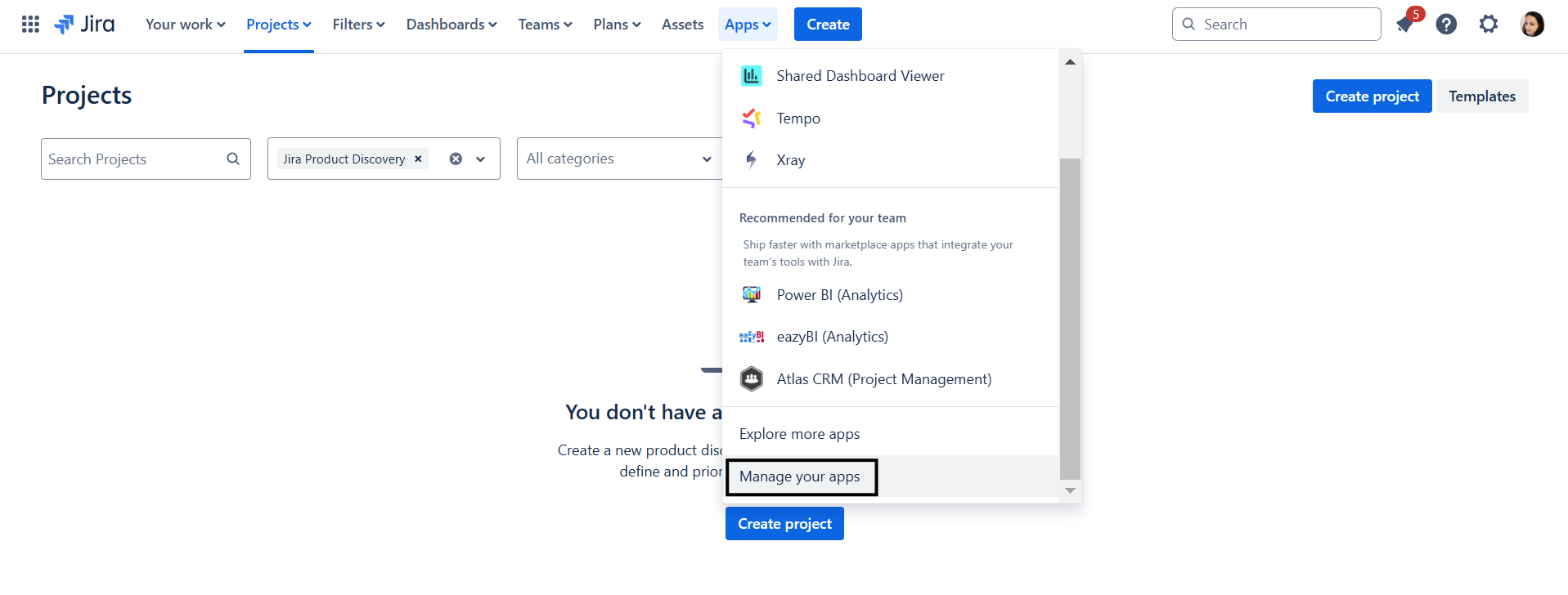
Navigate to the main menu and click on Apps.
-
Select Manage apps from the dropdown.
-
Locate and click on Label Enhancer for JIRA to open the Label Operation.
-
|
|---|
-
Select Labels to Merge:
-
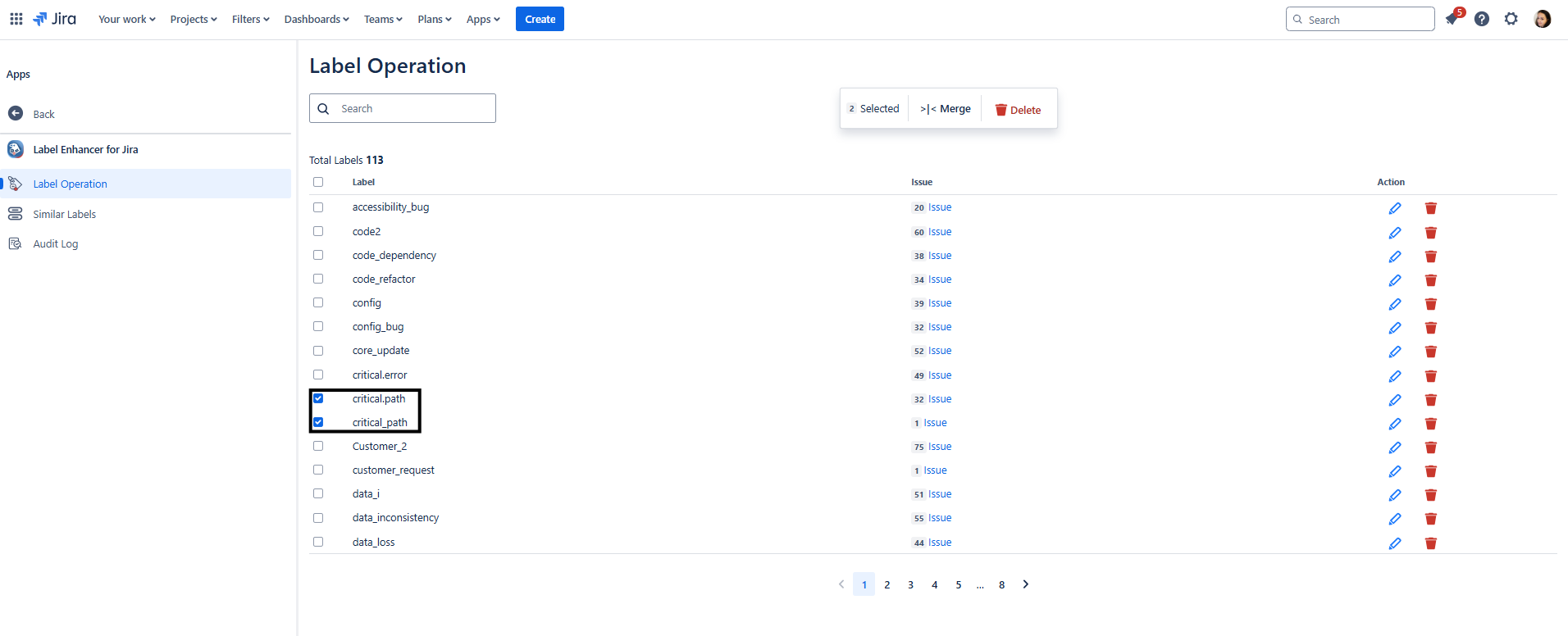
In the Label Manager, browse through the list of labels.
-
Use the checkboxes to select the labels you wish to merge. Ensure you select at least two labels.
-
|
|---|
-
Initiate the Merge Process:
-
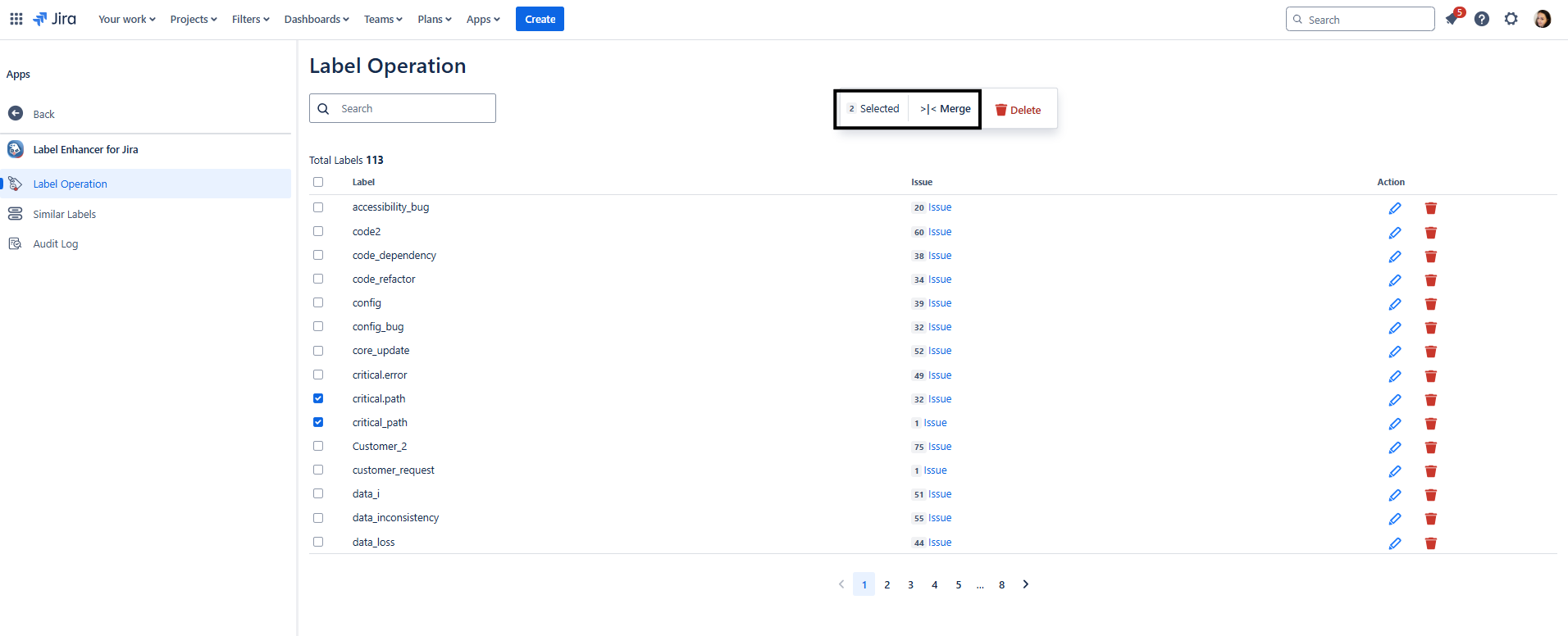
Click on the Merge button, located at the top of the label list.
-
|
|---|
-
Define the New Label:
-
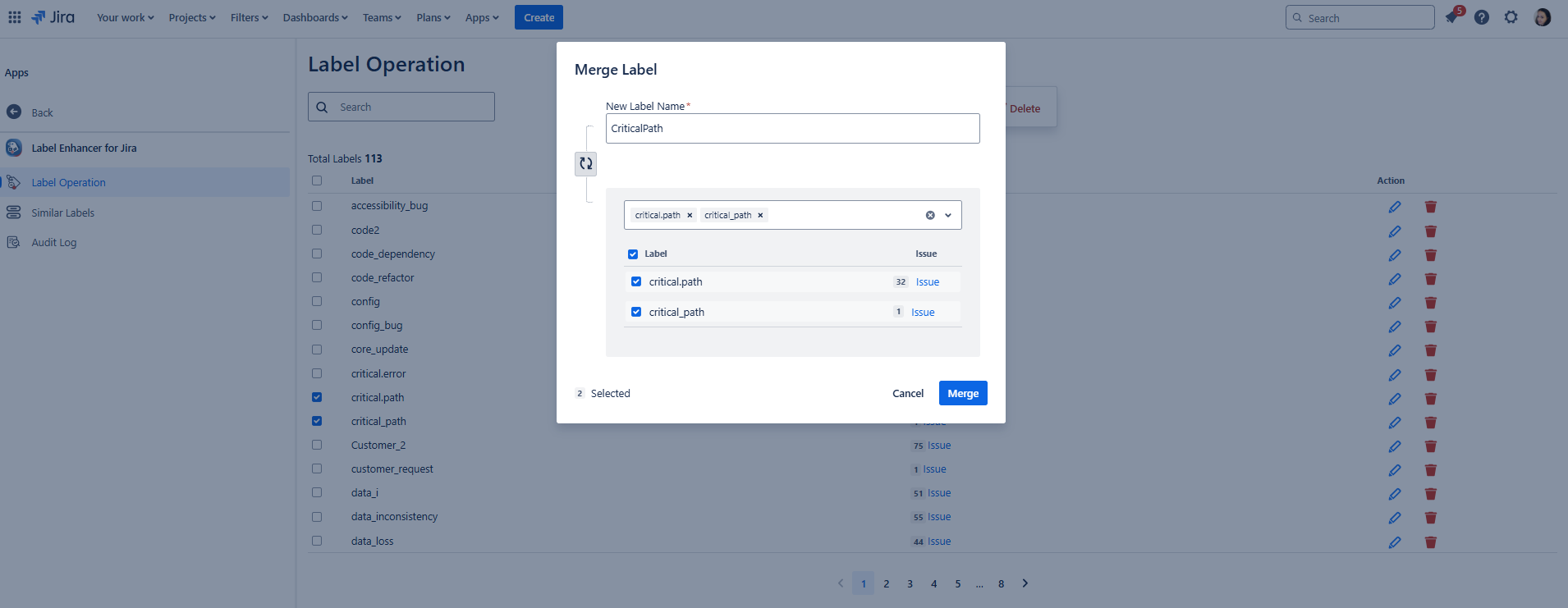
A merge modal will appear, prompting you to specify the new label name that will replace the selected labels.
-
Enter the desired name for the new merged label.
-
|
|---|
-
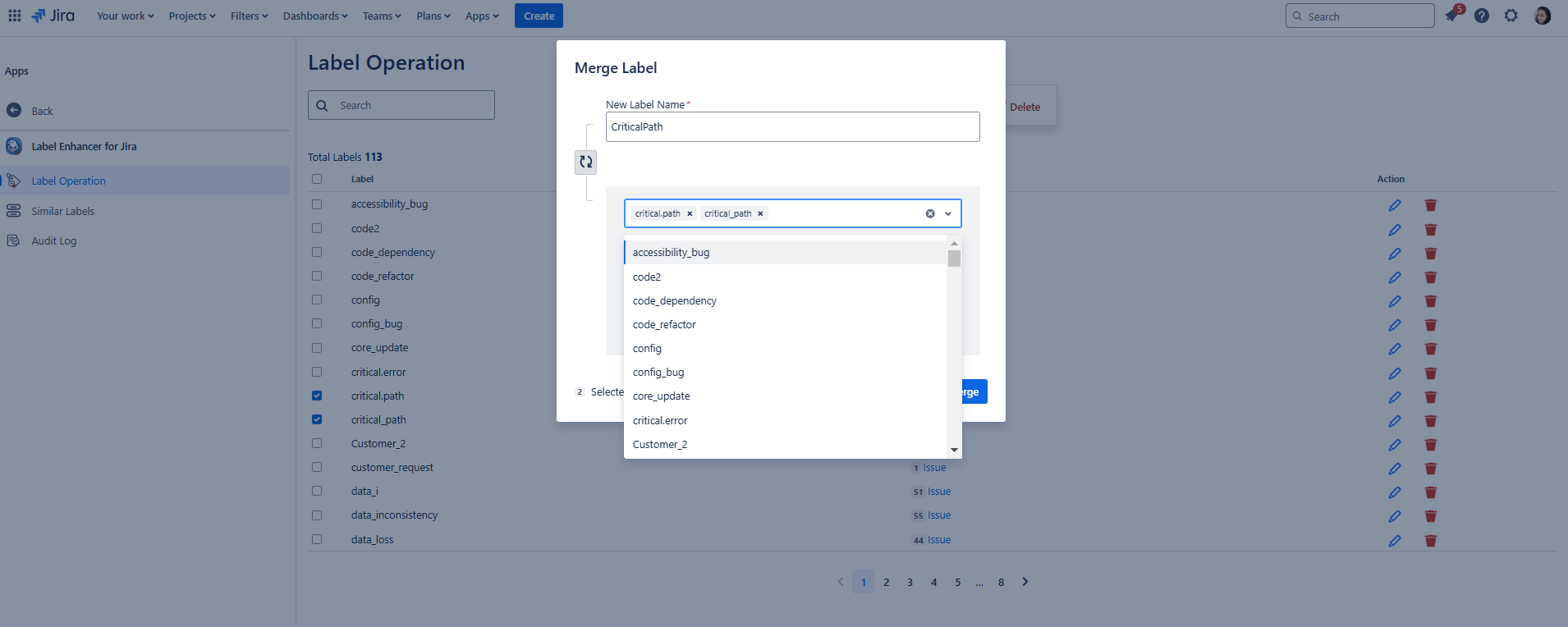
Additionally, on the modal window, you can add from the select list field more labels to merge.
|
|---|
-
Confirm the Merge:
-
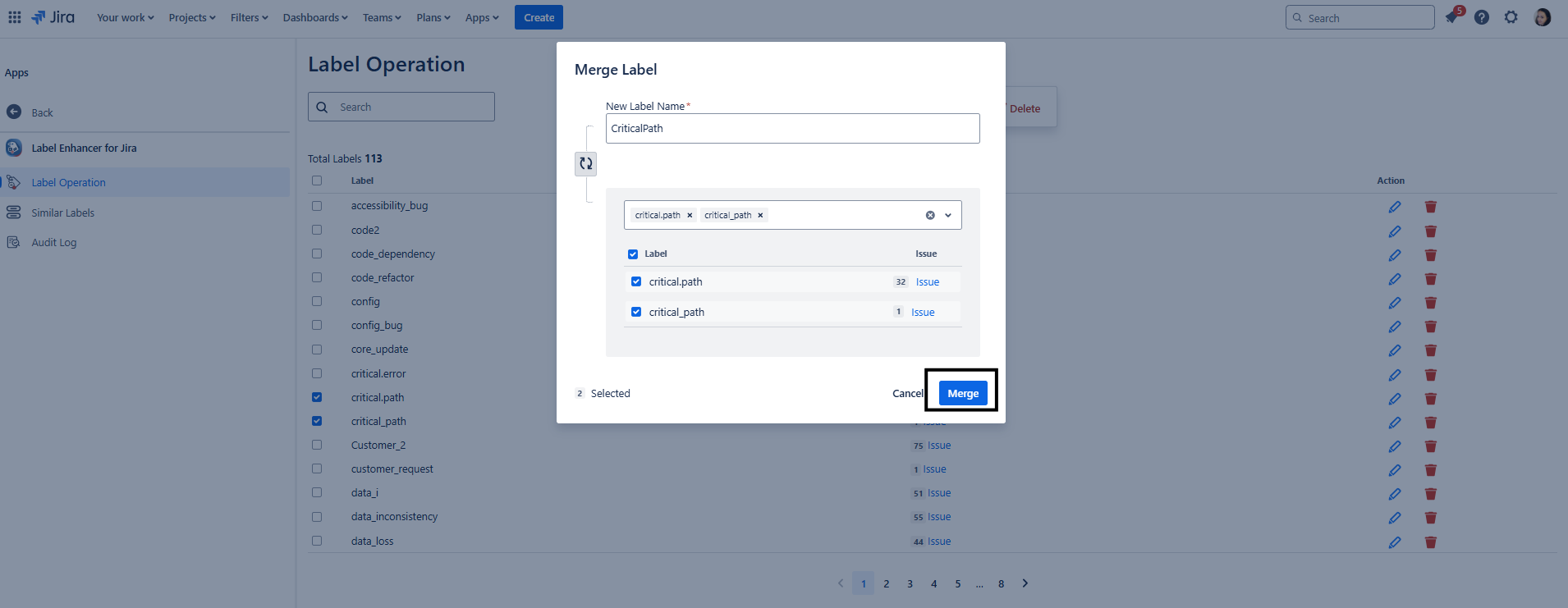
Click the Merge within the modal window to proceed.
-
|
|---|
-
Completion:
-
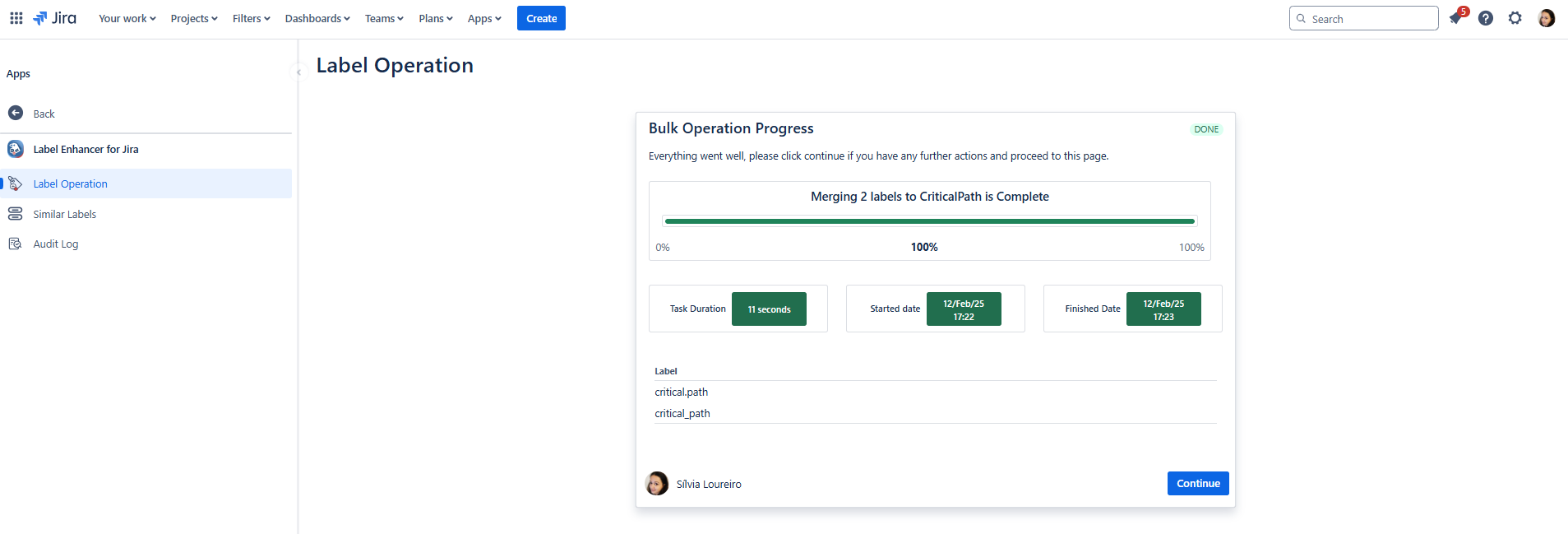
After confirming, you will be redirected to the bulk operation process page.
-
A success message will confirm that the labels have been merged successfully.
-
|
|---|
1.3. Constraints
-
Merging labels is a significant action that cannot be undone. Ensure that the labels you are merging are appropriate to combine.
-
Only users with Jira administrator permissions can perform this action.
1.4. Potential Issues
-
Insufficient Permissions: If you encounter a permissions error, confirm your admin rights or consult with a higher-level administrator.
-
Duplicate Labels: If the new label name already exists, consider choosing a different name to avoid redundancy.
1.5. Understanding the Bulk Operation Progress modal
-
This page displays the status of ongoing bulk operations, including details such as the type of operation, progress, and any encountered issues.
-
It allows administrators to monitor and view bulk operations effectively, ensuring that label changes are applied globally as intended.
By following these steps, you can efficiently merge multiple labels into a single label from the admin page using the Label Enhancer for JIRA app.