
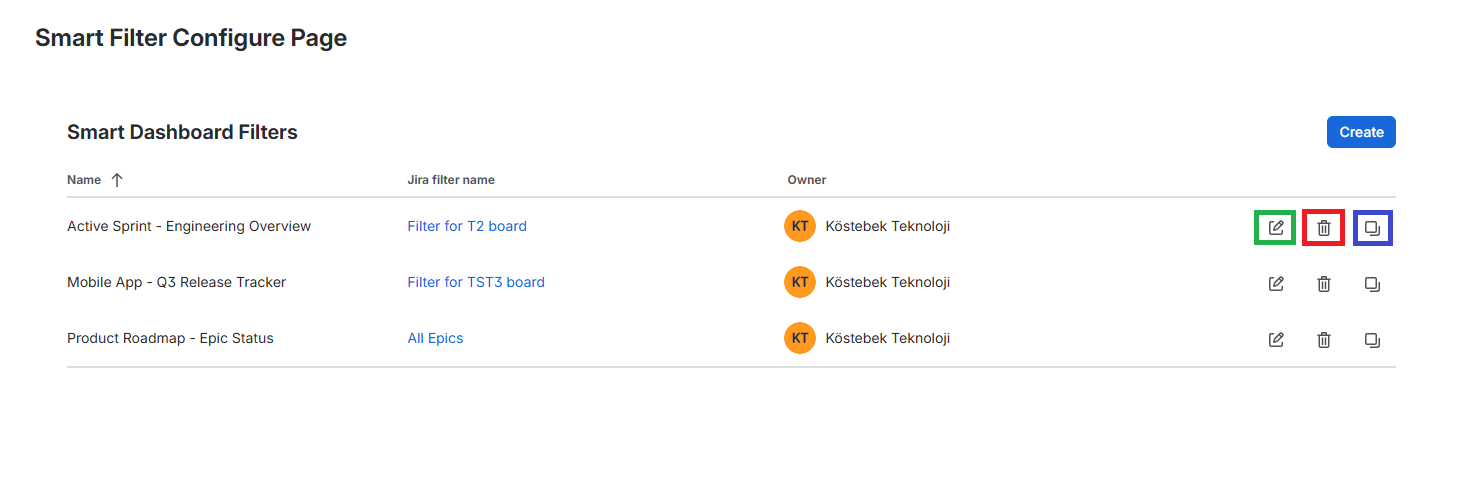
After creating a Smart Filter, use the quick-action buttons beside it to edit, delete or copy the filter.
🛠️ Smart Filter Management Actions
In the Smart Dashboard Filters table, each row provides quick management actions:
-
Edit: Opens the detailed configuration page for the selected Smart Filter.
-
Delete: Permanently removes the Smart Filter.
-
Clone: Creates a duplicate of the Smart Filter to quickly set up similar filter configurations.
⚙️ Smart Filter Configuration Tabs
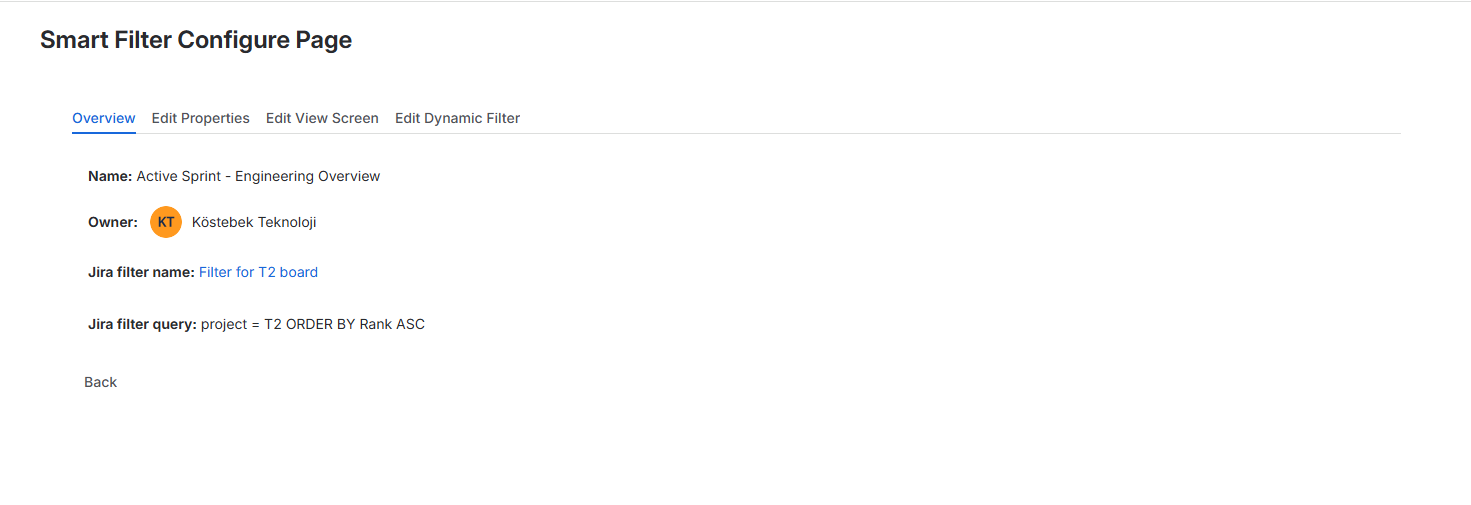
Clicking the Edit button opens the configuration page with four main tabs:
1. Overview
The Overview tab shows a read-only summary: name, owner, Jira filter name and Jira filter query for the current Smart Filter settings.
2. Edit Properties
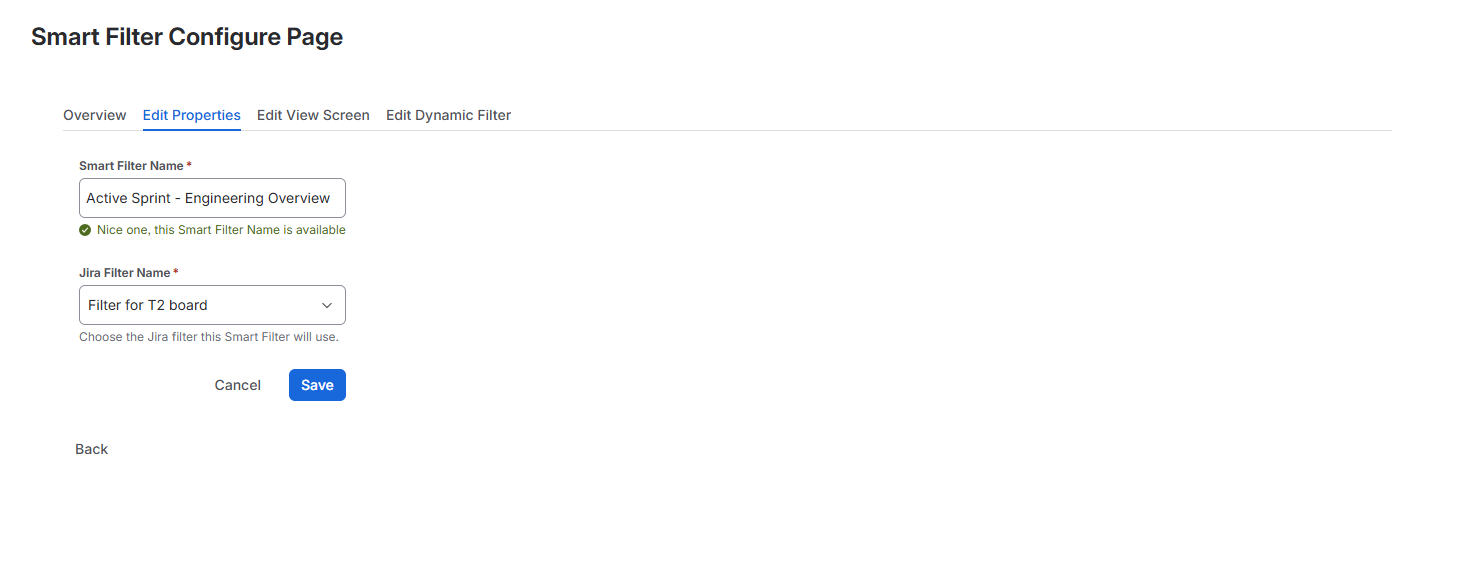
The Edit Properties tab allows you to update the core identifiers of your Smart Filter:
-
Smart Filter Name: Update the name displayed across your dashboards.
-
Jira Filter Name: Change or update the underlying saved Jira filter.
3. Edit View Screen
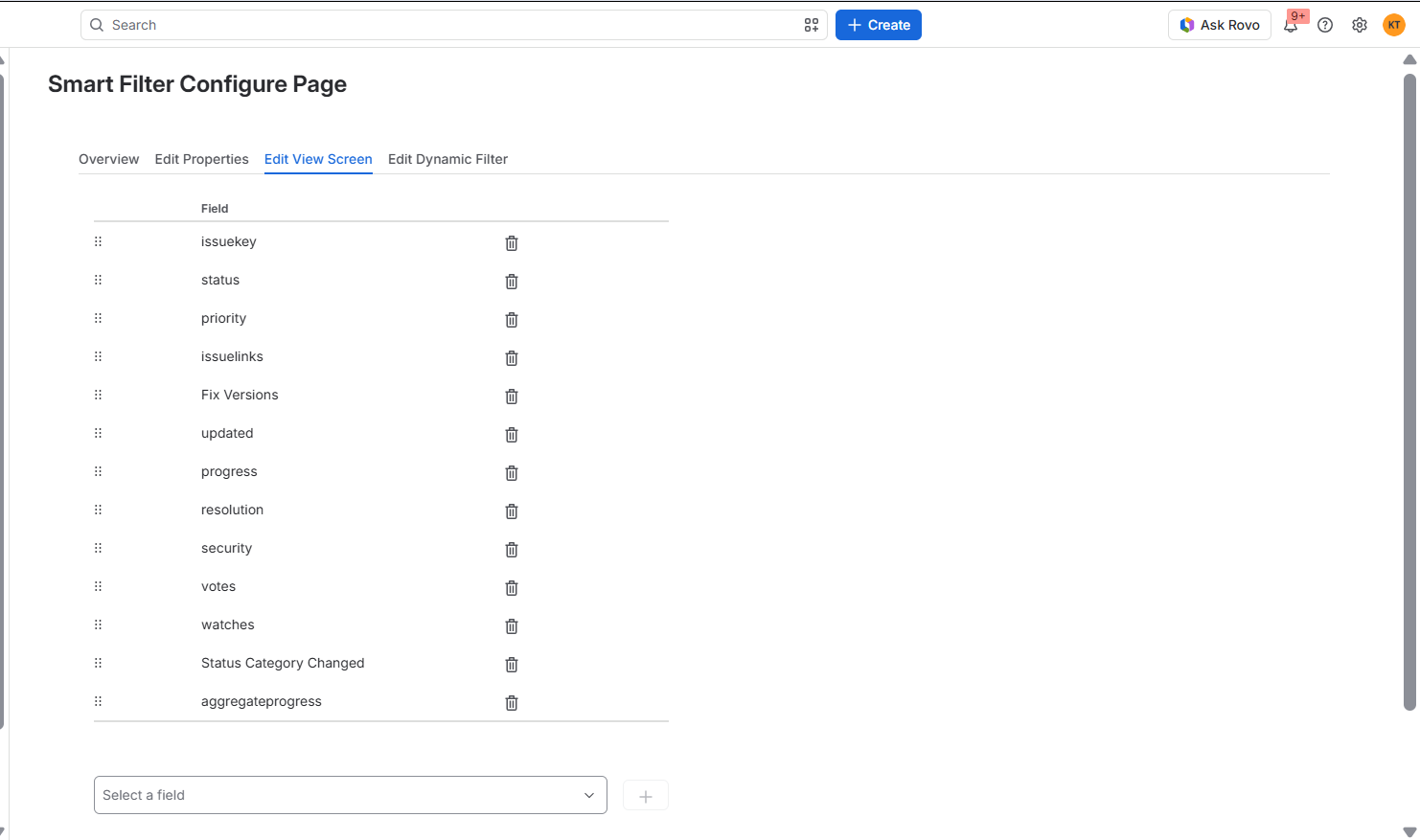
The Edit View Screen tab controls which issue fields (columns) appear on the Smart Dashboard Filter Results Gadget. You can add or remove fields and reorder columns.
4. Edit Dynamic Filter
The Edit Dynamic Filter tab sets which fields appear as interactive, real-time filters in the Smart Dashboard Control Gadget. You can add, remove or reorder filters.
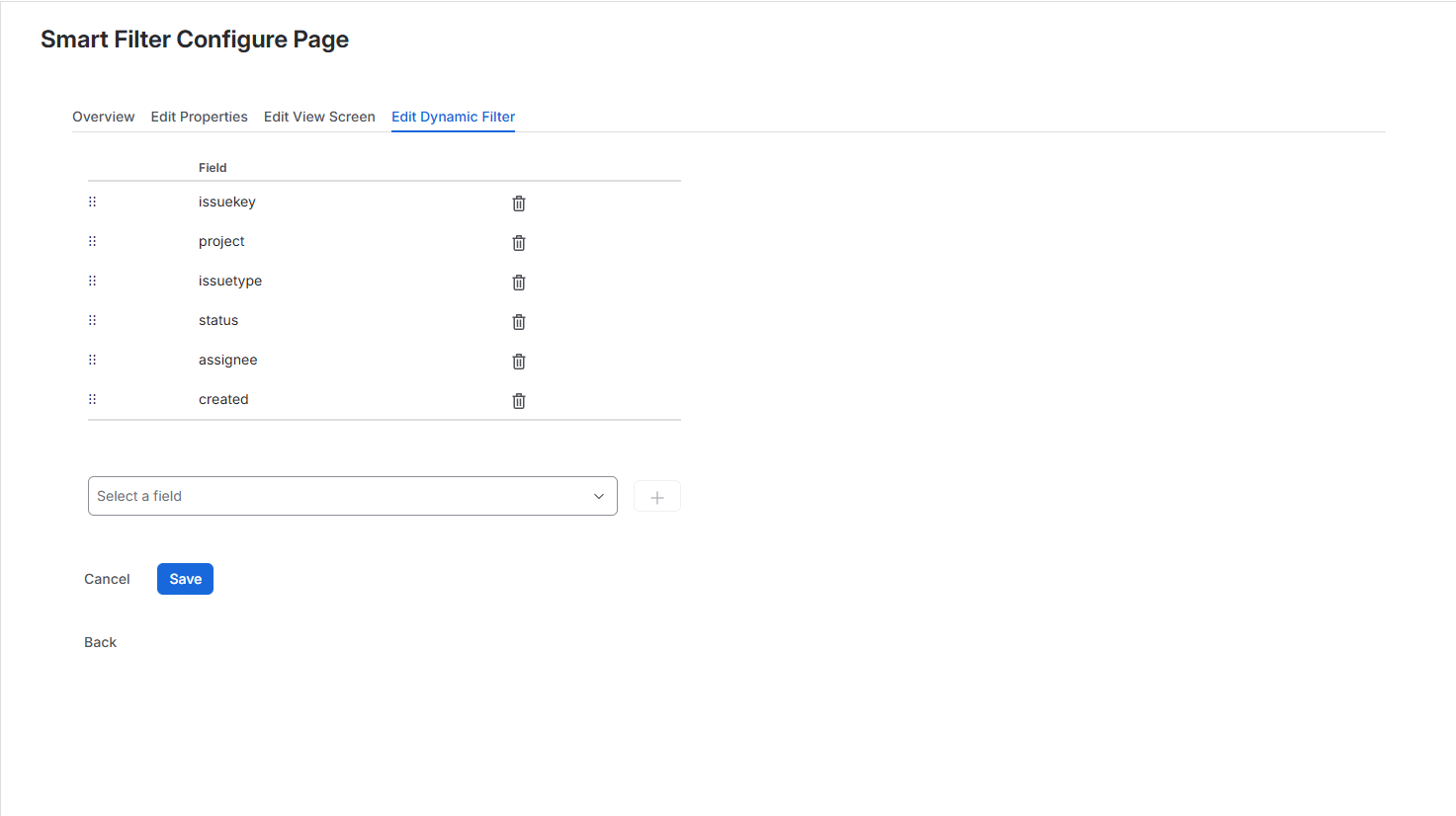
Customize your Edit View Screen and Edit Dynamic Filter fields based on your team's specific reporting needs. For instance, add Assignee and Status to Dynamic Filters for daily standup tracking, or add Fix Versions and Priority for release monitoring.