
Getting Started
Comment Toolbox for Jira Cloud provides ready-to-use custom field types that surface comment-related information directly on your Jira work items.
To start using the app, create a custom field using one of the Comment Toolbox field types and add it to the relevant work item screens. Once added, the field automatically displays the corresponding information based on the comments available on the work item.
This page walks you through the basic setup.
Requirements
Before getting started, make sure that:
-
Comment Toolbox for Jira Cloud is installed on your Jira Cloud site.
-
You have the required Jira administrator permissions to create and manage custom fields.
Creating and managing Jira custom fields requires Jira administrator permissions. After a Comment Toolbox field has been configured and made available in the relevant field context and screens or work item layouts, users with the appropriate Jira permissions can view and use it.
Create a Comment Toolbox Custom Field
Comment Toolbox field types are available when creating a Jira custom field.
To create a field:
-
Go to Settings → Work items.
-
Under Fields, select Create new field.
-
Search for the Comment Toolbox field type you want to use. You can search for JCT to quickly find the available Comment Toolbox fields.
-
Select the required field type.
-
Enter a clear name for your custom field.
-
Complete the field creation.
For example, if you want to see how many comments a work item contains, create a custom field using the JCT Comment Count field type.
You can create multiple Comment Toolbox fields depending on the comment information your team wants to track.
Tip: Give your fields clear and recognizable names, especially if you plan to use them later in JQL searches, filters, dashboards, or exports.
Add the Field to Work Item Screens
After creating a custom field, make sure it is available on the work items where you want to use it.
Add the field to the relevant screen or screens used by your projects and work item types.
To add an existing field to a screen:
-
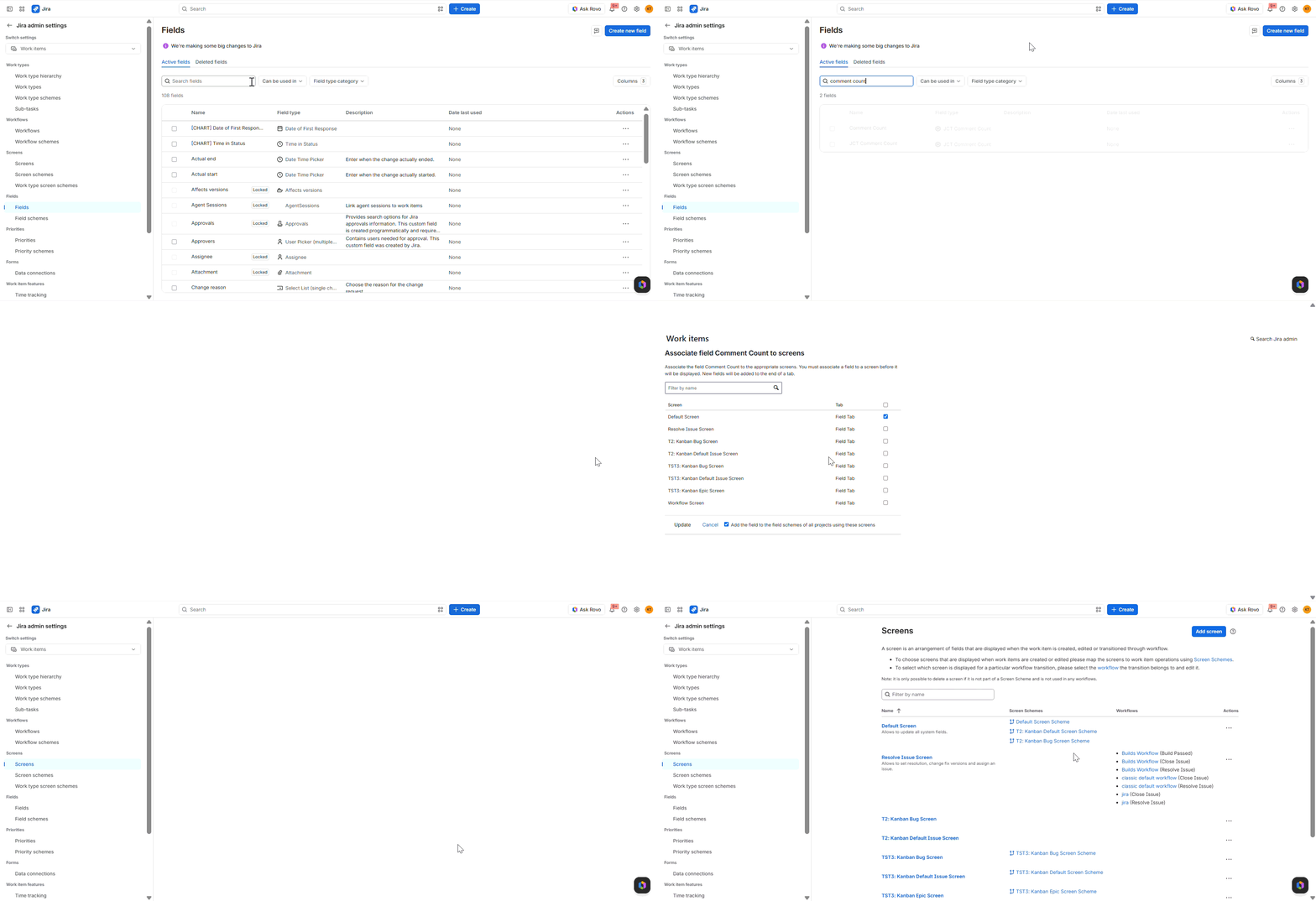
Go to Settings → Work items → Fields.
-
Find the Comment Toolbox custom field you created.
-
Open the field actions and select the option to add or associate the field with screens.
-
Select the relevant screen or screens.
-
Save your changes.
Once the field is associated with the required screen, it can be displayed on the corresponding work items.
View Comment Information on a Work Item
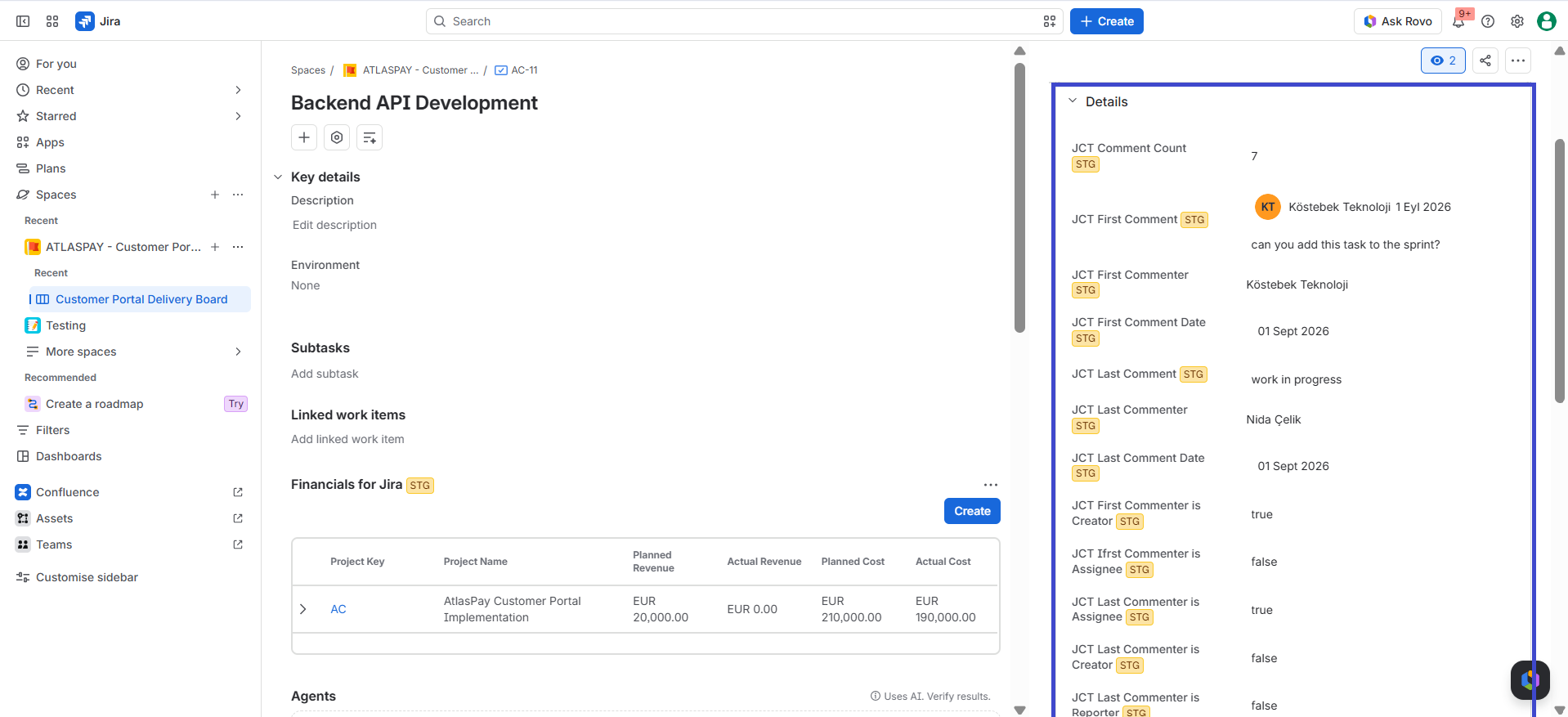
Open a work item that contains comments and locate the Comment Toolbox field you added.
The field value is generated from the comment information available on that work item.
For example:
-
JCT Comment Count shows the number of comments.
-
JCT First Commenter identifies who added the first comment.
-
JCT Last Comment Date shows when the most recent comment was added.
-
JCT Last Comment displays the latest comment content.
-
Commenter role fields can indicate whether the first or last commenter is also the Assignee, Reporter, or Creator.
This allows users to access important comment information directly from the work item without manually reviewing the complete comment history.
Use Comment Data Across Jira
Comment Toolbox fields are not limited to displaying information on individual work items. They also turn selected comment information into structured Jira field values that can be used across Jira.
Depending on the field type, you can use Comment Toolbox fields to:
-
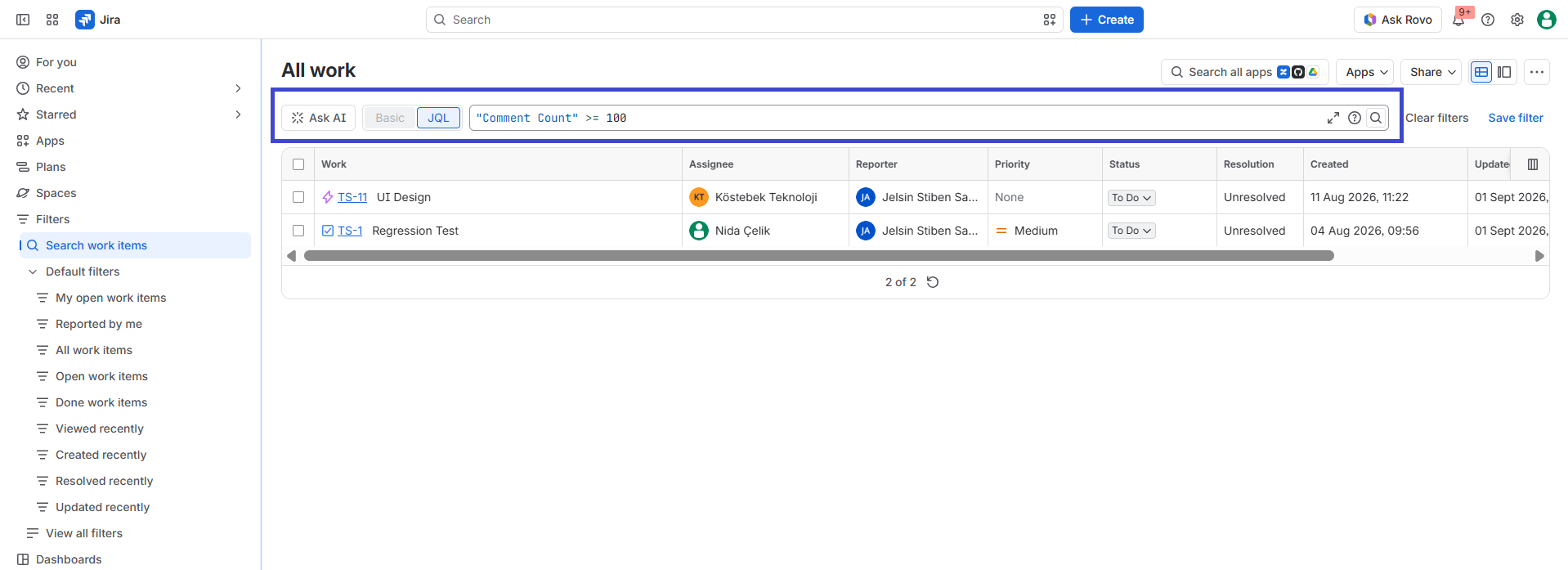
Search and filter work items using JQL.
-
Create reusable Jira filters based on comment activity.
-
Include comment-related information in supported reports and dashboards.
-
Export field values together with other Jira data.
-
Identify patterns across multiple work items without reviewing each comment thread individually.
For example, a Comment Count field can help you find work items with unusually high discussion activity, while a Last Comment Date field can help identify work items where conversations have recently been active or may have gone quiet.
This makes comment activity part of your regular Jira search and analysis workflow rather than information that remains hidden inside individual discussions.
Next Steps
Your Comment Toolbox setup is now ready.
See Comment Toolbox Custom Fields to explore all available field types, understand what each field displays, and learn how they can be used to generate useful insights from your Jira comments.