
|
Macro |
What it does |
Best used for |
|---|---|---|
|
Content by Author |
Lists all pages created by one or more specific users. |
Team profile pages, author portfolios, contribution tracking. |
|
Content by Label Plus |
Lists pages tagged with one or more labels, with advanced filtering and AND/OR logic. |
Knowledge bases, tagged documentation hubs, related content sections. |
|
Content with User Mention |
Lists pages where a specific user is @ mentioned in the content. |
Finding all pages that reference a person, tracking stakeholder mentions. |
|
Content by Contributor |
Lists pages that a specific user has contributed to - created, edited or commented on. |
Contributor reports, team activity tracking, handover documentation. |
|
Content by CQL |
Lists content using a custom CQL (Confluence Query Language) query. For advanced users who need full control over what is displayed. The Basic tab offers filter-based setup; the CQL tab allows writing raw queries directly. |
Custom documentation hubs, advanced reporting, content audits, and cross-space searches. |
1.1. Shared Configuration Structure
All macros use the same four-tab configuration panel. Completed tabs are marked with green checkmark in the progress bar at the top of the dialog.
|
Tab |
Name |
Purpose |
|---|---|---|
|
1 |
Content & Filter |
Set who or what to search for. Add optional filters to narrow results |
|
2 |
Display |
Choose how results are presented: Table, Card, Compact or Bullet view. |
|
3 |
Layout |
Set an optional heading title, results per page and border options. |
|
4 |
Advanced |
Configure how often the macro automatically refreshes its content. |

1.2. How to insert a Macro
-
Open de Confluence page editor.
-
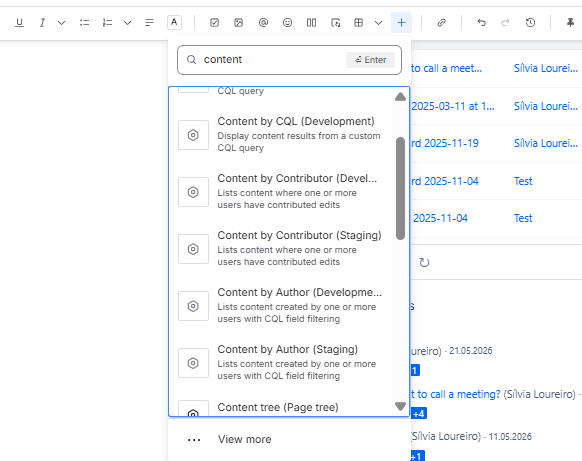
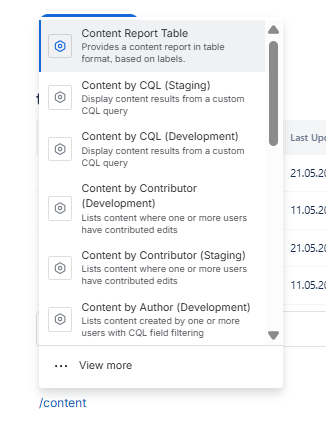
Type / (forward slash) to open the macro browser or click “Insert elements” + in the toolbar.
-
Search for the macro name (e.g. Content by Author).
-
Click the macro to open its configuration panel.
-
Complete the four tabs and click Save & Close.
-
Publish or save the page to see the macro output.
You can also click Next >> at the bottom of each tab to move through the configuration steps in order or click any completed tab to go back and edit it.