
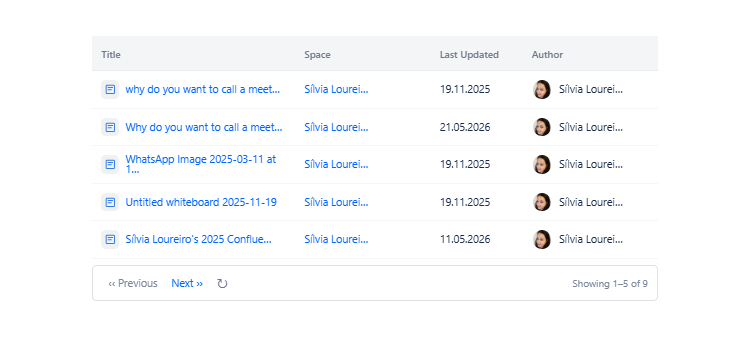
Displays a list of Confluence pages that match a custom CQL (Confluence Query Language) query. Use this macro when the built-in filters of other macros are not enough - CQL gives you full control over which content appears, using any combination of space, label, content type, date, author, and more.
Use Content by CQL when you need advanced filtering logic, cross-space queries, or conditions based on metadata not available in the Basic filters of other macros.
7.1 Content & Filter Tab
The Content & Filter tab has two sub-tabs: Basic and CQL.
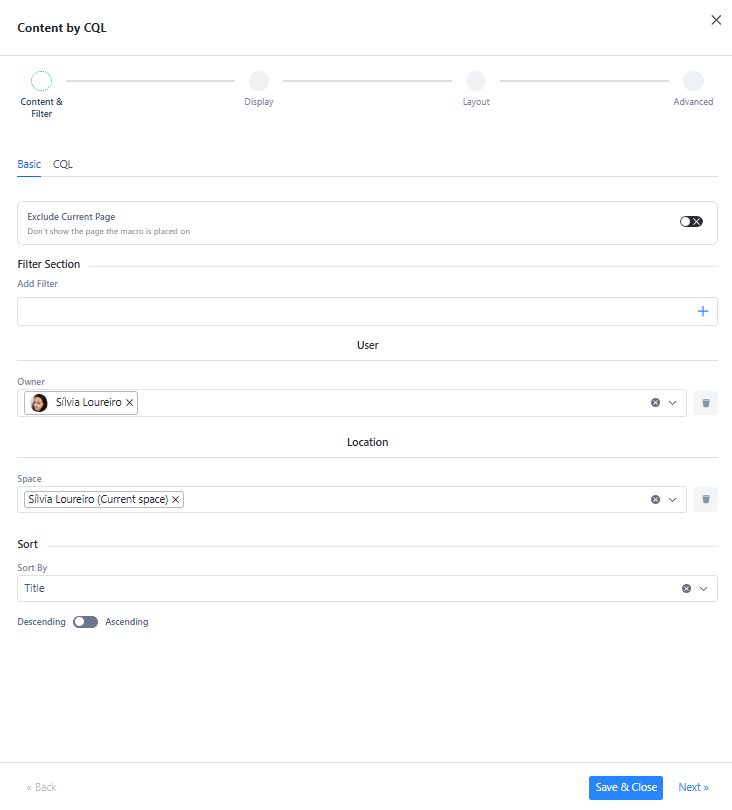
Basic Sub-tab
The Basic sub-tab provides a form-driven interface for the most common query parameters. It builds the CQL query for you.
Location
|
Field |
Type |
Description |
Required |
|---|---|---|---|
|
Space |
Space Search |
Select one or more spaces to search within. Results are restricted to the selected spaces. Defaults to the current space. |
No |
Filter Section
|
Field |
Type |
Description |
Required |
|---|---|---|---|
|
Add Filter |
Filter Panel |
Add one or more optional filters to narrow results. See Section 2 for all available filters. |
No |
Sort
|
Field |
Type |
Description |
Required |
|---|---|---|---|
|
Sort By |
Dropdown |
Sort results by: Title, Created Date, Last Modified. |
No |
|
Descending / Ascending |
Toggle |
Toggle the sort direction. Default: Descending. |
No |
Optional Settings
|
Field |
Type |
Description |
Required |
|---|---|---|---|
|
Exclude Current Page |
Toggle |
When enabled, the page the macro is placed on will not appear in results even if it matches the query. Default: off. |
No |
CQL Sub-tab
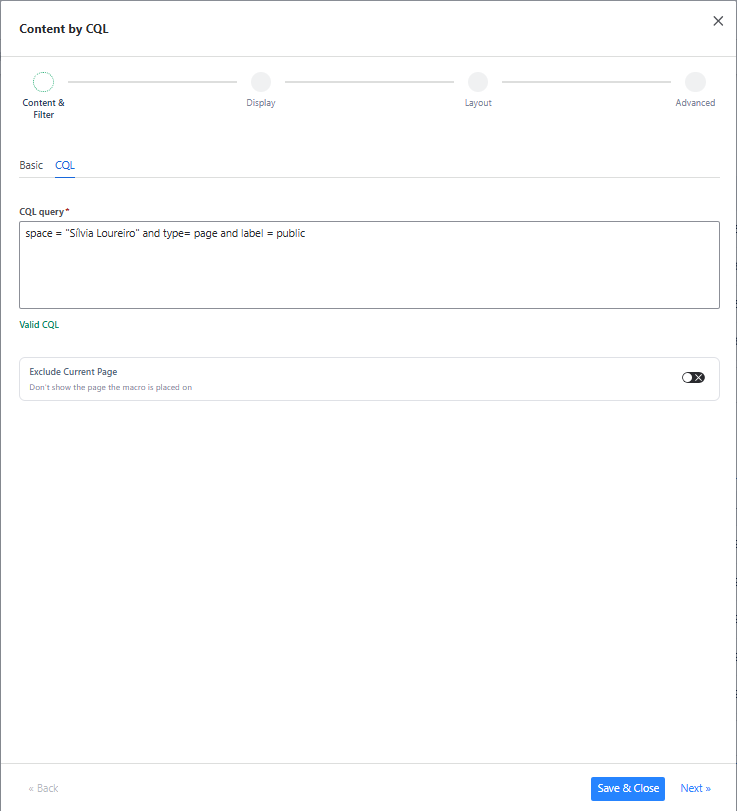
The CQL sub-tab lets you write a raw CQL query for full control over the search.
|
Field |
Type |
Description |
Required |
|---|---|---|---|
|
CQL query |
Text area |
Enter a valid CQL expression. The macro returns all content matching the query. |
Yes |
|
Exclude Current Page |
Toggle |
Hides the page the macro is placed on from results, even if it matches the CQL query. Default: off. |
No |
Switching between Basic and CQL
Switching to the CQL tab after configuring the Basic tab will pre-populate the CQL query field with the equivalent query. You can then extend or modify it manually. Switching back to Basic will reset the Basic form.
Common CQL examples
|
Goal |
CQL query |
|---|---|
|
All pages in a space |
|
|
Pages with a specific label |
|
|
Pages created in the last 30 days |
|
|
Pages under a specific parent |
|
|
Pages created by a specific author |
|
|
Pages edited or commented on by a user |
|
|
Combine conditions |
|
For the full CQL syntax reference, see the Atlassian CQL documentation.
7.2 Display, Layout & Advanced Tabs
These tabs are identical to Content by Author. Refer to sections 3.2, 3.3, and 3.4.
7.3 Use Cases
-
Cross-space content hub - query pages across multiple spaces by label or content type to build a central index page.
-
Release notes aggregator - use a CQL query filtered by label and date to automatically list all release note pages from the last quarter.
-
Policy directory - pull all pages tagged with the
policylabel from the HR and Legal spaces into a single governed index. -
Recently updated dashboard - show all pages modified in the last 7 days across a set of spaces without manually maintaining a list.
-
Ancestor-based navigation - list all child and grandchild pages under a specific parent page as a dynamic table of contents.