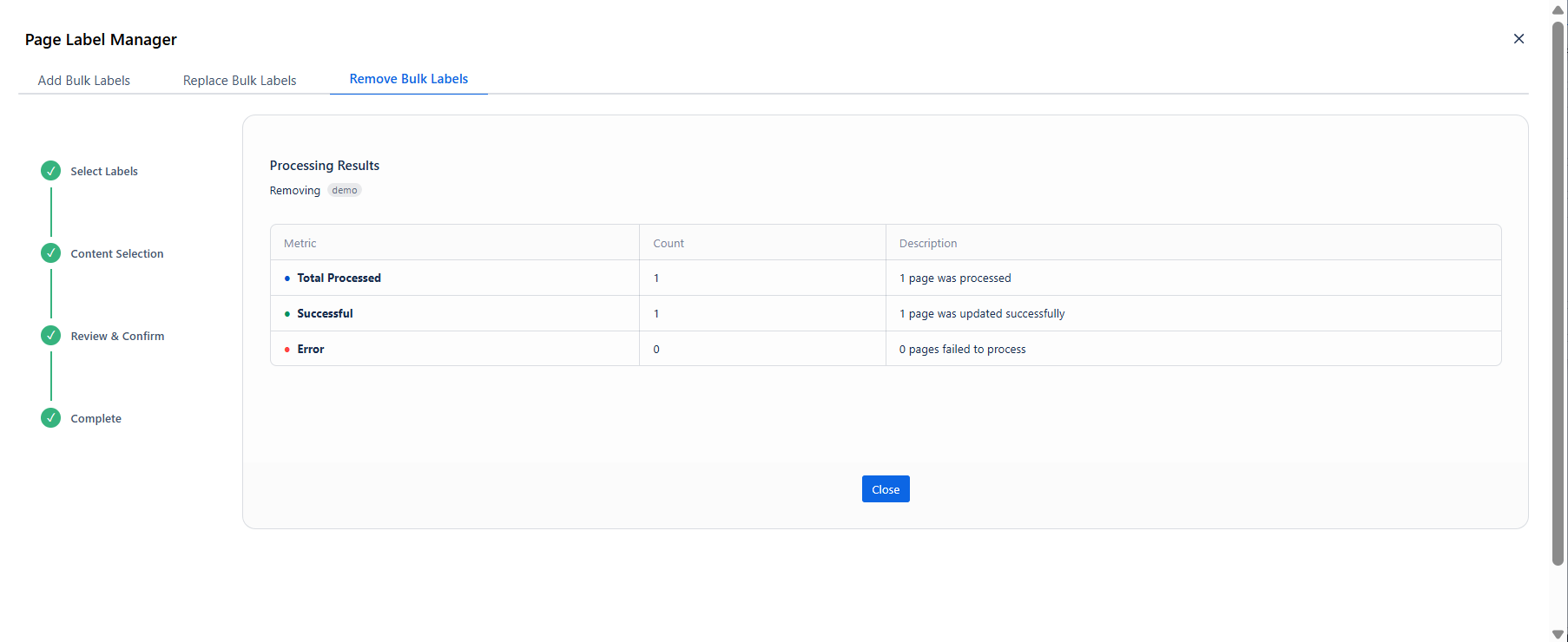
Strips specific labels from selected pages without affecting any other labels on those pages.
When to use: Cleaning up a deprecated taxonomy label; undoing labels applied incorrectly in a previous operation; archiving a project and removing its tag from all content.
Step 1 - Select Labels
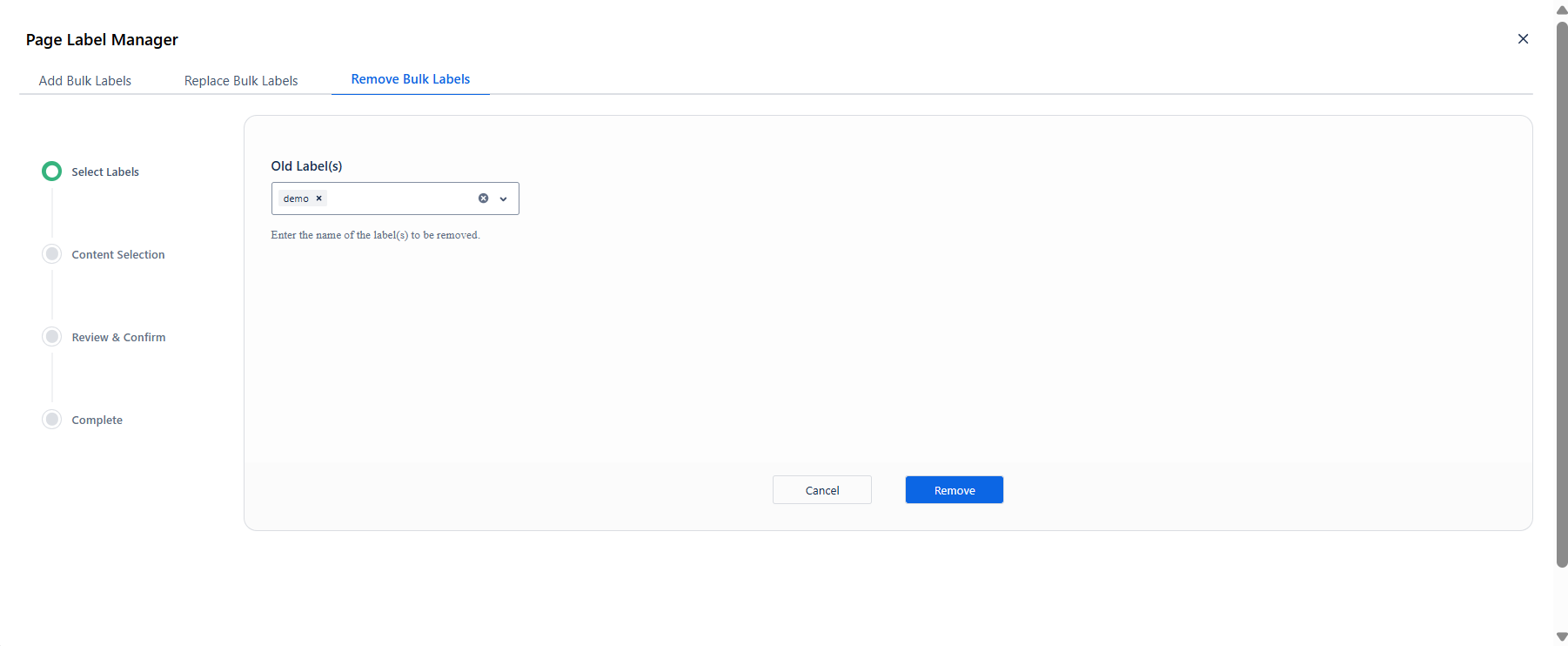
Type the label name(s) you want to remove in the Old Label(s) field. Press Enter to confirm each one - they appear as removable tags inside the field.
Click Remove to advance to Content Selection.
Step 2 - Content Selection
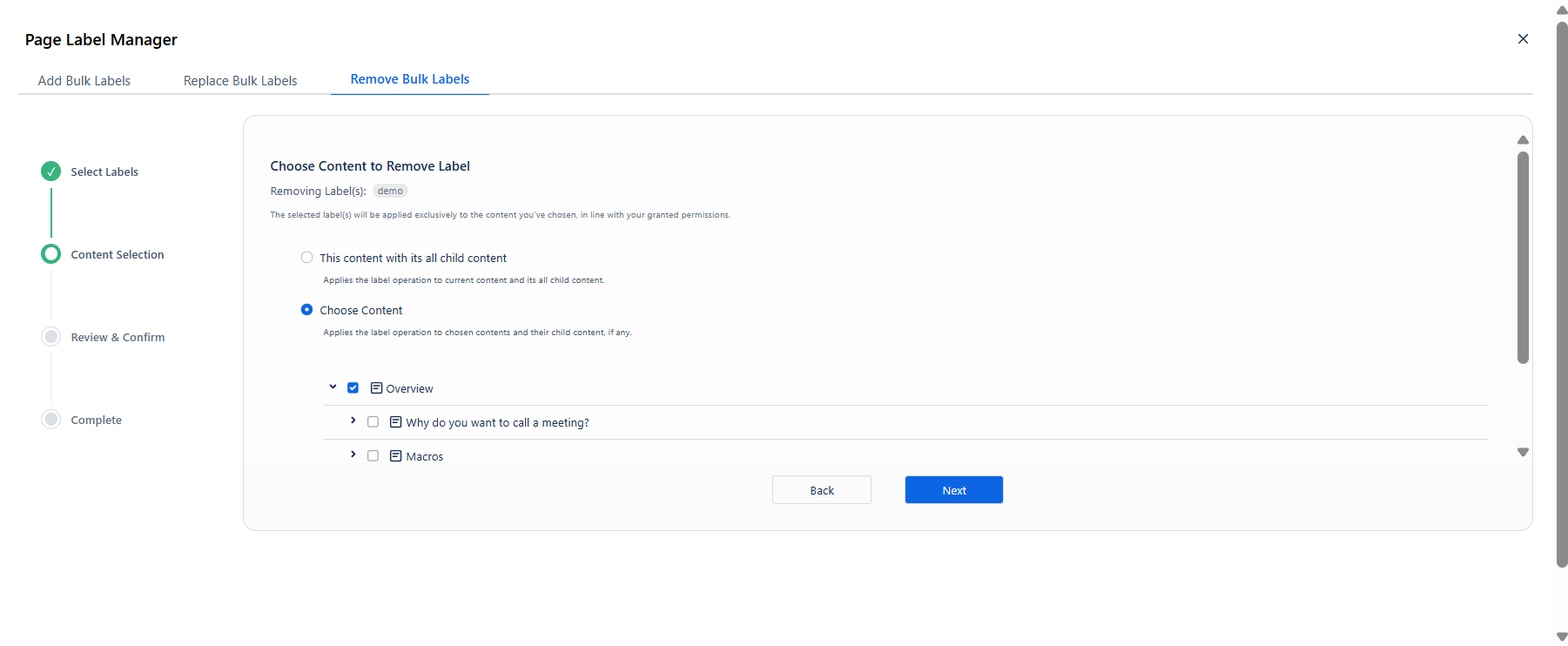
Works identically to the Add and Replace operations. The header confirms which label is being removed: Removing Label(s): demo
|
Option |
Behaviour |
|---|---|
|
This content with its all child content |
Removes the label from the current page and all its descendants. |
|
Choose Content |
Displays a page tree - check each page to include. |
Click Next when your selection is ready.
Step 3 - Review & Confirm
|
Column |
What it shows |
|---|---|
|
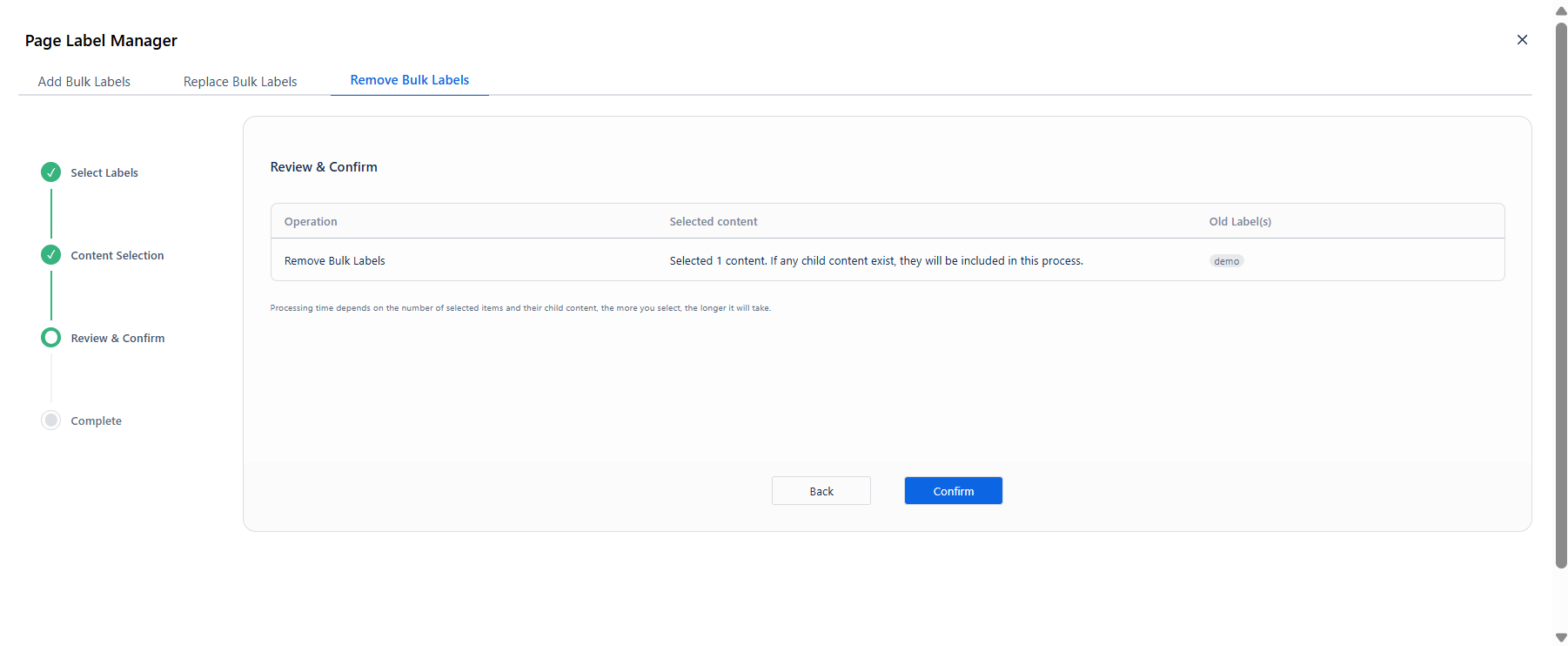
Operation |
Remove Bulk Labels |
|
Selected content |
Number of pages in scope, including child pages |
|
Old Label(s) |
The label(s) being removed |
Click Confirm to start the operation.
Step 4 - Processing & Results
As with Replace, a Calculating descendants… message appears while child pages are counted before the progress bar begins.
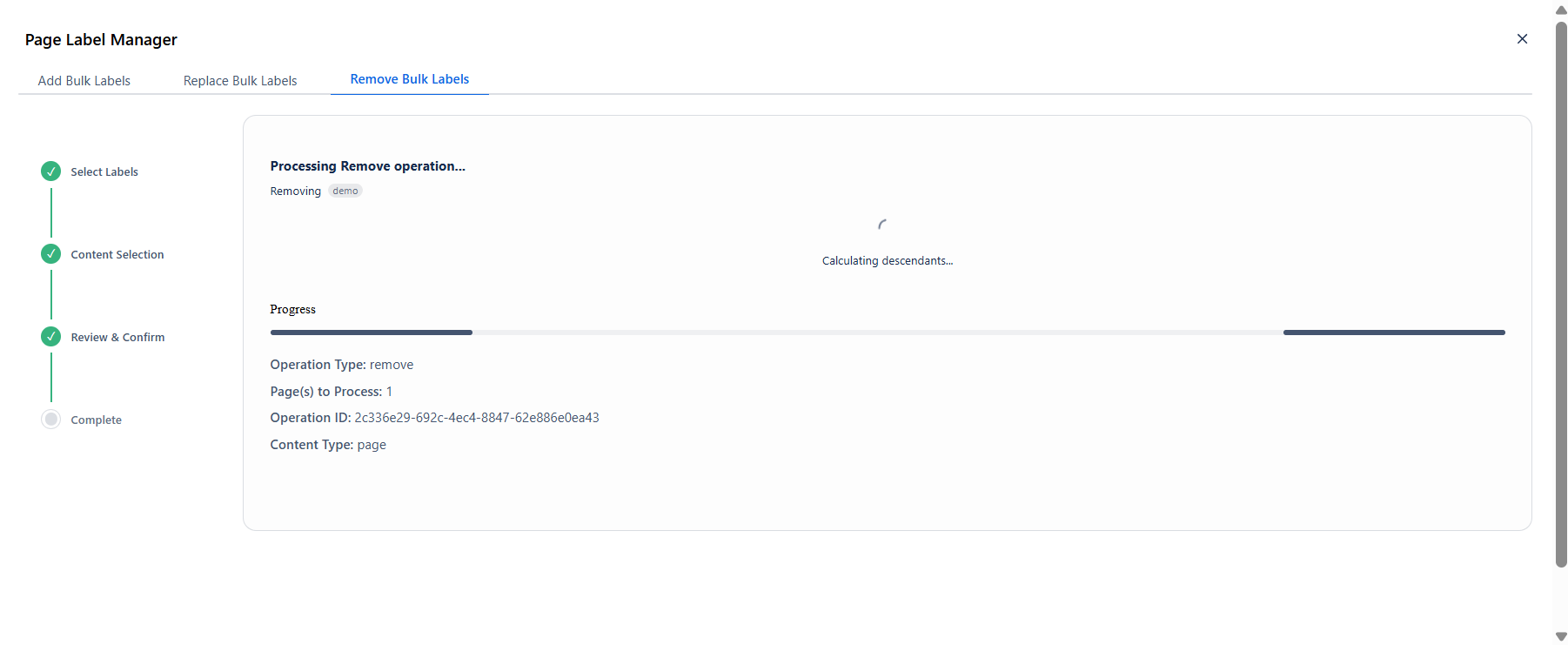
The results table for Remove may include a Skipped row in addition to Successful and Error - this appears when a page did not have the label to begin with and was therefore left unchanged.
|
Metric |
Colour |
Description |
|---|---|---|
|
Total Processed |
Blue |
Total pages evaluated |
|
Successful |
Green |
Pages from which the label was removed |
|
Skipped |
Yellow |
Pages that did not have the label - no change made |
|
Error |
Red |
Pages that could not be processed |
Click the › chevron on any Skipped or Error row to expand details on which pages were affected.
Click Close to dismiss the dialog.