
Permission Explorer is a Forge Space App. Once installed from the Atlassian Marketplace, it appears in the left sidebar of every space under Space apps - no page editing needed.
2.1 Requirements
-
Confluence Cloud instance
-
Permission Explorer installed from the Atlassian Marketplace by a Confluence admin
-
The space ‘Restrictions’ permission is the minimum to run a scan and view results
-
Space admin rights or the space ‘Restrictions’ permission are needed to use all features, including granting, removing, and opening content
Basic Confluence users without Restrictions permission cannot run a scan or view the full permission matrix. Contact your space admin to request this permission.
2.2 Opening the app
-
Go to the Confluence space you want to manage
-
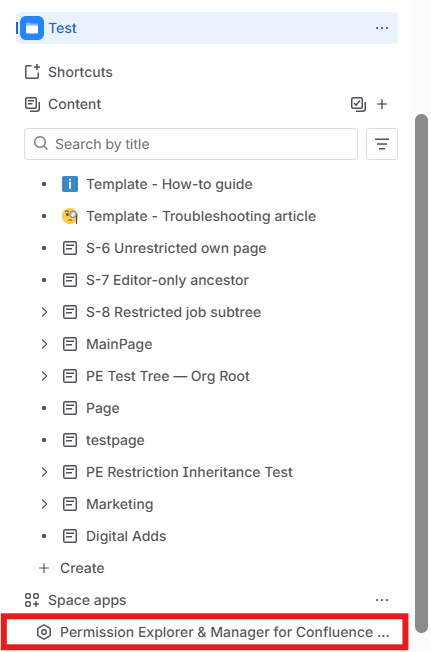
In the left sidebar, scroll down to Space apps
-
Click ‘Permission Explorer & Manager for Confluence’
-
The app opens and immediately begins scanning the space
2.3 First load - All state
When you open Permission Explorer & Manager for Confluence, you will see:
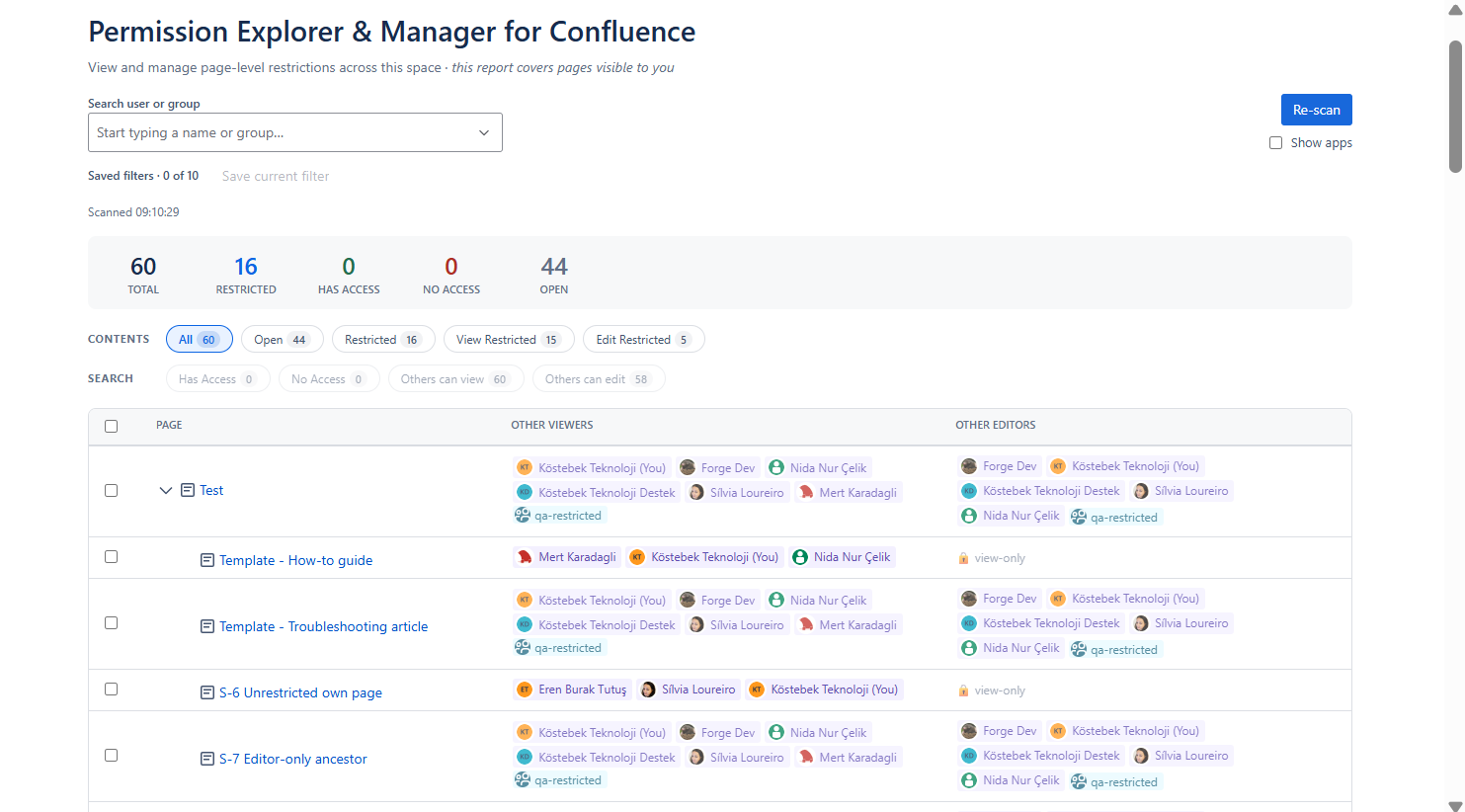
Users who have permission to run the app, meaning users with the space ‘Restrictions’ permission, can see only the pages they are allowed to view. For those pages, they can grant permissions, remove permissions, and use the Open up content action. Only admin users can view all pages in the space.
When the app is first opened, the entire space is automatically scanned and the results are returned. The "All" state, showing permission details for all space content, appears on the screen.
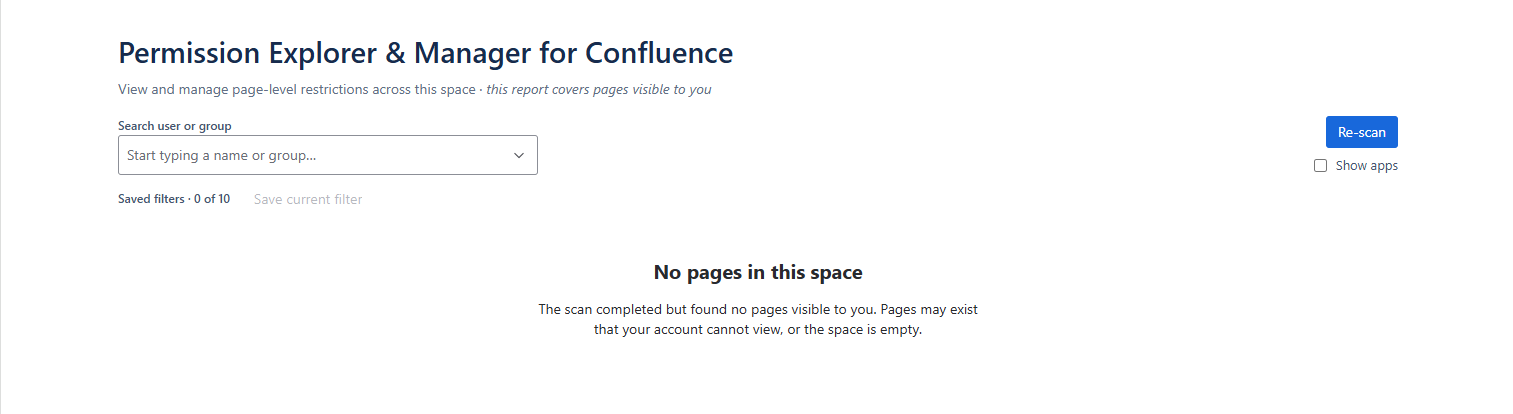
If the space is empty, the app screen appears as below:
Permission Explorer is scoped to the space you open it from. To audit a different space, navigate to that space and open Permission Explorer from its sidebar.