
Scan users or groups to check and audit their permissions. Search for any user or group in your Confluence instance and add multiple entries at once.
3.1 Selecting a user or group
-
Click the search bar at the top of the app
-
Start typing a name - results appear as you type
-
Select the user or group from the dropdown
-
Repeat to add more users or groups to the selection
-
The matrix updates as you add users or groups, displaying their access information in new columns.
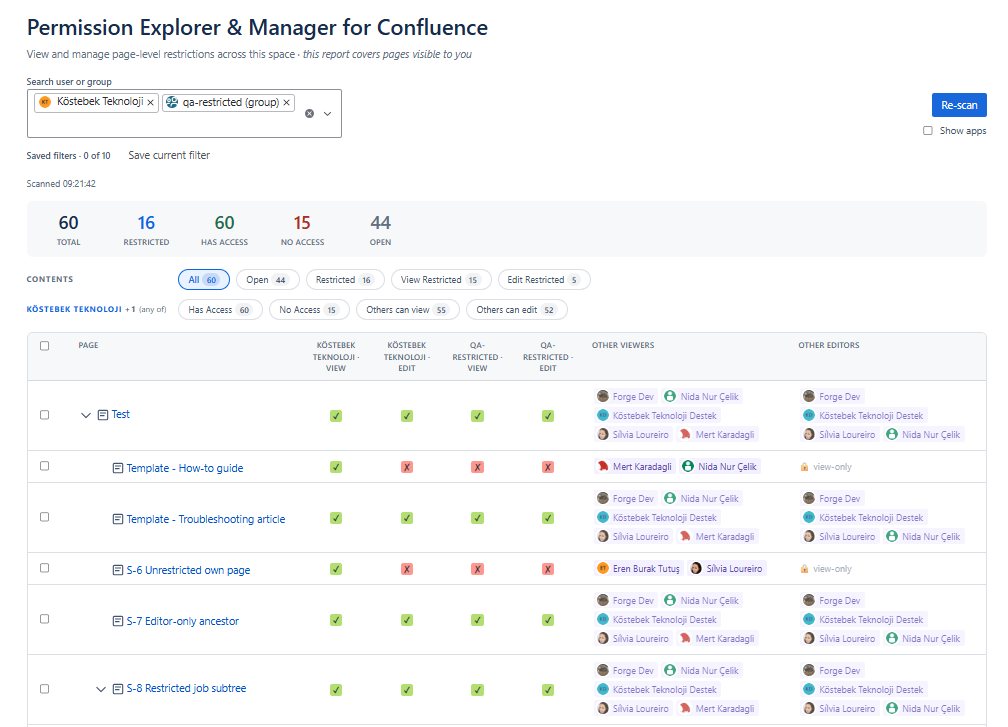
You can scan for multiple users and groups simultaneously. Select up to 5 user/groups. To remove one from the selection, click the × next to their name in the field
3.2 Re-scan
Click it anytime to refresh results.
The matrix updates instantly when you grant or remove a permission via the app. However, you must re-scan to reflect changes made through Confluence sharing settings.
Each scan updates the "Scanned time" above the table.
3.3 Save current filter
The “Save current filter” button saves your user or group selection to reload automatically when you next open the app. This is useful if you regularly audit the same people.
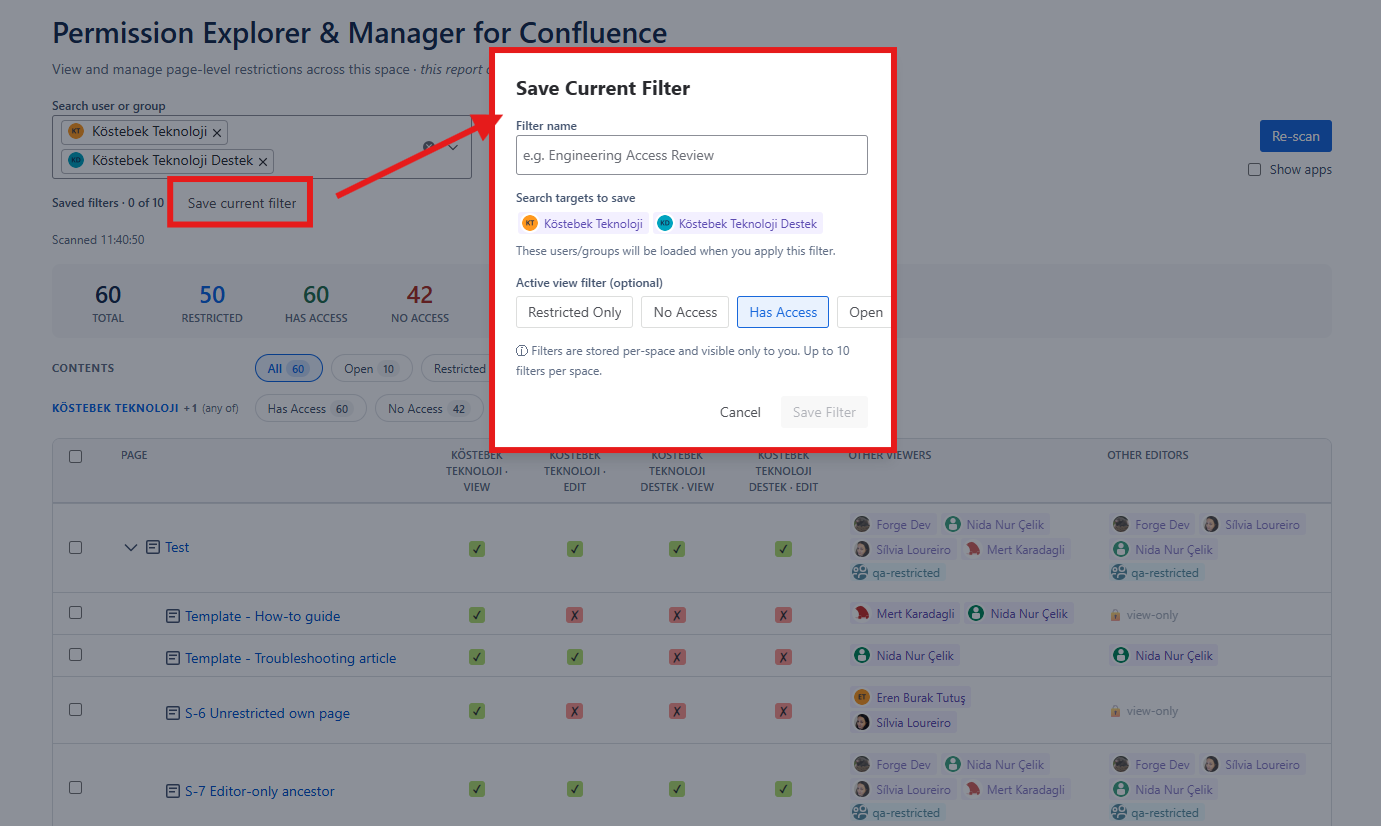
3.4 Update/clear the filter
To update the saved filter, select the new options and click "Update". Clicking the "clear" button hides the update bar.
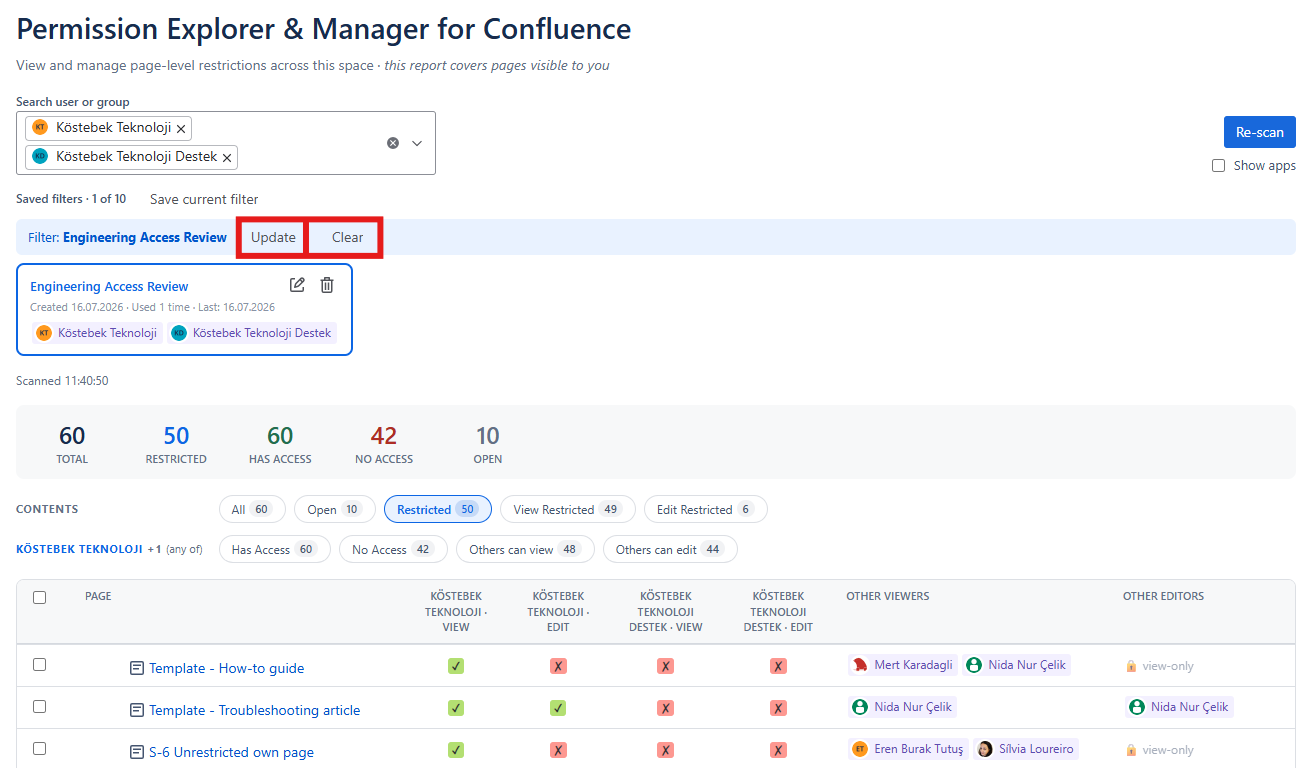
Click the trash can icon to delete.