
Above the page table, filter pills let you narrow results to pages you need to act on. Click a pill to filter; the active pill highlights in blue.
Filter pills fall into two groups: content-based and search-based. Content filter pills filter across the entire space, while search filter pills filter results by the users or groups searched.
5.1 Content-based filters
|
All |
Displays all pages found in the scan, with the number indicating the total count. |
|---|---|
|
Open |
Pages without restrictions, accessible to all with space access. |
|
Restricted |
Pages with at least one explicit restriction set, regardless of who is searched |
|
View Restricted |
Pages where viewing is restricted to specific users or groups. |
|
Edit Restricted |
Pages where editing is restricted to specific users or groups. |
5.2 Searched based-filters
These filters become active only after a user or group is searched. They reflect the access status of the searched user or group.
|
Has Access |
Pages that at least one searched user or group can view - shows open and restricted pages with explicit access. |
|---|---|
|
No Access |
Pages where at least one searched user or group lacks view permission. |
|
Others can view |
Pages viewable by users or groups other than those searched |
|
Others can edit |
Pages editable by users or groups other than those searched |
5.3 Filter pill screenshots
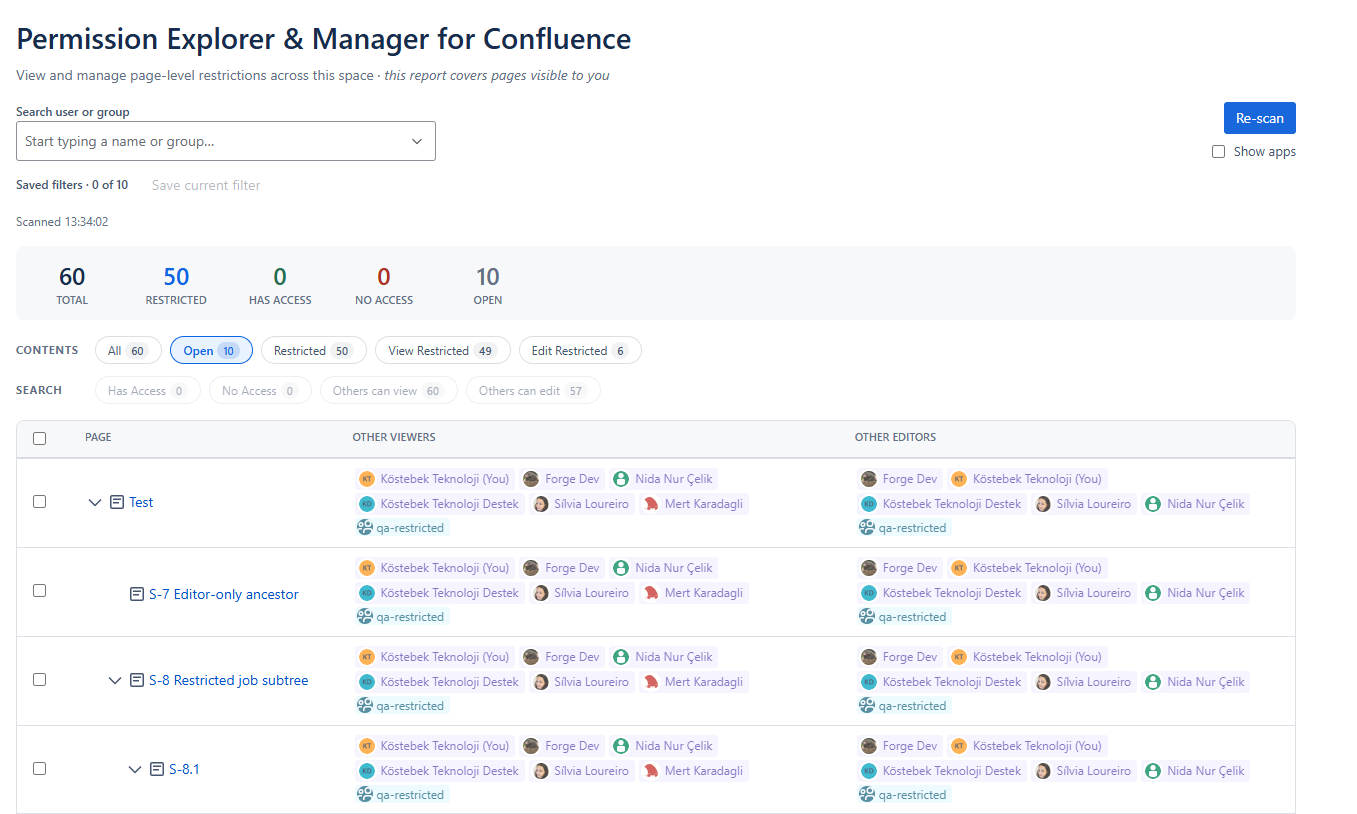
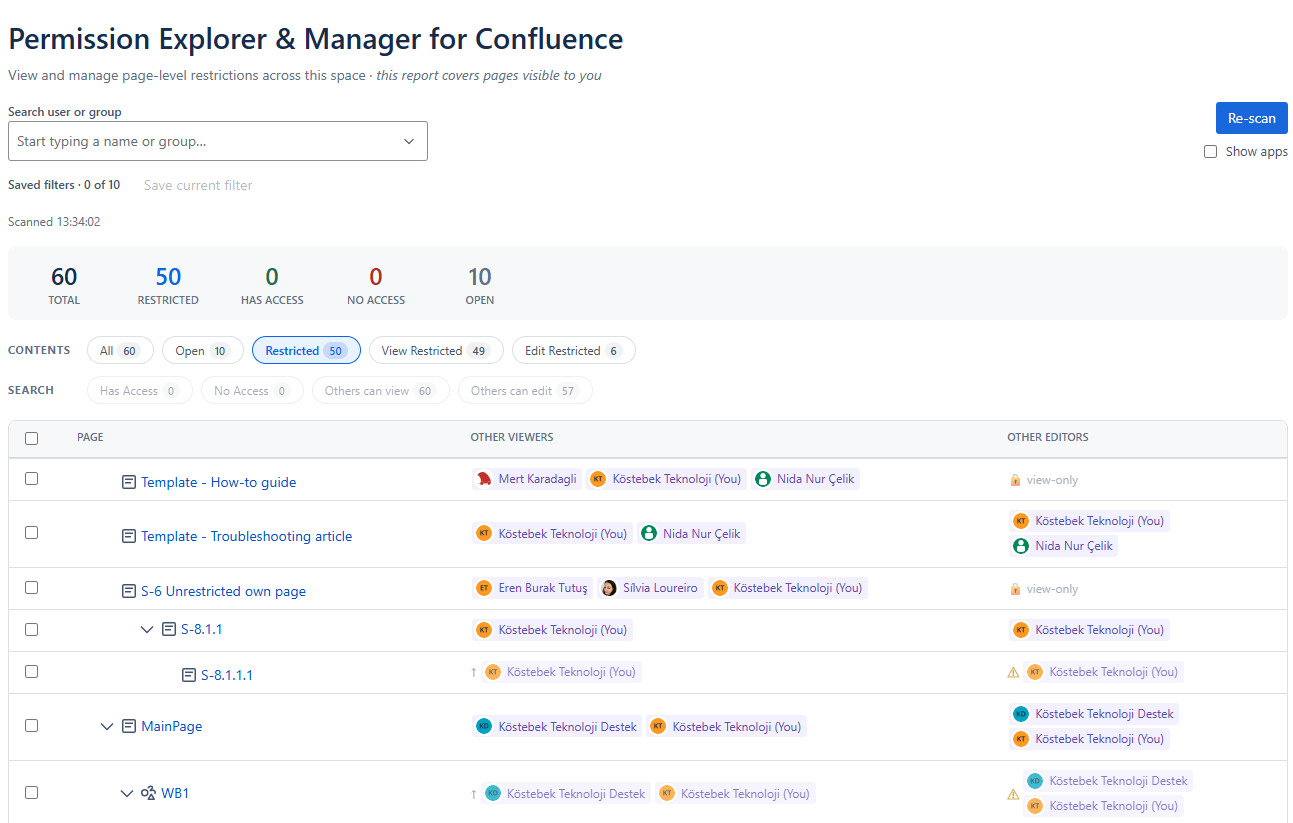
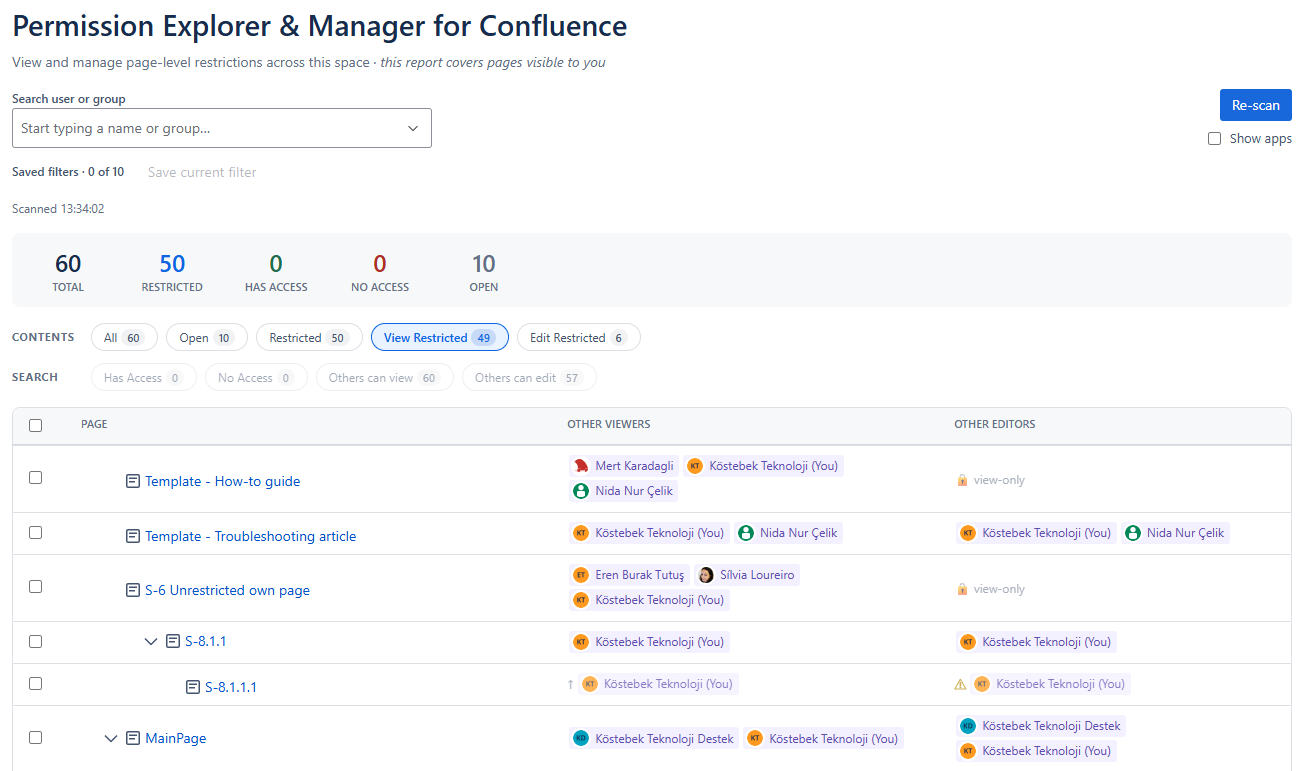
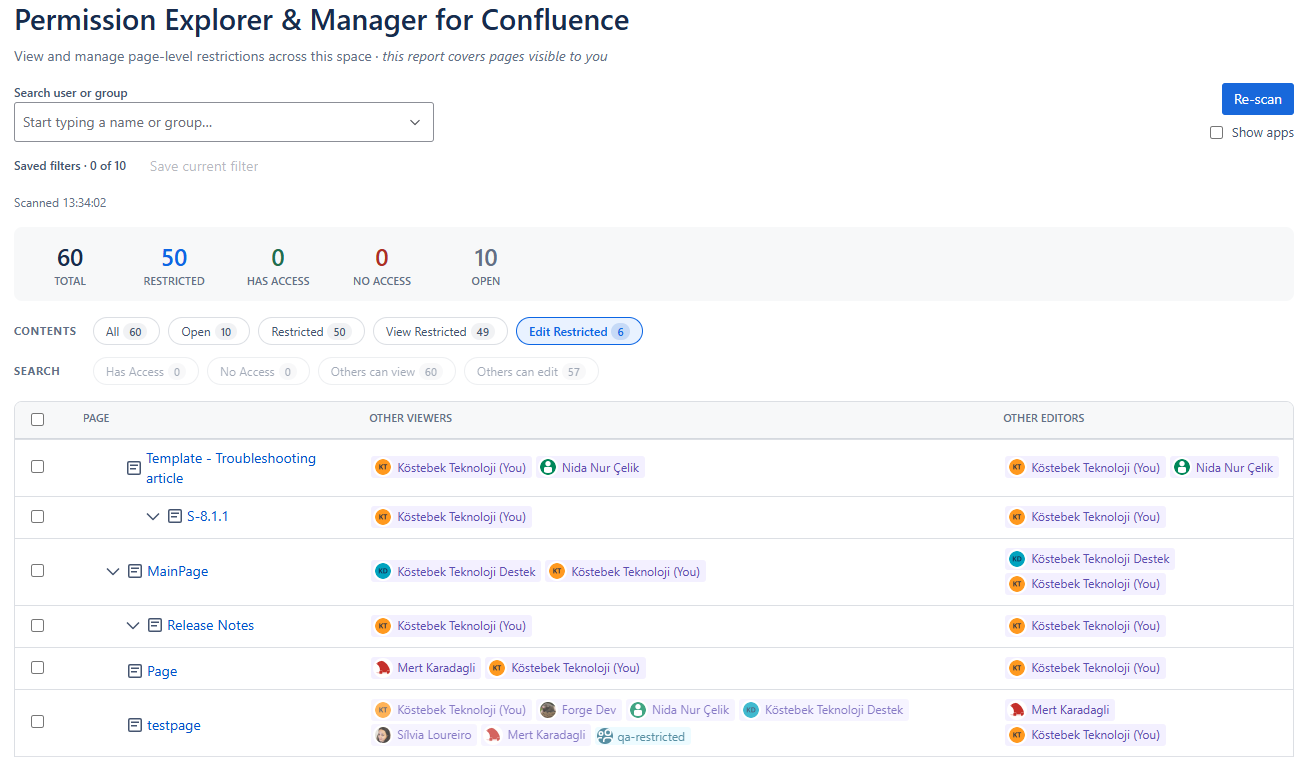
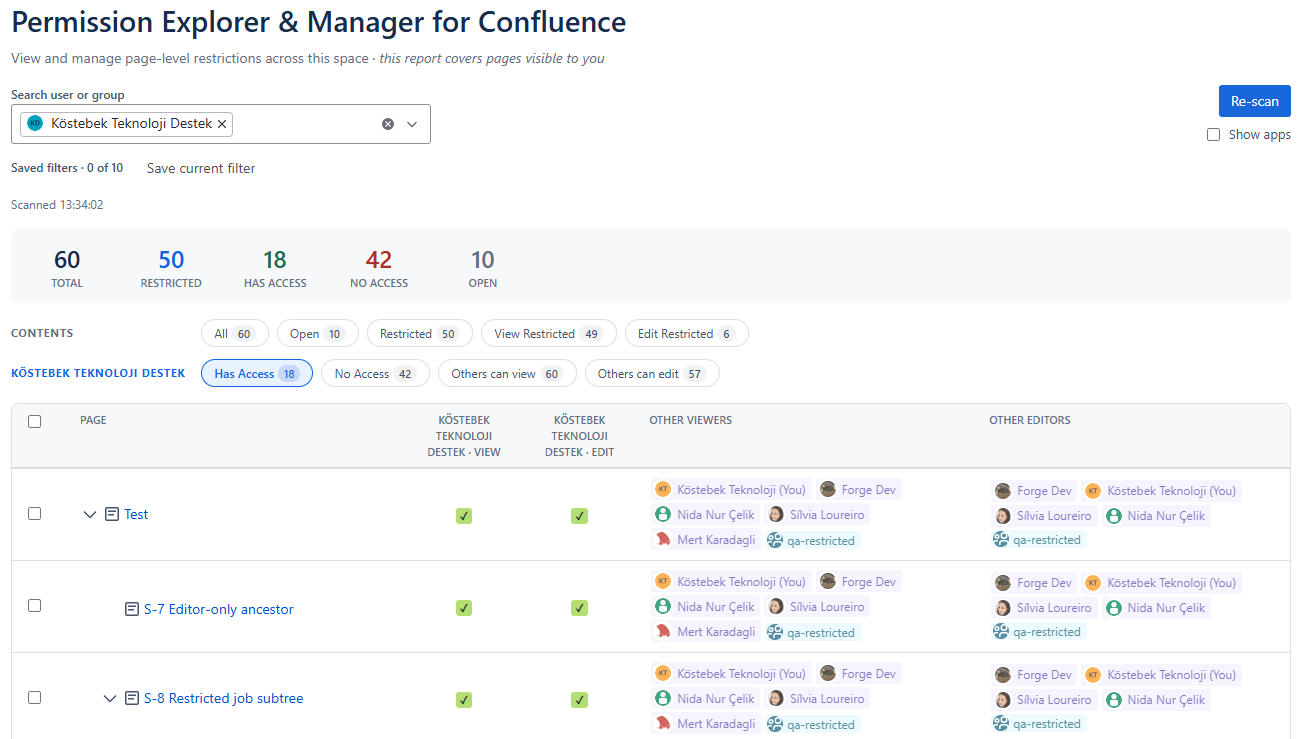
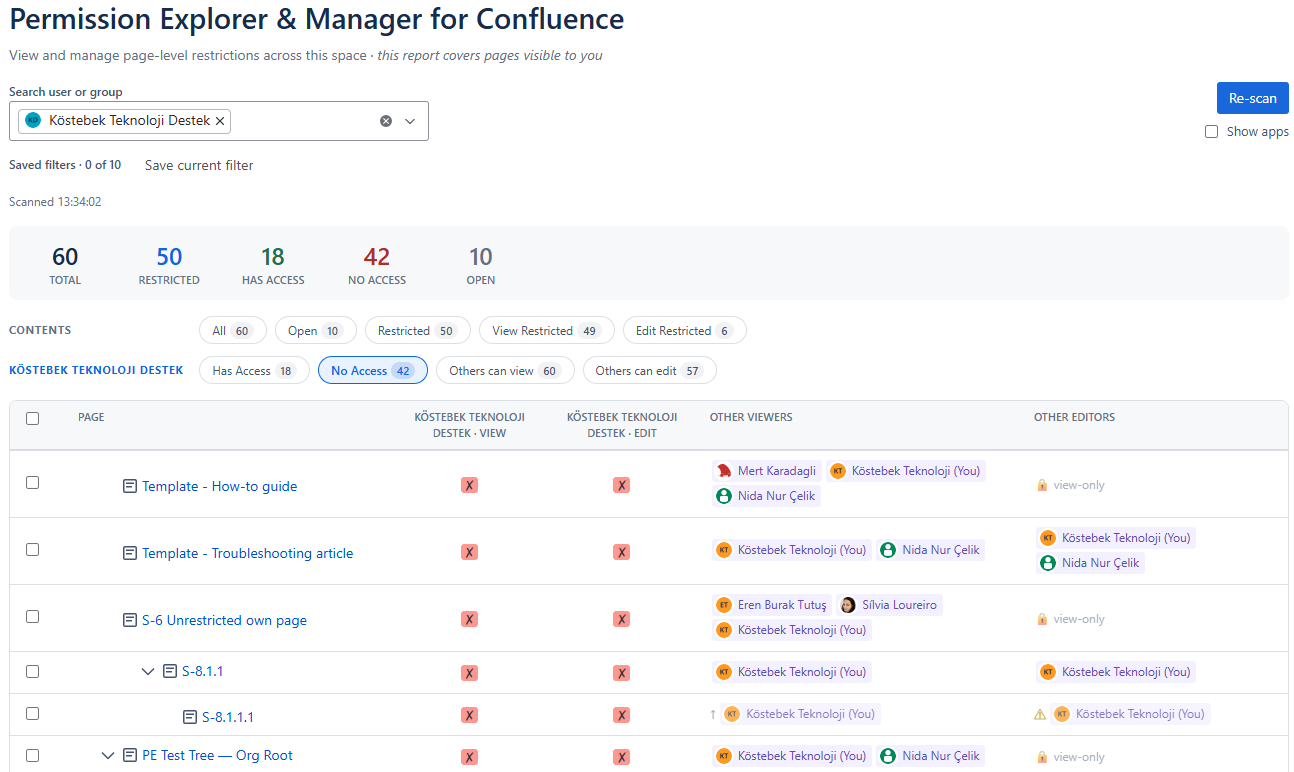
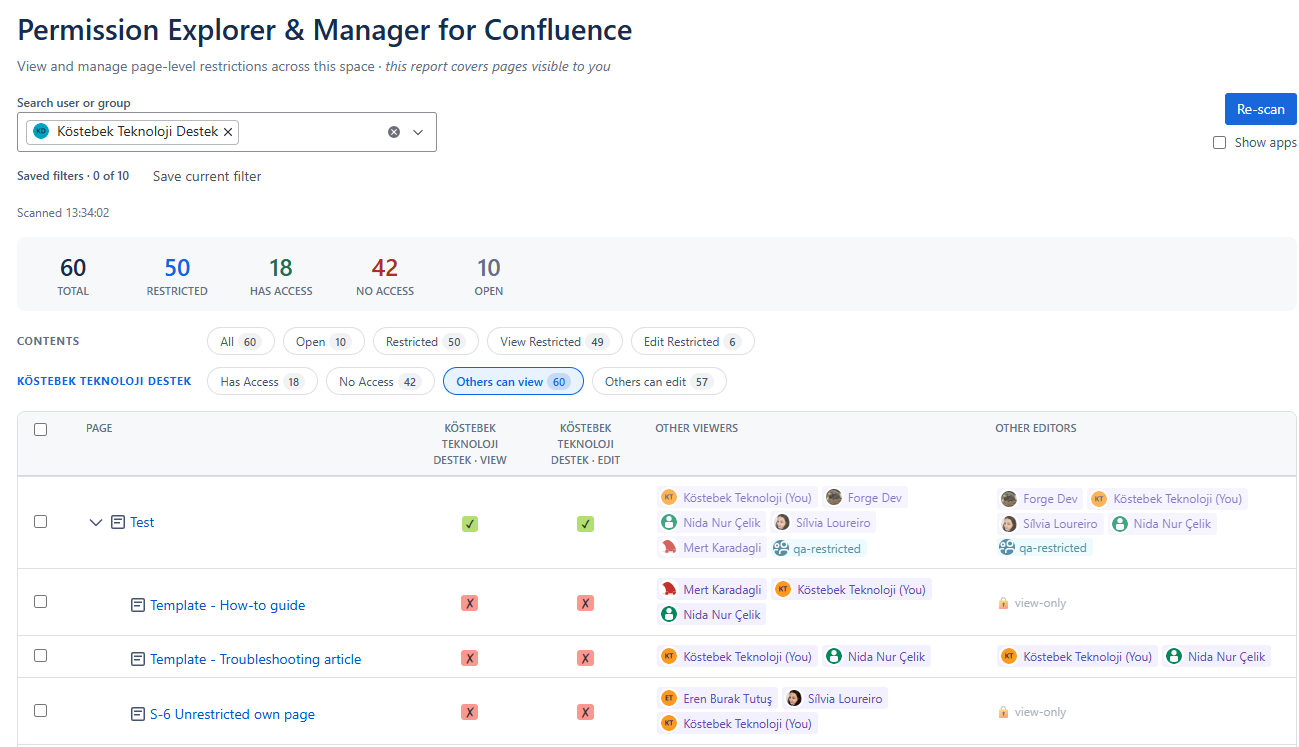
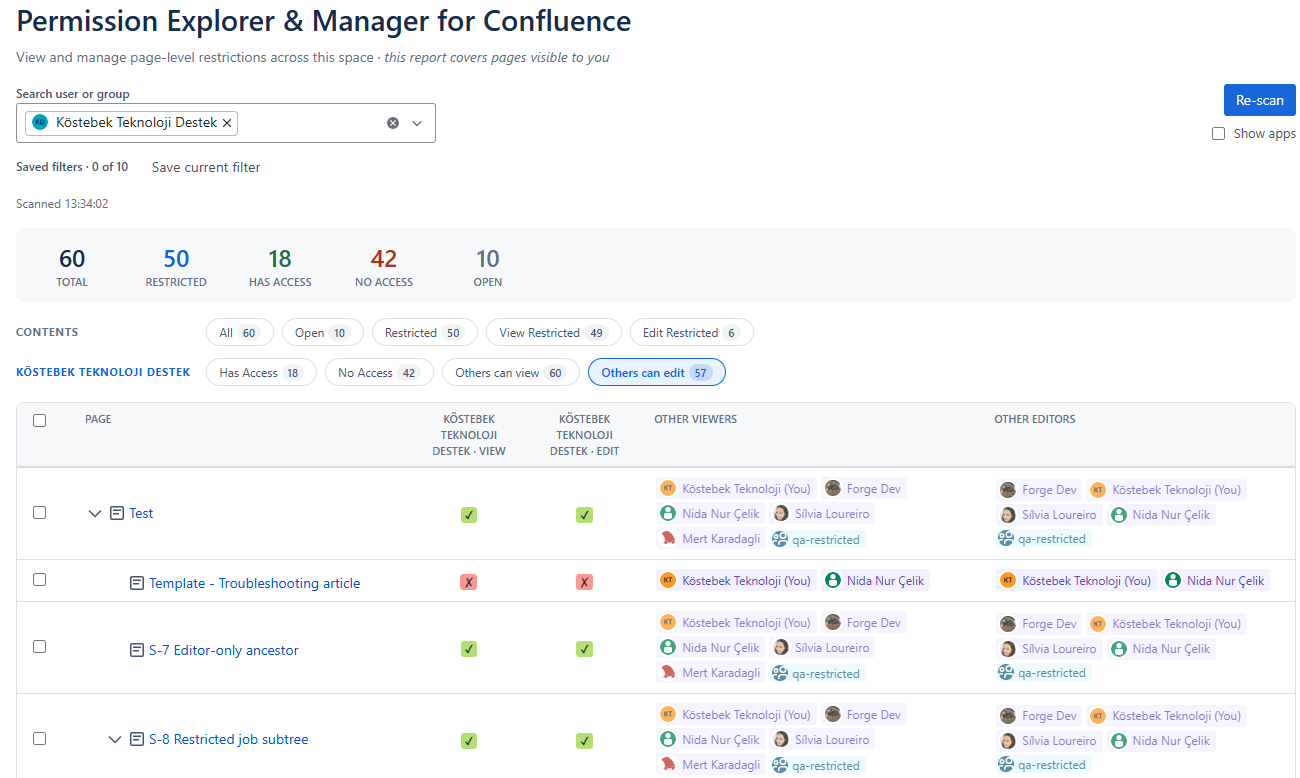
5.4. Typical workflows using filters
🆕 Verify Access During Onboarding
When a new employee joins a team, follow these steps to verify their access:
-
Search for the user or their Confluence group.
-
Select Has Access to review the pages they can already view.
-
Select No Access to identify relevant pages they cannot access.
-
Grant the required permissions directly from the results.
↔️ Review Access During Offboarding or Team Changes
When a user leaves the organization or moves to another team, review their access:
-
Search for the user.
-
Use Has Access to identify pages they can currently view.
-
Review View Restricted and Edit Restricted pages containing explicit access entries.
-
Remove outdated permissions from the selected pages in bulk.
🧹 Clean Up Unnecessary Page Restrictions
When a space contains outdated or overly restrictive permissions, clean them up by:
-
Select Restricted to list all pages with explicit restrictions.
-
Use View Restricted or Edit Restricted to focus on a specific restriction type.
-
Review the affected pages and their permitted users or groups.
-
Remove unnecessary restrictions or open up selected pages to the whole space audience in bulk using ‘Open up content’.
🔍 Investigate User Access Issues
When a user reports that they cannot open expected content:
-
Search for the user.
-
Select No Access to find pages they cannot view.
-
Review the page hierarchy and the users or groups listed under Other Viewers.
-
Compare the user’s access with the existing restrictions and grant access where appropriate.
📋 Perform a Permission Audit
Before a security, compliance, or internal access review:
-
Use Open to identify pages available to everyone with space access.
-
Use Restricted, View Restricted, and Edit Restricted to review protected content.
-
Search for a user or group and select Others can view or Others can edit to identify additional access holders.
-
Update permissions where access is broader than intended.