
Permission Explorer & Manager for Confluence lets you grant, remove, or open up page-level restrictions across multiple pages in one action, without visiting each page individually. This helps manage access for a user or group across a large space, reducing repetitive work and keeping permissions consistent.
Bulk actions speed up permission management, reduce manual steps, and improve accuracy when applying changes to multiple pages.
Bulk actions also simplify combining filters with selection, so you target only pages needing changes before applying them.
6.1 Selecting pages
-
Use the checkbox on each row to select pages.
-
OR select all visible pages using the checkbox in the table header (respects the active filter).
-
The number of selected pages appears below the table.
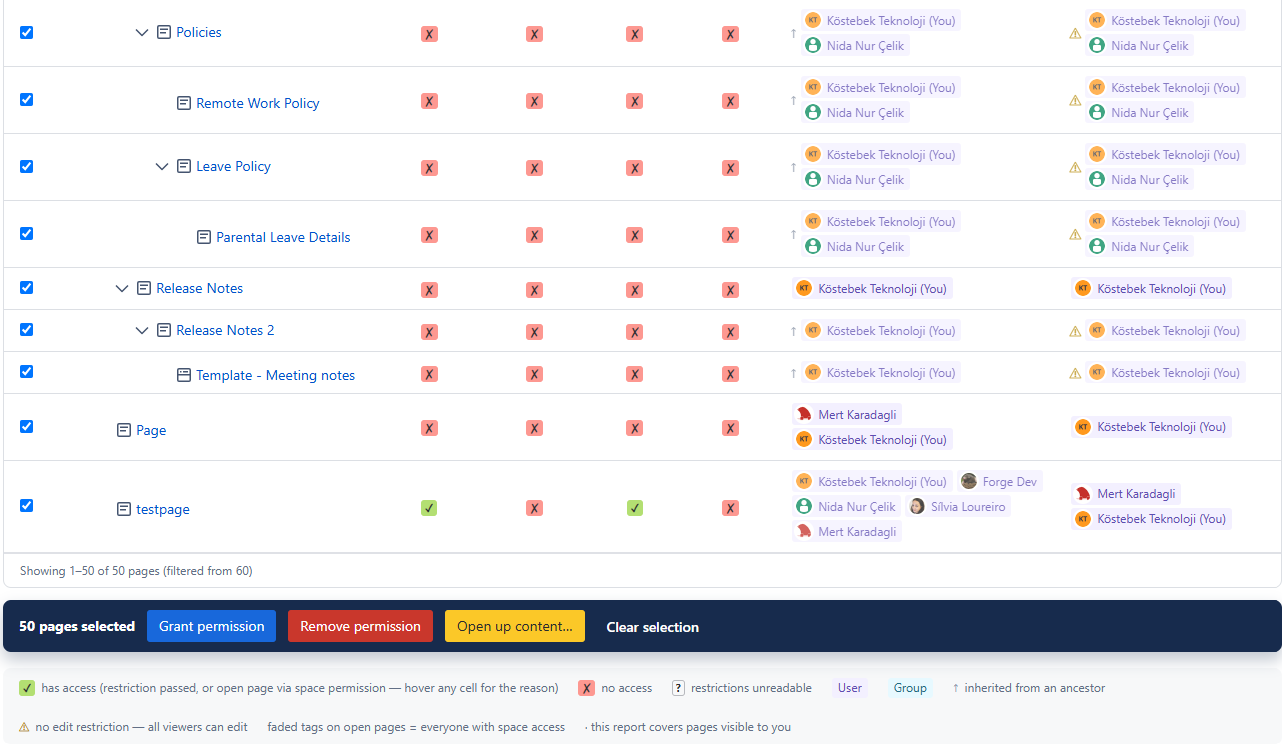
6.2 Bulk action buttons
|
✓ Grant permission |
✗ Remove permission |
Open up content… |
|---|
|
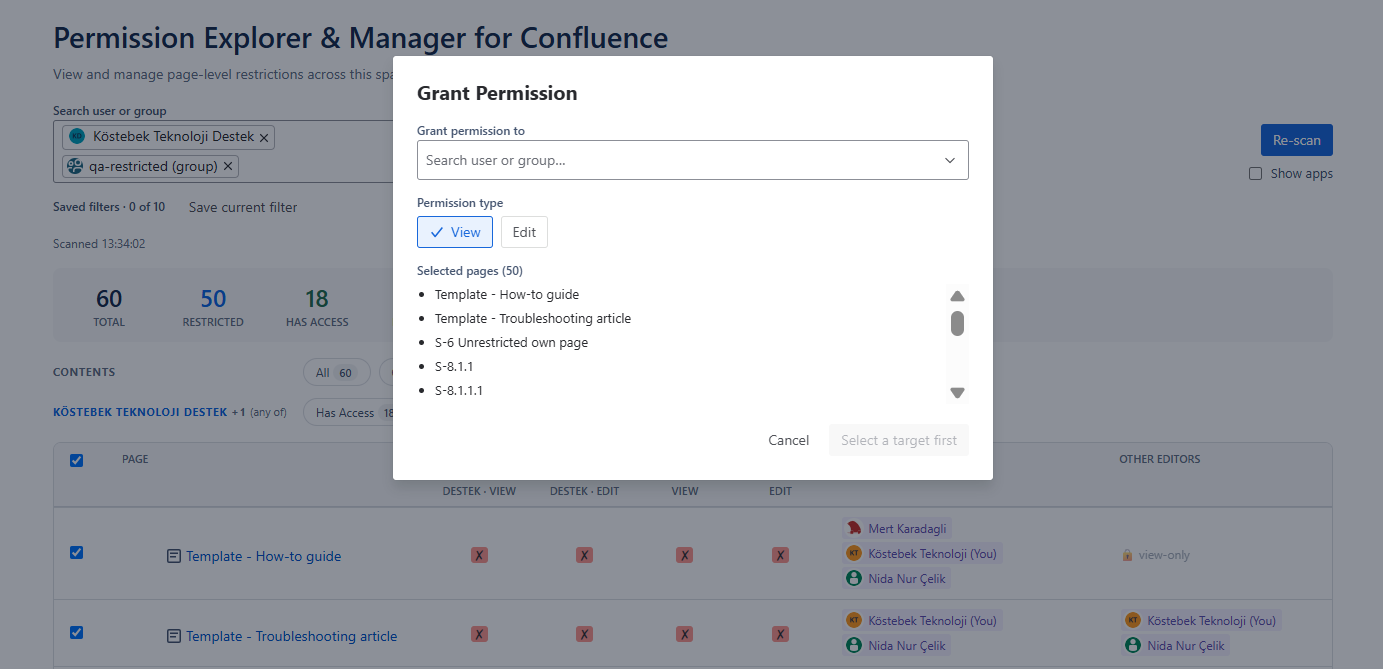
Grant permission |
Adds the selected user or groups to the view/edit restriction on all selected pages. |
|
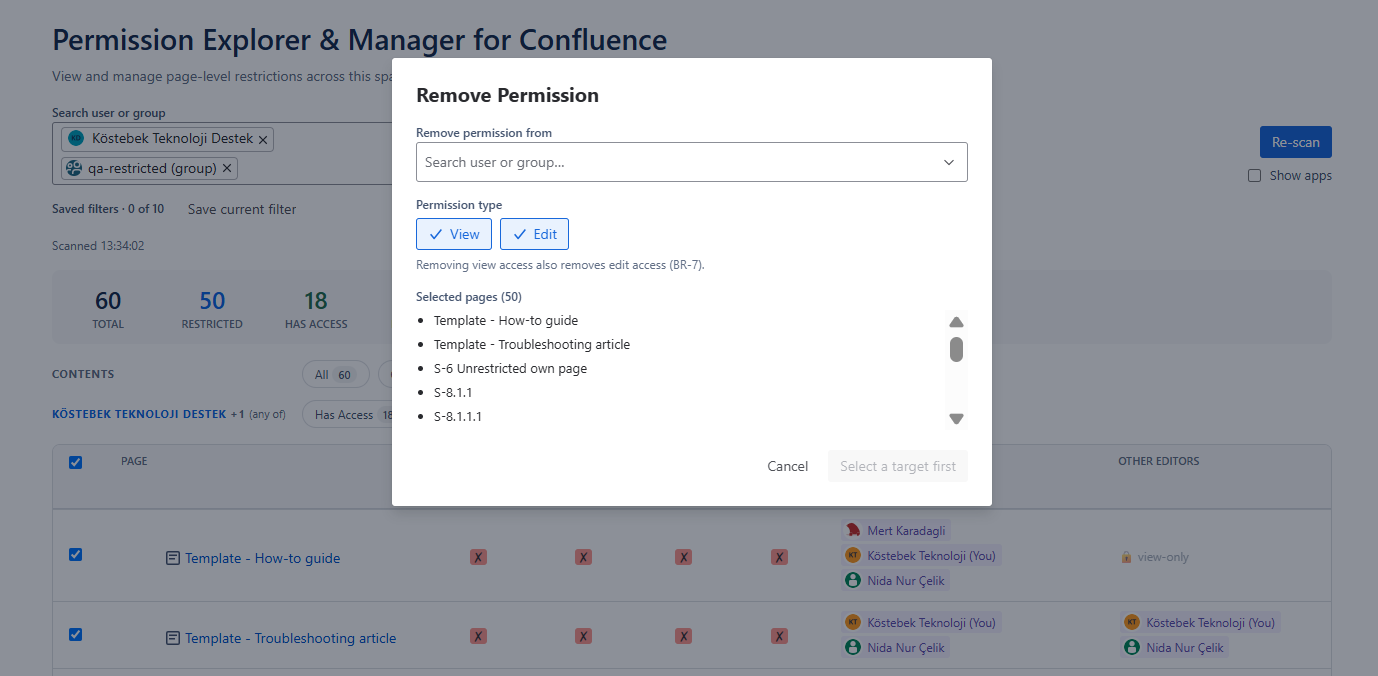
Remove permission |
Removes the selected user or group from view/edit restrictions on all selected pages. |
|
Open up content |
Removes all restrictions from the selected pages, making them visible and editable to everyone with space access. |
|
Clear Selection |
Deselects all pages without changes. |
The "Remove permission" and "Open up content" buttons are hidden if only pages in the "open" state are selected.
Select the operation to perform. In the window that opens, set permission type, then proceed. Check out the screens below:
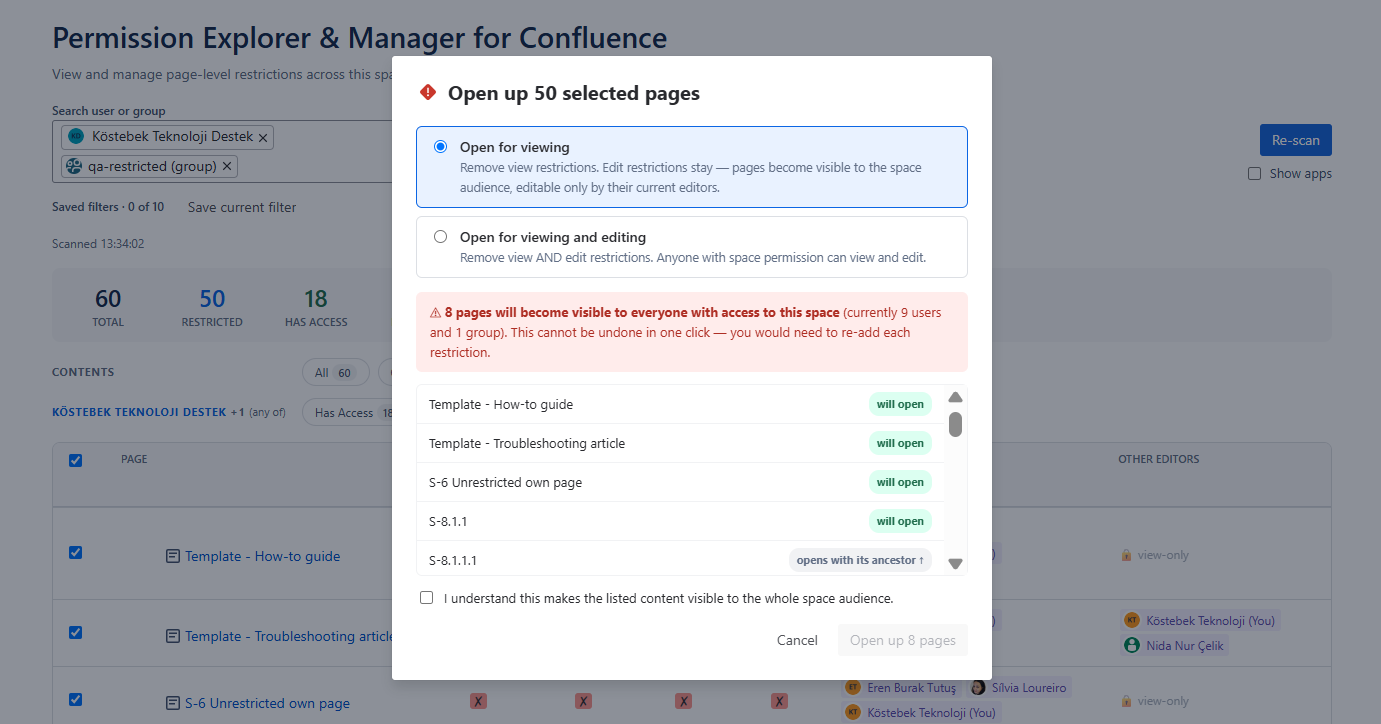
⚠️ Action Warnings
You may see warnings when selecting an action. For example:
-
If you apply a restriction for the first time to an open page,
-
If the selected user or group already has the permission you want to grant, or lacks the permission you want to remove,
those actions will not execute; the remaining pages will still be processed.
6.3 How bulk changes work
Each action fires one API call per selected page. For large selections this may take a few seconds. The table updates as soon as changes are applied.
Bulk actions apply immediately and cannot be undone from within Permission Explorer & Manager. To reverse a change, re-select the pages and apply the opposite action.
6.4 Efficient workflow for permissions
The most efficient workflow is to filter first, then select all, then act:
-
Click a filter
-
Select all pages
-
Click one of the bulk action buttons to grant or remove permissions.
-
Click Re-scan to confirm