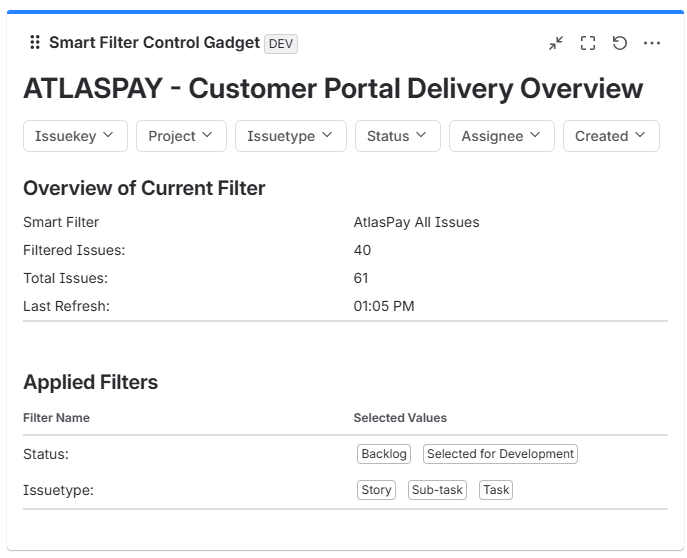
The Smart Dashboard Control Gadget acts as the master control panel for your Jira dashboard. Instead of configuring separate filters for every gadget, the Control Gadget allows you to dynamically filter multiple connected gadgets simultaneously in real time.
➕ How to Add the Control Gadget
-
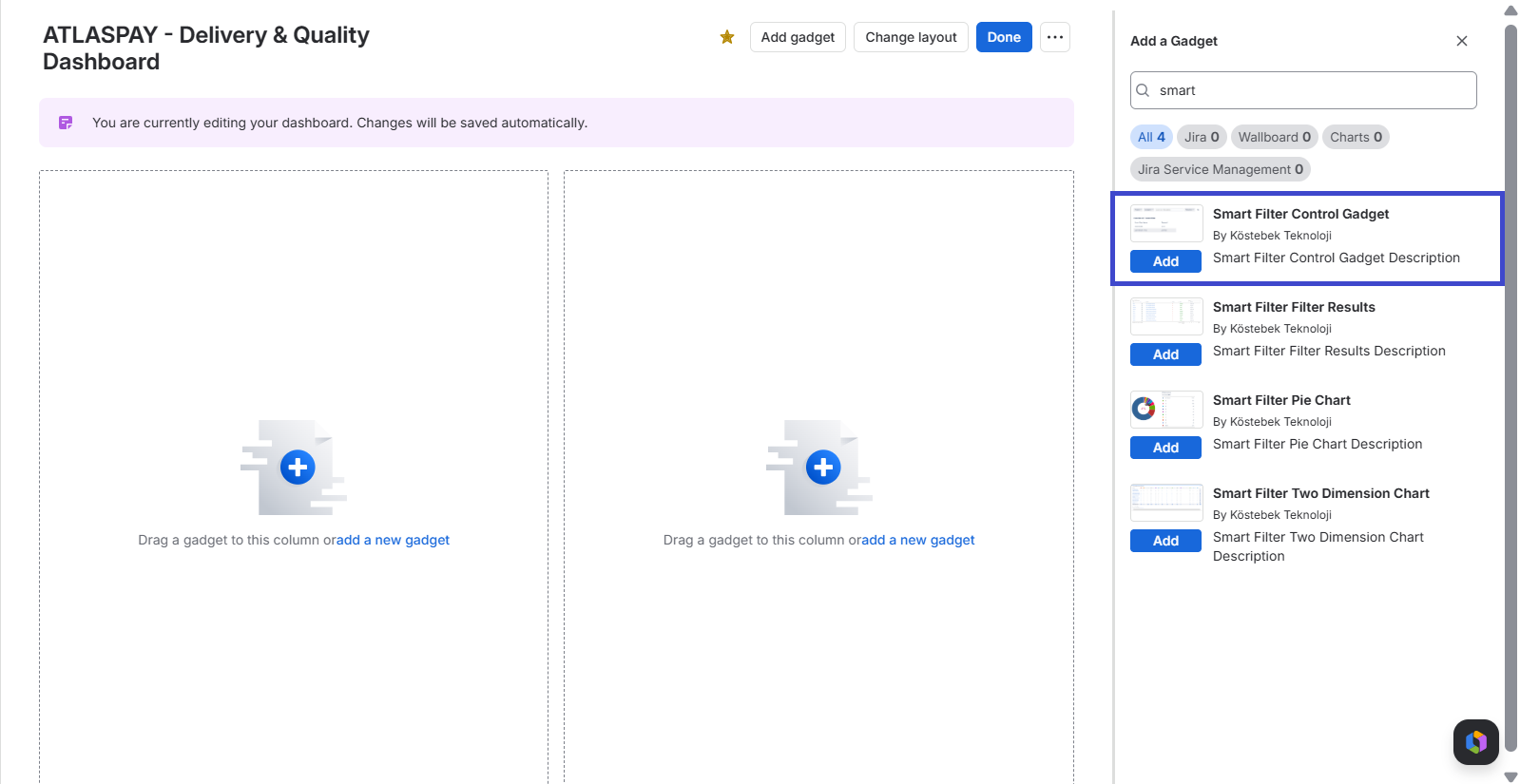
Open your Jira dashboard, click Edit dashboard, then select Add gadget.
-
Search for Smart Dashboard Control Gadget in the gadget sidebar and click Add.
-
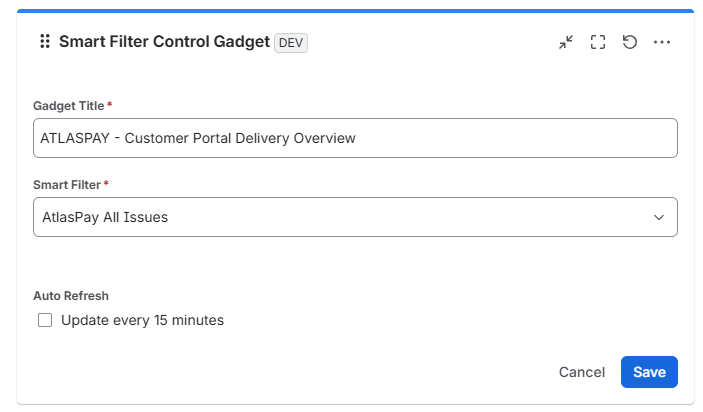
Enter a Title, select the previously created Smart Filter, and optionally enable Update every 15 minutes.
-
Click Save.
💡 How to Use the Control Gadget
-
Apply Interactive Filters: Use the dropdown menus inside the Control Gadget (e.g., Project, Status, Assignee, Priority) to select specific criteria.
-
Instant Visualization: As soon as you select a value, all connected Smart Dashboard gadgets on the dashboard immediately update their data, charts, and tables.
-
Reset Filters: Clear your selections at any time to return all dashboard gadgets to their default view.
Place the Control Gadget at the very top of your dashboard so team members can easily access filter controls before reviewing the charts and tables below.