
The Smart Dashboard Pie Chart Gadget visualizes the distribution of Jira issues in a dynamic, interactive pie chart based on your chosen Smart Filter. When linked to a Smart Dashboard Control Gadget, the chart automatically recalculates and redraws itself in real time whenever you adjust your filter criteria.
➕ How to Add the Pie Chart Gadget
-
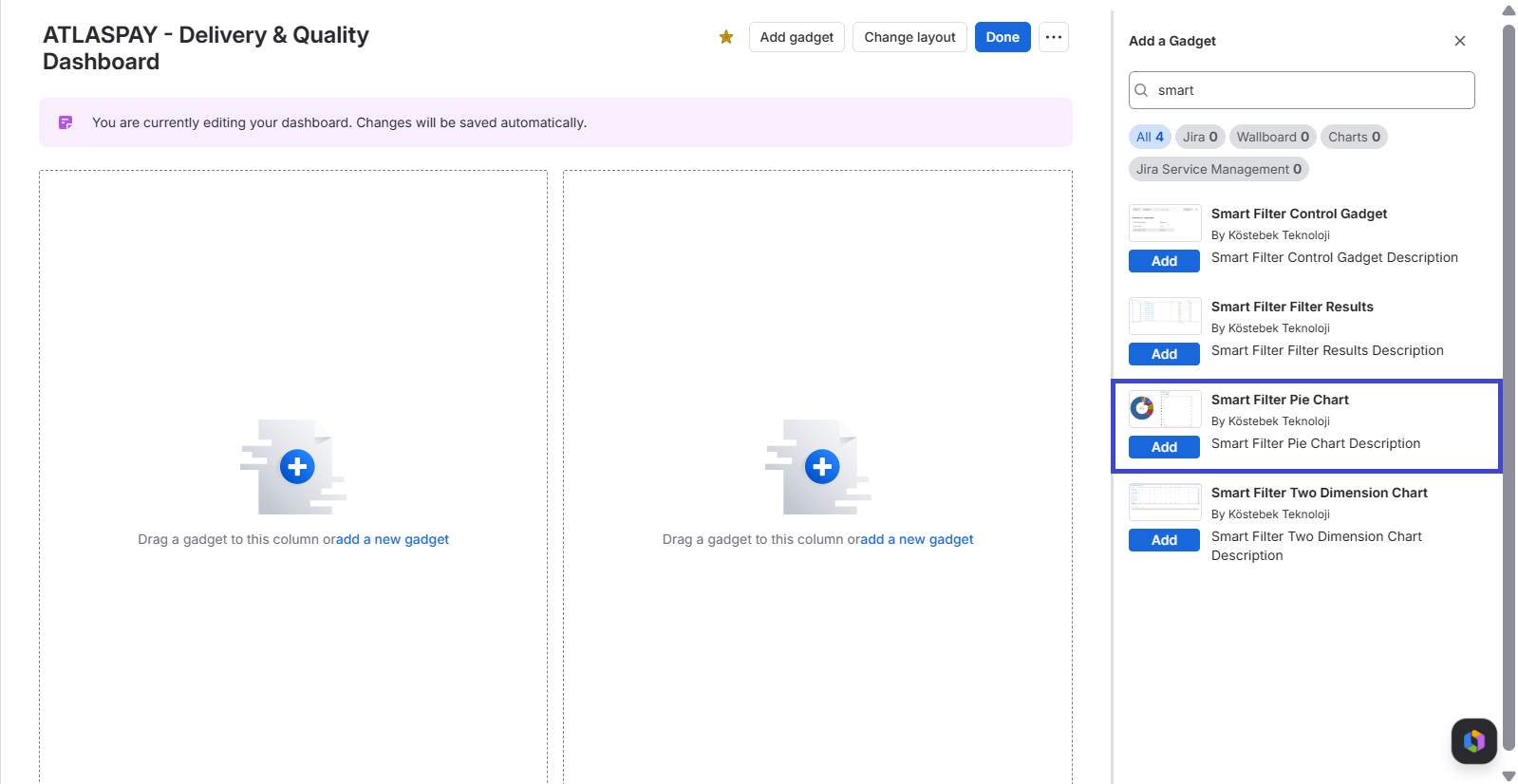
Open your Jira Dashboard, select Edit dashboard or Add gadget, then search for Smart Dashboard Pie Chart Gadget and click Add.
-
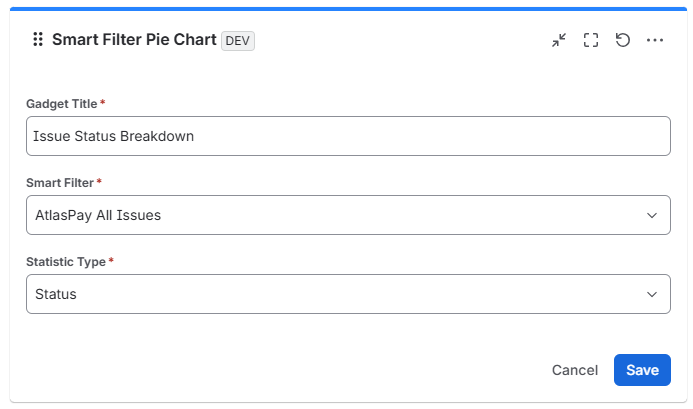
Configure the gadget by entering a Title, selecting the relevant Smart Filter, and choosing the Statistic Type you want to group data by, such as Status, Assignee, or Priority.
-
Click Save.
💡 How to Use the Pie Chart Gadget
-
Hover for Insights: Hover your cursor over any pie segment to view the exact issue count for that category.
-
Interactive Filtering: Adjust dropdown selections in the Smart Dashboard Control Gadget on the same dashboard to see pie slices adjust instantly.
-
Spot Bottlenecks: Use segment proportions to identify overdue statuses, unassigned work items, or high-priority issue concentrations at a glance.
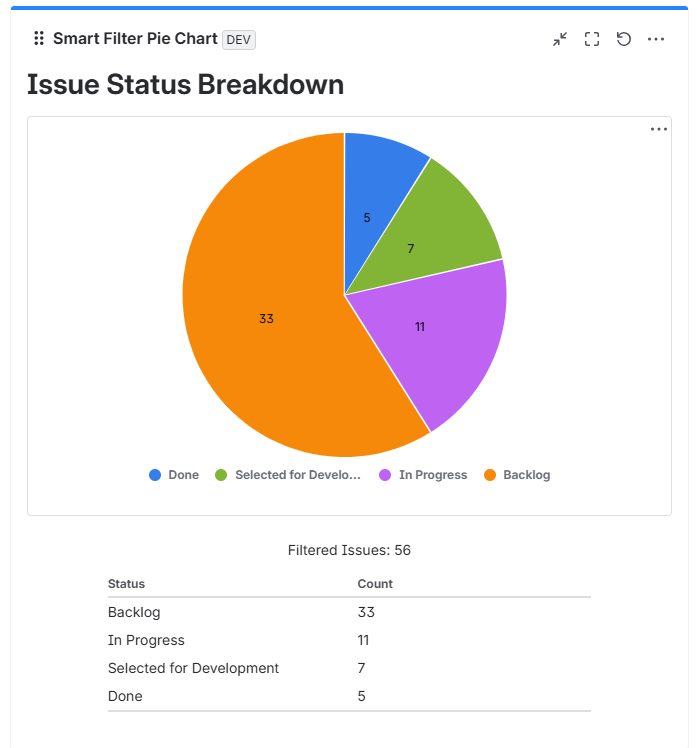
Add multiple Pie Chart Gadgets side-by-side linked to the same Smart Filter - one set to Status and another to Assignee - to give your team a comprehensive visual overview of project progress and team capacity.