
Label Manager for Confluence is a Forge-based Confluence Cloud space app. Once installed from the Atlassian Marketplace, it appears in More actions (…) toolbar under Apps. No page editing or additional configuration is required.
The app works within the space from which it is opened and provides separate workflows for managing content labels and attachment labels.
2.1 Requirements
-
Confluence Cloud instance
-
Label Manager for Confluence installed from the Atlassian Marketplace by a Confluence admin
-
The app has been granted access to the relevant space through Space settings → Space access → Users.
-
Your user account has access to the space and the permissions required to edit the selected content.
-
For restricted pages, both the app and the user have the required edit access.
For restricted pages, both the application and the user must have edit access via the page Share settings.
2.2 Opening the app
-
Go to the Confluence space where you want to add the label and open any page in that space.
-
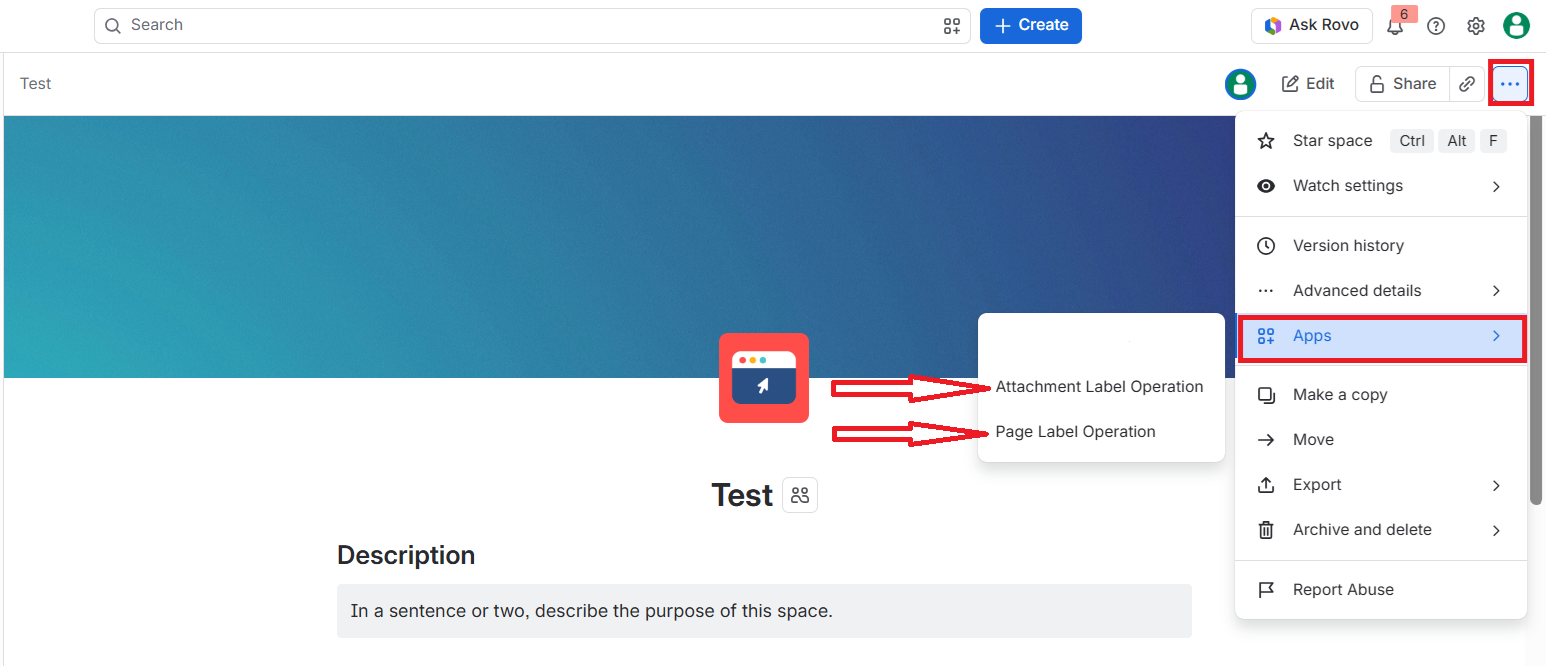
Click More actions (…) in the top-right corner of the page toolbar.
-
Click Apps to expand the installed app actions.
-
Choose the operation you need:
|
Menu item |
Opens |
|---|---|
|
Page Label Operation |
The Page Label Manager - for labeling pages, blog posts and live docs. |
|
Attachment Label Operation |
The Attachment Label Manager - for labeling file attachments on the current page. |
The Page Label Manager is space-scoped - all content accessible to you in the current space is available regardless of which page you used to open it. The Attachment Label Manager is page-scoped - it lists only the attachments on the page you opened it from.
2.3 Access and Permissions
Label Manager applies changes only to content and attachments accessible within the app and the current user's permissions.
For page label operations, the app shows content in the current space. For attachment label operations, select a page, then choose from its attachments.
If expected content or attachments do not appear, check that:
-
The app has access to the space.
-
Your user account can view and edit the content.
-
No page restriction blocks the app or user from accessing the page.
-
The selected page contains attachments when using Attachment Label Manager.
Granting the app access to a space does not override page-level restrictions.