Label Manager for Confluence enables efficient bulk management of labels across multiple Confluence pages and attachments, which means you don't have to make changes one by one. Users can access the Page Label Manager - applicable to pages, blogs, and live documents - and the Attachment Label Manager - designed for attachments - directly from the Apps menu available on any Confluence page.
🏷 Manage Labels at Scale
Choose the action that matches your goal:
|
Action |
Purpose |
|---|---|
|
Add labels |
To organize multiple items consistently. |
|
Replace labels |
To correct naming differences or refresh outdated terminology. |
|
Remove labels |
To clean up unnecessary or obsolete data. |
Reduce repetitive tasks and keep your Confluence labels clear and consistent.
📃 Work Across Content and Attachments
Label Manager supports two complementary workflows:
|
Workflow |
Description |
|---|---|
|
Page Label Operation |
Lets you apply label changes to selected content within a space. You can target specific items or include child content where needed. |
|
Attachment Label Operation |
Lets you select a page and manage labels across multiple attachments at once. |
🧭 Follow a Guided Workflow
Every operation moves through four clear stages:
Select Labels → Content Selection → Review & Confirm → Complete
Before processing, you can review the selected action, labels, and affected items. This helps you verify the scope and avoid unintended changes.
📊 Track the Outcome
After the operation is complete, Label Manager provides a clear summary of the results, including:
-
Total processed items
-
Successful updates
-
Skipped items
-
Errors
This gives you visibility into every bulk operation and makes ongoing label maintenance easier to manage.
🔒 Built for Trust
-
Runs on Atlassian Forge - no external servers or third-party data sharing.
-
Respects Confluence permissions and page restrictions - label operations apply only to content and attachments the user and app are authorized to access.
Required Permissions
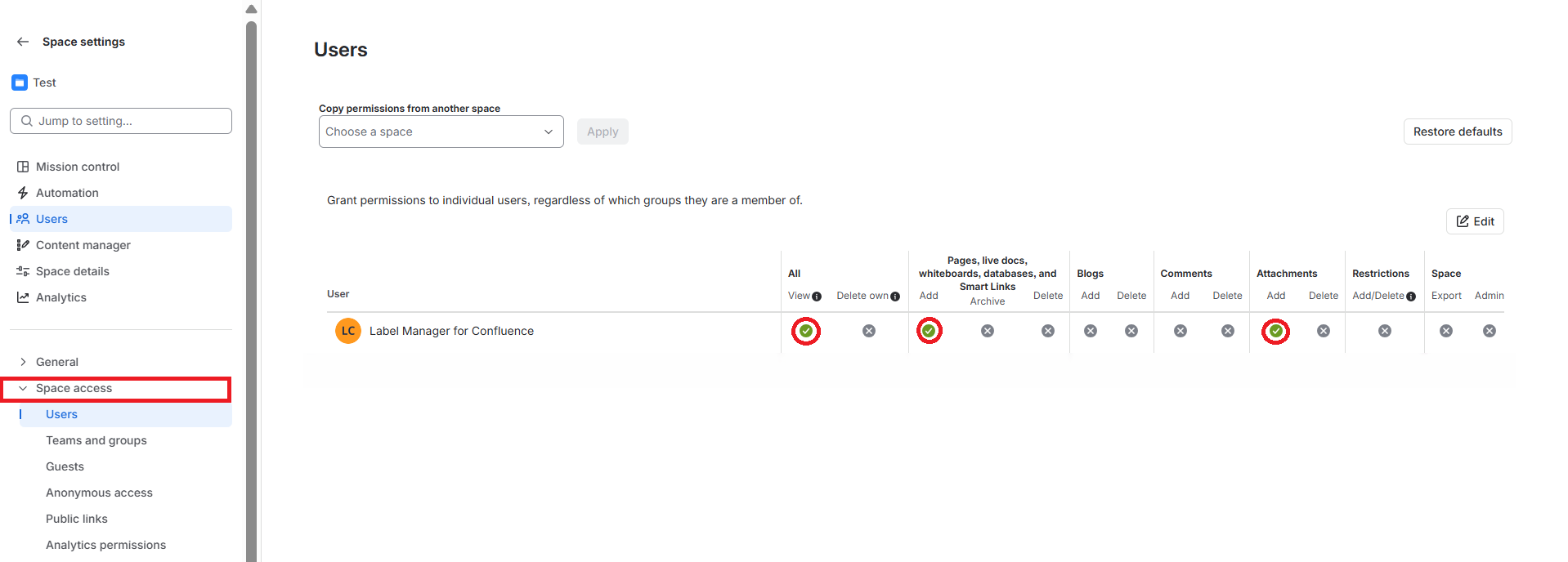
To use Label Manager for Confluence in a space, both the app and the user performing the action must have the required permissions.
-
Grant the app access from Space settings → Space access → Users.
-
Make sure the user has permission to view and edit content in the space.
-
Page-level restrictions take priority over space permissions. If a page is restricted, Label Manager cannot modify it unless both the app and the user have access.
-
To grant access to a restricted page, use the page’s Share button and give edit permission to both the app and the user.