
An Actual represents a real financial transaction - revenue earned or cost incurred - within a project. While plans define what you expect to happen, actuals record what actually happened.
There are two types of actuals:
|
Type |
Description |
|---|---|
|
Planned Actual |
An actual linked to an existing plan. Use this when the revenue or cost was expected and you want to track how much of the plan has been realized. |
|
Unplanned Actual |
A standalone actual not linked to any plan. Use this when an unexpected revenue or cost occurs that was not accounted for in the original project plans. |
On the Overview page, view total planned and actual Cost and Revenue figures. Use the Cost and Revenue tabs for details.
5.1 Creating an actual
Permission required: Create permission for the specific project
Use this when the revenue or cost was not planned in advance.
-
Open Financials for Jira from the left sidebar under Apps.
-
In the Projects panel, click the project name to open it.
-
From the top menu, click the Revenue or Cost tab.
-
Click the Create Revenue or Create Cost button.
-
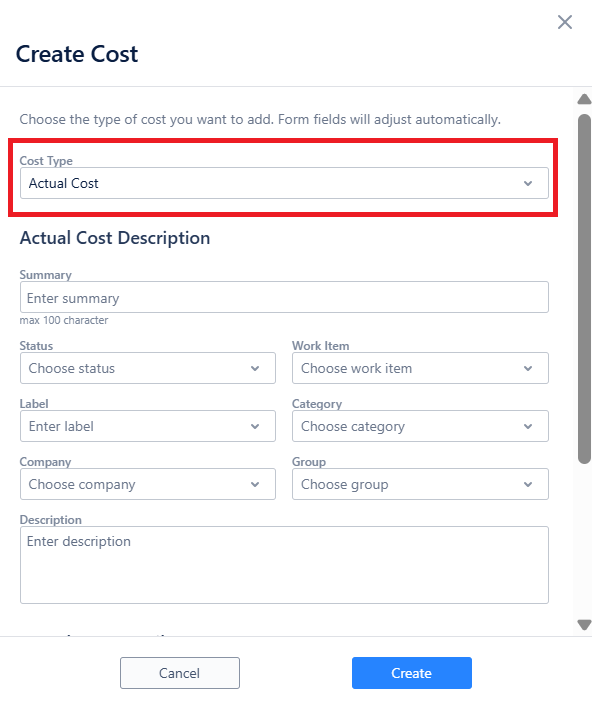
In the Cost Type (or Revenue Type) dropdown, select Actual Cost or Actual Revenue. The form fields will adjust automatically.
-
Fill in the description fields.
-
Click Create.
5.2 Adding an actual to a plan (planned actual)
Permission required: Create permission for the specific project
Use this when a portion (or all) of a planned revenue or cost has been realized.
-
Go to the Revenue or Cost tab in the project.
-
Click the arrow beside the Revenue or Cost key to expand the plan list.
-
Locate the plan you want to record an actual against.
-
Click the three-dot menu (⋯) next to that plan.
-
Select Add Actual.
-
Complete the actual detail fields (see the field reference below).
-
Click Add Actual.
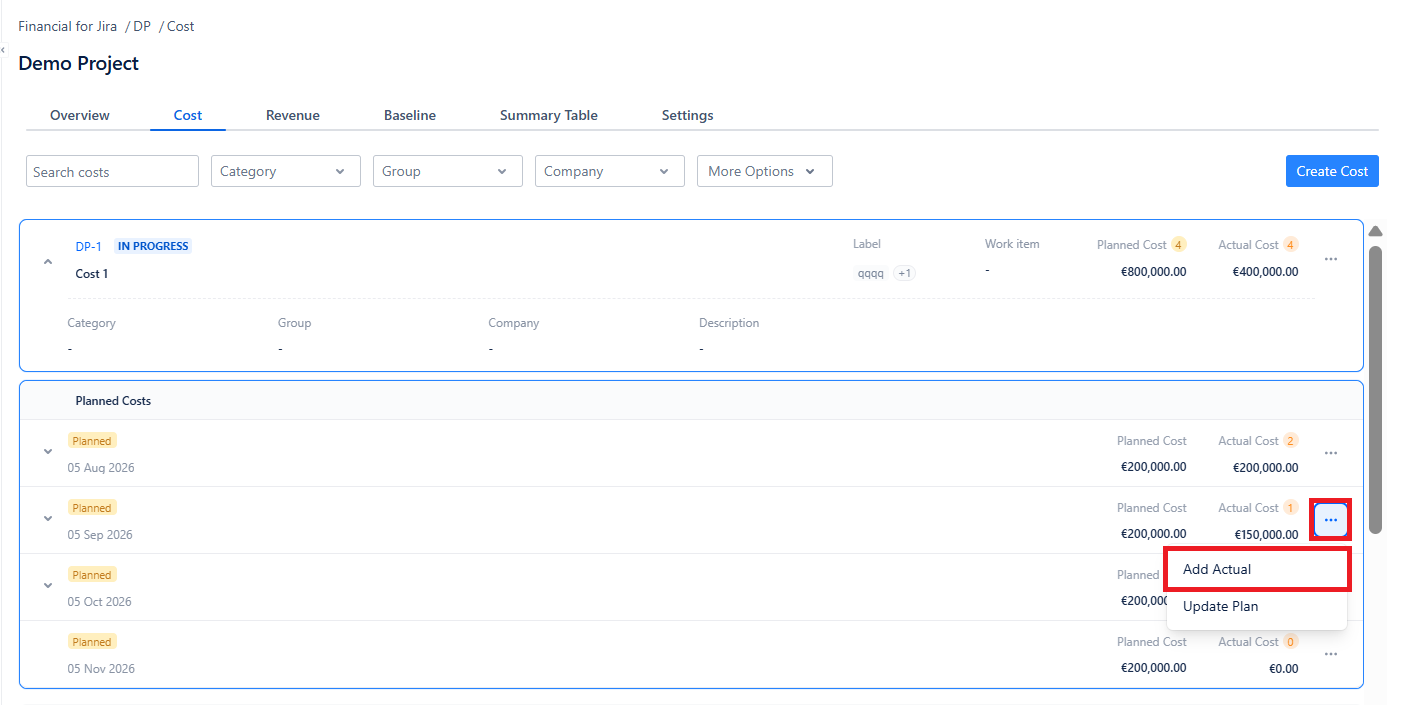
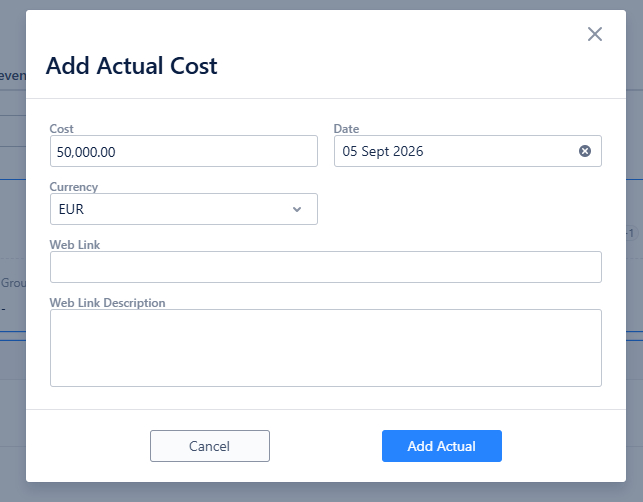
💡 Each plan can have multiple actuals. For example, a monthly plan of €200,000 could include partial actuals: €50,000 on one date and €150,000 on another. The plan row shows the running total of its associated actuals.
5.3 Updating an actual
Permission required: Edit permission for the specific project
Updating the Actual Revenue or Cost record
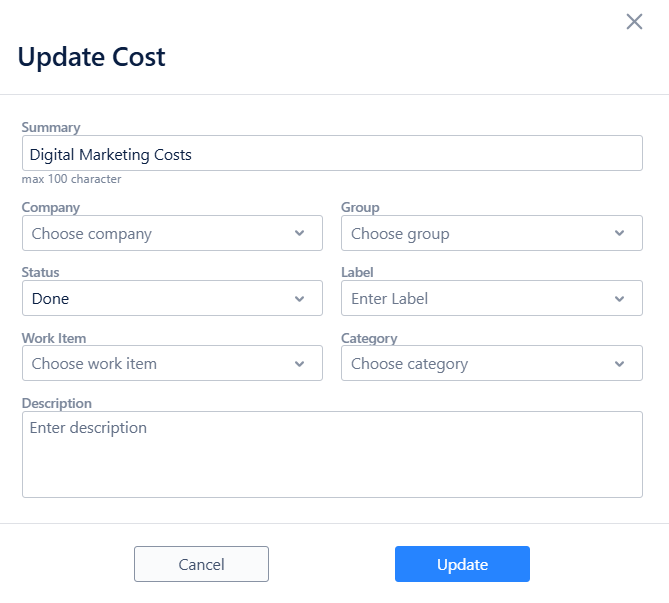
Use this to change the description-level fields (summary, status, work item, label, category, company, group, description).
-
Go to the Revenue or Cost tab in the project.
-
Click the three-dot menu (⋯) next to the entry you want to update.
-
Select Update Revenue or Update Cost.
-
Make the necessary changes.
-
Click Update.
Updating a specific actual within the record
Use this to change the amount, date, or currency of an individual actual entry.
-
Go to the Revenue or Cost tab in the project.
-
Click the arrow next to the Revenue or Cost key to expand the plan list.
-
Expand the specific plan to view its actuals.
-
Click the three-dot menu (⋯) next to the actual you want to update.
-
Select Update Actual.
-
Make the necessary changes to the amount, date, or currency.
-
Click Update.
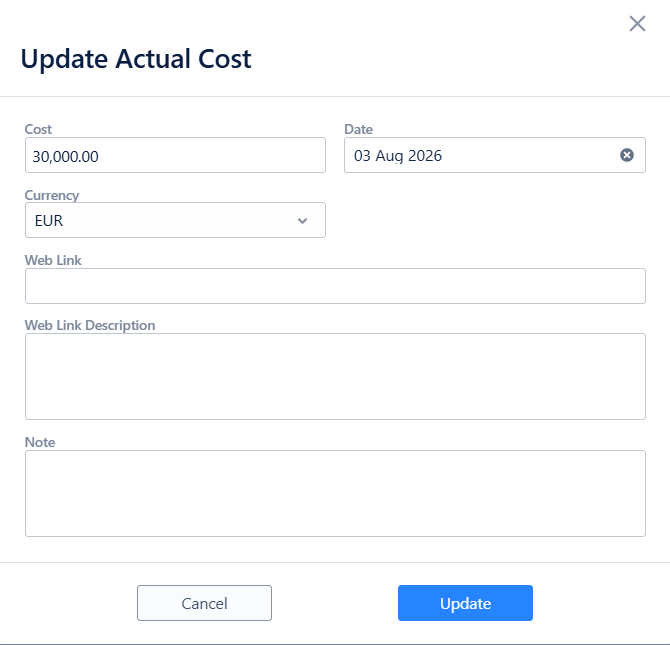
These are two different operations. Updating the Revenue/Cost record changes its metadata (summary, category, etc.). Updating a specific actual changes the financial details of that individual transaction.
5.4 Deleting an actual
Permission required: Delete permission for the specific project
Deleting an entire Revenue or Cost record
This removes the record and all actuals associated with it.
-
Go to the Revenue or Cost tab in the project.
-
Click the three-dot menu (⋯) next to the entry you want to delete.
-
Select Delete Revenue or Delete Cost.
-
Confirm the deletion in the dialog.
Deleting a single actual from a plan
This removes only the selected actual, leaving the Revenue or Cost record and its other actuals intact.
-
Go to the Revenue or Cost tab in the project.
-
Click the arrow next to the Revenue or Cost key to expand the plan list.
-
Expand the specific plan to view its actuals.
-
Click the three-dot menu (⋯) next to the actual you want to remove.
-
Select Delete Actual.
-
Confirm the deletion.
Deleting a single actual vs. deleting the entire record is an important distinction. If you only want to remove one transaction, delete the actual - not the record.