
The Work Item Financial Panel allows users to view financial records related to a Jira work item directly from the issue screen.
Instead of switching to a separate financial view, users can see the related financial project, review linked cost and revenue records, and compare planned and actual values in the same place where project work is managed.
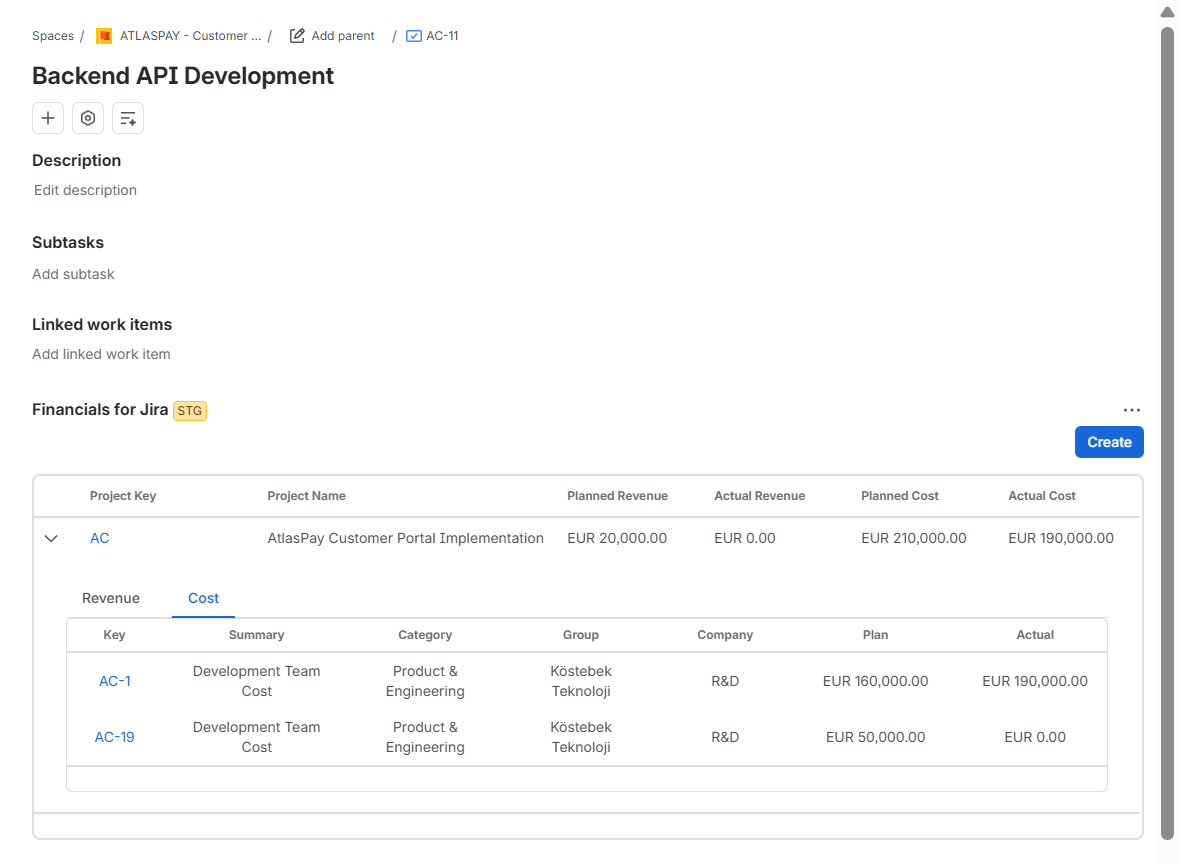
10.1 What the panel shows
When a Jira work item links to financial records, the panel displays the related financial project and its key financial values.
Users can see:
-
Project key and project name
-
Planned revenue
-
Actual revenue
-
Planned cost
-
Actual cost
-
Linked revenue records
-
Linked cost records
-
Planned and actual values for each linked record
The panel lets users understand the financial context of a work item without leaving the Jira issue view.
10.2 How to add the panel to a Jira issue
To display the Financials for Jira panel on a Jira work item:
-
Open the Jira work item you want to review.
-
Click the View app actions in the issue toolbar.
-
Select Financials for Jira.
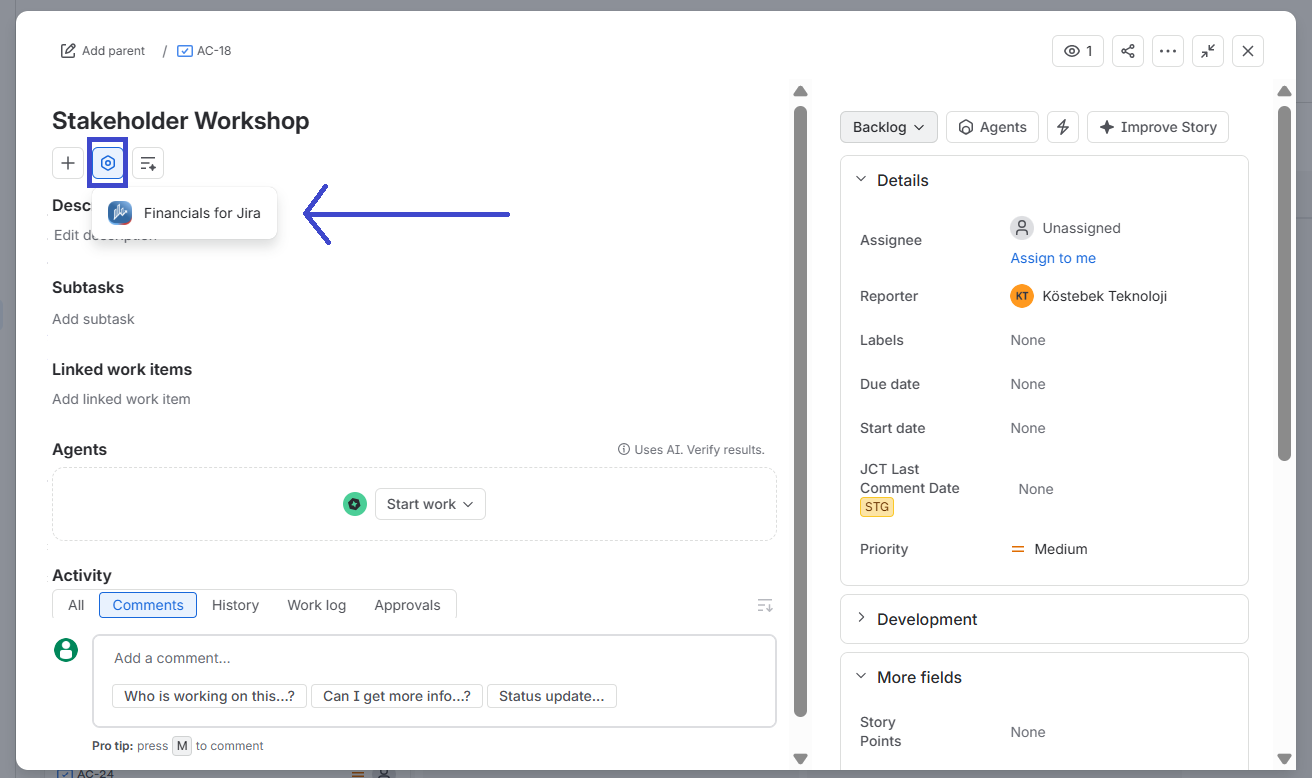
The Financials for Jira panel is added to the issue screen. Use it to view financial records linked to that work item.
Once added, the panel appears inside the issue view and shows financial data related to the selected Jira work item.
10.3 How to use the panel
The panel provides a quick way to review financial records connected to the current Jira issue.
Users can:
-
View the related financial project
See which Financials for Jira project the work item connects to. -
Switch between Revenue and Cost
Use the tabs to move between revenue records and cost records. -
Review linked financial records
See the financial records associated with the current Jira work item, including category, group, company, planned value and actual value. -
Open or create financial records when needed
Use the panel to continue working with financial records linked to the issue.
10.4 Benefits of the Work Item Financial Panel
The Work Item Financial Panel brings the financial context of a Jira work item into the issue view, helping teams make informed decisions without interrupting their workflow.
It is especially useful when teams need to:
-
Assess the cost or revenue impact of a specific Jira work item.
-
Compare planned and actual values while work is still in progress.
-
Keep project delivery and financial tracking connected in one workflow.
-
Reduce context switching between Jira and separate financial reports.
-
Give project, delivery and finance teams quicker access to the information they need.
The panel only shows financial records related to the selected Jira work item. If no related records exist, users must create or link cost and revenue records first.