
A Revenue or Cost Plan represents a planned financial entry within a project. Each plan records an expected income (revenue) or expense (cost) with an amount, date, and currency. A single Revenue or Cost record can contain multiple plans - for example, to represent recurring monthly payments or entries in different currencies.
Plans are the forecasting layer of Financials for Jira. They allow you to define what you expect to earn or spend before actuals are recorded. Later, you can compare planned values against actuals in the project's Overview and Summary Table tabs.
4.1 Creating a plan
Permission required: Create permission for the specific project.
-
Open Financials for Jira from the left sidebar under Apps.
-
In the Projects panel, click the project name to open it.
-
From the top menu, click the Revenue or Cost tab.
-
Click the Create Revenue or Create Cost button.
-
In the Type dropdown, select Planned Revenue or Planned Cost. The form fields will adjust automatically.
-
Fill in the fields.
-
Click Create.
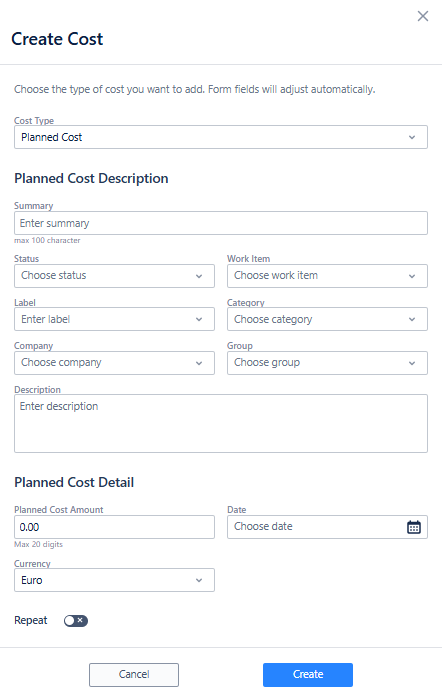
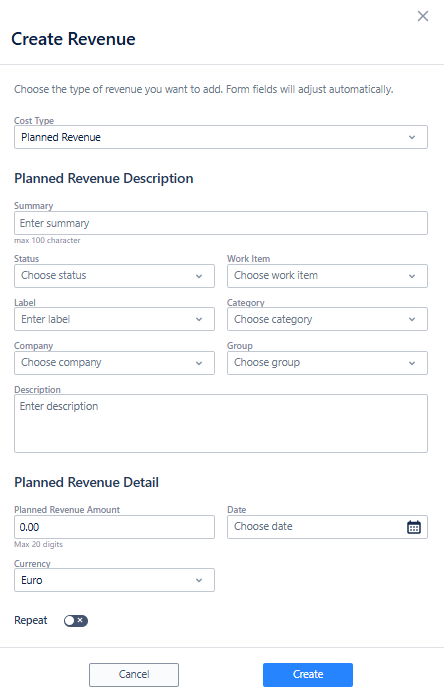
💡 The Currency defaults to the value set during project creation. To add a plan in a different currency, the system will request an exchange ratio.
Repeat scheduling
Enable the Repeat toggle to create recurring plans automatically.
|
Field |
Description |
|---|---|
|
Repeat time |
How often the plan repeats (never, weekly, bi-weekly, monthly, quarterly, yearly). |
|
Method |
Per Each - repeats the full amount for every occurrence. Total - distributes the total amount equally across all occurrences. |
|
Until |
The end date for the recurring schedule. |
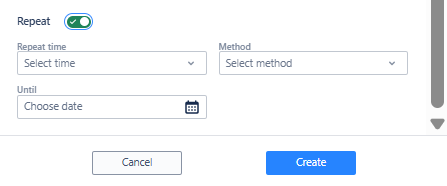
Example: A Planned Revenue of €55,000.00 repeating monthly with the Total method creates equal monthly entries (€55,000 ÷ number of months). A Planned Revenue of €18,000.00 repeating bi-weekly with the Per Each method creates a €18,000.00 entry for every bi-weekly occurrence.
Adding multiple plans to the same record
A single Revenue or Cost record can contain more than one plan. This is useful when:
-
You need entries in different currencies within the same record.
-
You want different repeat schedules for portions of the same revenue or cost.
-
You need to break down a single financial item into separate date-based entries.
To add another plan to an existing record, click the three-dot menu (⋯) next to the Revenue or Cost entry and select Add Plan.
4.2 Updating a plan
Permission required: Edit permission for the specific project
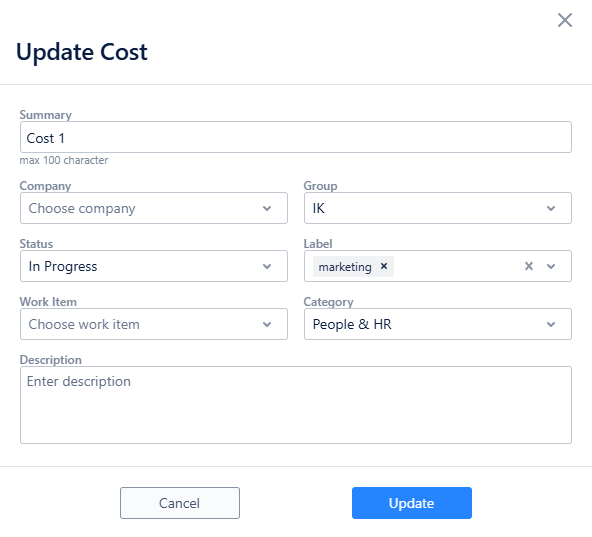
Updating the Revenue or Cost record
Use this to change the description-level fields (summary, status, work item, label, description).
-
Go to the Revenue or Cost tab in the project.
-
Click the three-dot menu (⋯) next to the entry you want to update.
-
Select Update Revenue or Update Cost.
-
Make the necessary changes.
-
Click Update.
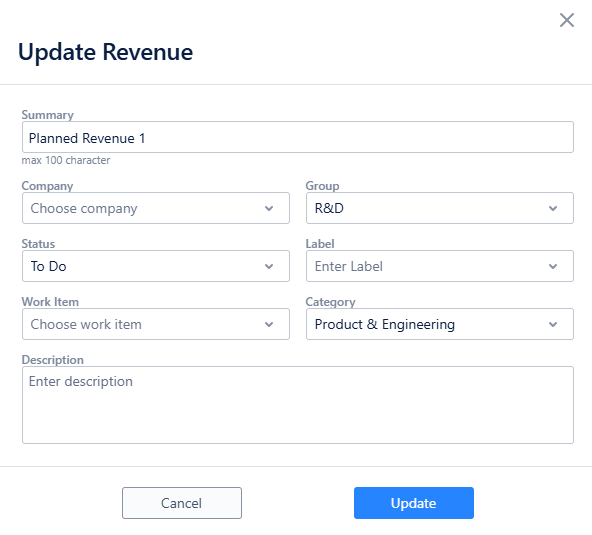
Updating a specific plan within the record
Use this to change the amount, currency, or date of an individual plan entry.
-
Go to the Revenue or Cost tab in the project.
-
Click the arrow next to the Revenue or Cost key to expand the plan list.
-
Click the three-dot menu (⋯) next to the specific plan you want to update.
-
Select Update Planned Revenue or Update Planned Cost.
-
Make the necessary changes to the amount, currency, or date.
-
Click Update.
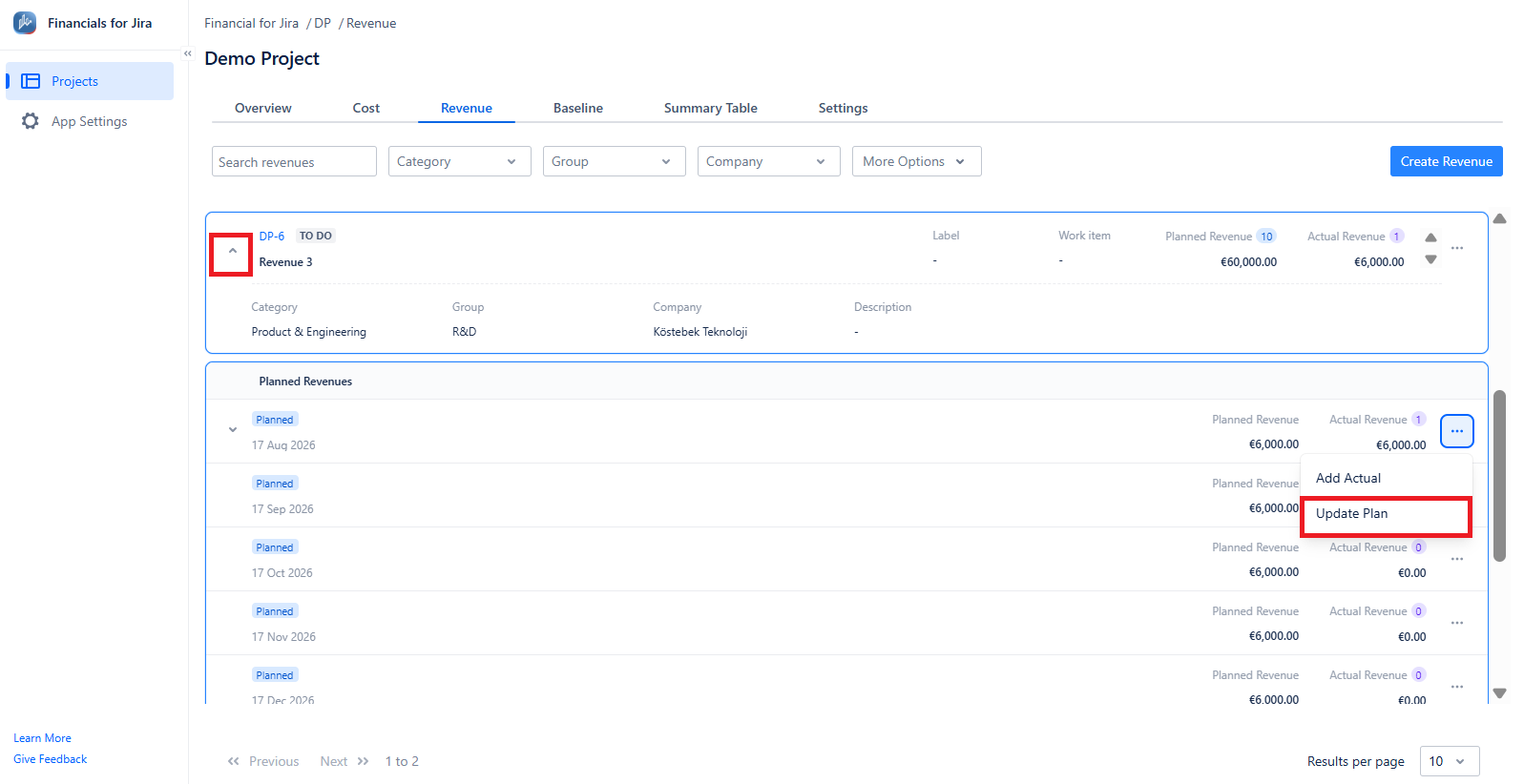
💡 These are two different operations. Updating the Revenue/Cost record changes its metadata. Updating a plan within the record changes the financial details of that specific entry.
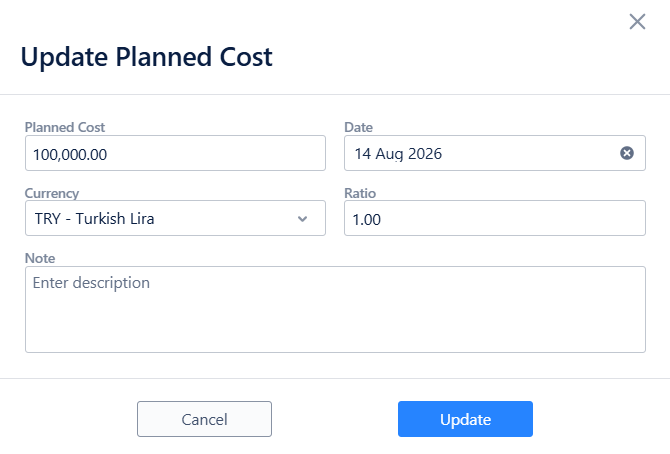
If you choose a currency other than the project currency, a ratio field appears to the side for you to enter the ratio.
4.3 Deleting a plan
Permission required: Delete permission for the specific project
Deleting an entire Revenue or Cost record
This removes the record and all plans associated with it.
-
Go to the Revenue or Cost tab in the project.
-
Click the three-dot menu (⋯) next to the entry you want to delete.
-
Select Delete Revenue or Delete Cost.
-
Confirm the deletion in the dialog.
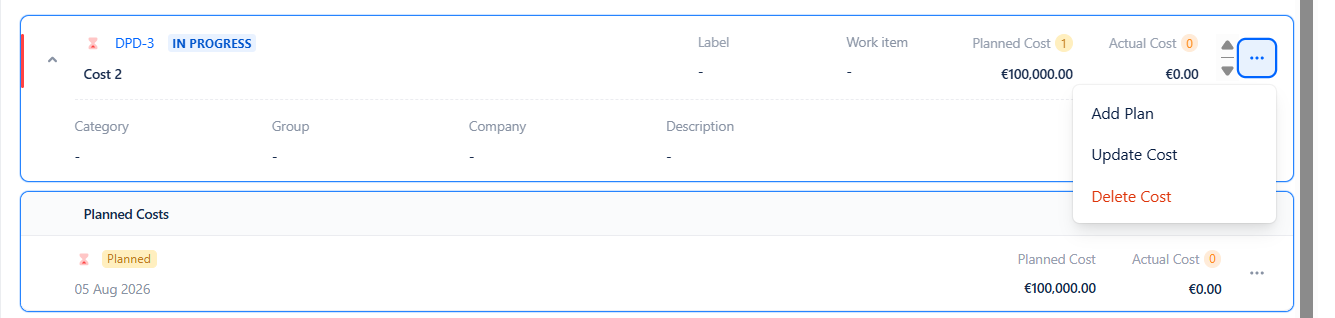
Deleting a specific plan within the record
Use this to remove an individual plan entry.
-
Go to the Revenue or Cost tab for the project.
-
Click the arrow beside the Revenue or Cost key to expand the plan list.
-
Open the three-dot menu (⋯) beside the plan you want to delete.
-
Choose Delete Plan.
-
Confirm the action in the dialog.
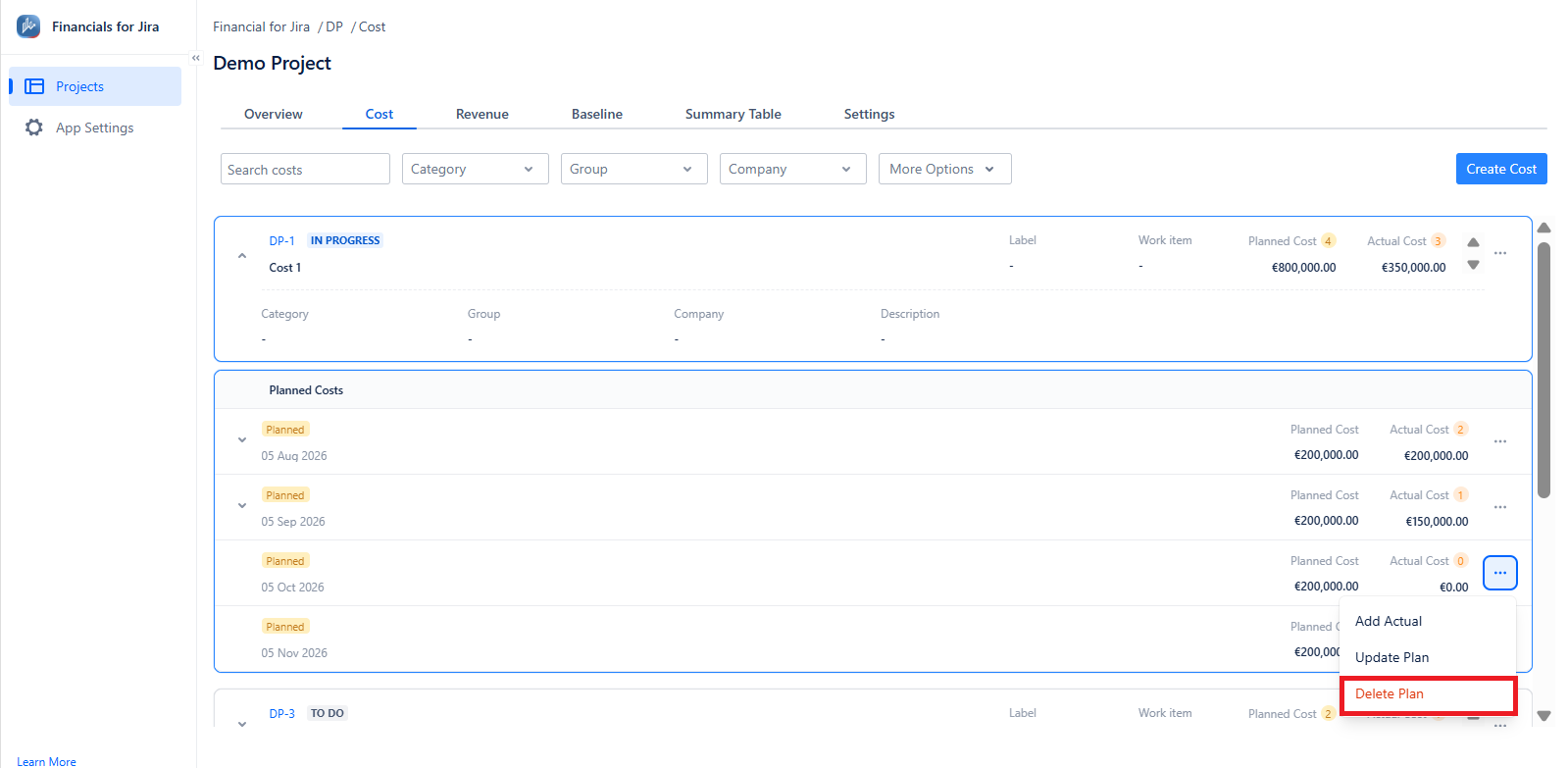
Planned Cost and Revenue records that already have Actuals recorded cannot be deleted. The delete option will not appear.