
App Settings is the configuration area of Financials for Jira where you define the supporting data used across all financial projects in your Jira instance. The values you create here - categories, groups, companies, and statuses - become available as select list options when creating or updating projects, revenue entries, and cost entries.
App Settings is accessible from the left sidebar and contains four tabs: Categories, Groups, Companies, and Statuses.
Only users with the Financials for Jira Administrator global permission can access and manage App Settings.
6.1 Categories
Categories are used to classify revenue and cost actuals. They help you organise financial data by the nature of the activity or expense, making it easier to filter, compare, and report on your financial records.
A category typically represents a functional area or cost type within your organisation. When you assign a category to an actual, you can later group and analyse your financial data by that dimension.
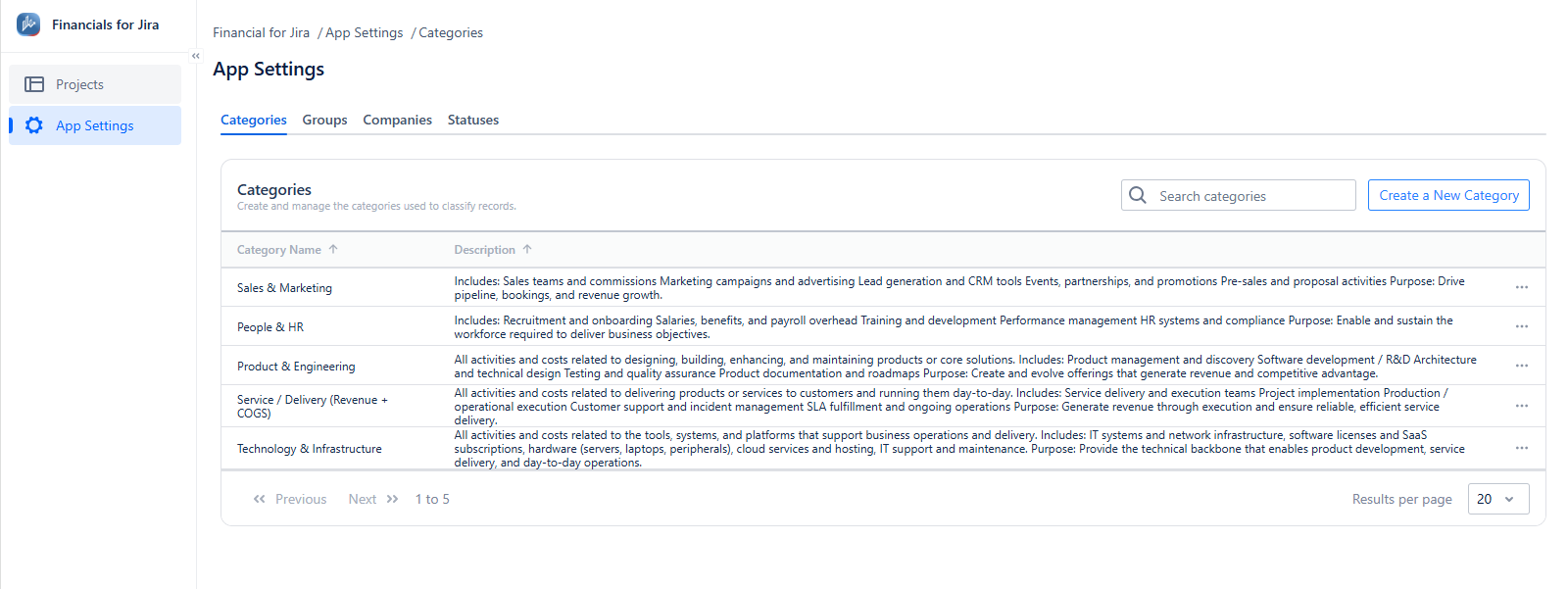
Think about the reporting structure you want before creating categories. Categories are shared across all projects.
6.2 Groups
Groups are used to organise categories into higher-level groupings. While categories provide granular classification, groups allow you to roll up related categories for broader reporting and filtering.
A group typically represents a business unit, department, or reporting segment. Assigning a group to an actual allows you to aggregate financial data at a higher level than categories alone.
When to use groups:
-
You have multiple categories that belong to the same department or business unit and want to report on them together.
-
You want to compare financial performance across major divisions (e.g., R&D vs. Operations vs. Commercial).
-
You need a two-level classification structure: a broad group containing several specific categories.
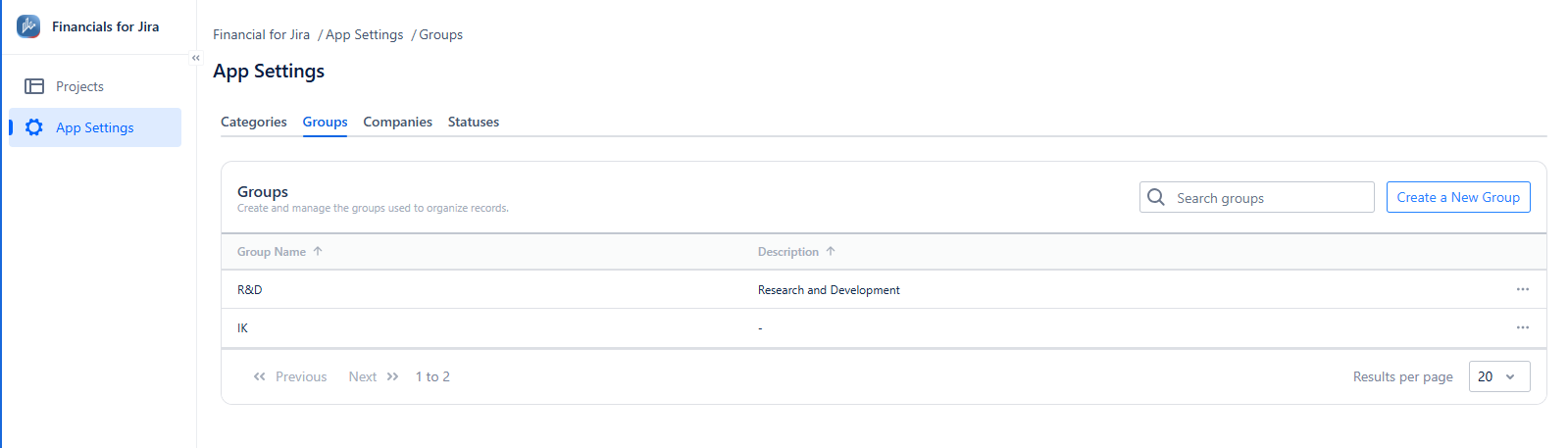
Groups are optional. If your financial structure is simple and categories alone are sufficient for your reporting needs, you do not need to create groups.
6.3 Companies
Companies represent the organisations associated with your financial transactions - such as clients, vendors, partners, or internal business units. Assigning a company to an actual allows you to track revenue earned from or costs incurred with a specific organisation.
When to use companies:
-
You manage financial data for multiple clients and want to track revenue or costs per client.
-
You work with external vendors and want to associate cost actuals with the vendor company.
-
You need to report on financial performance broken down by organisation.
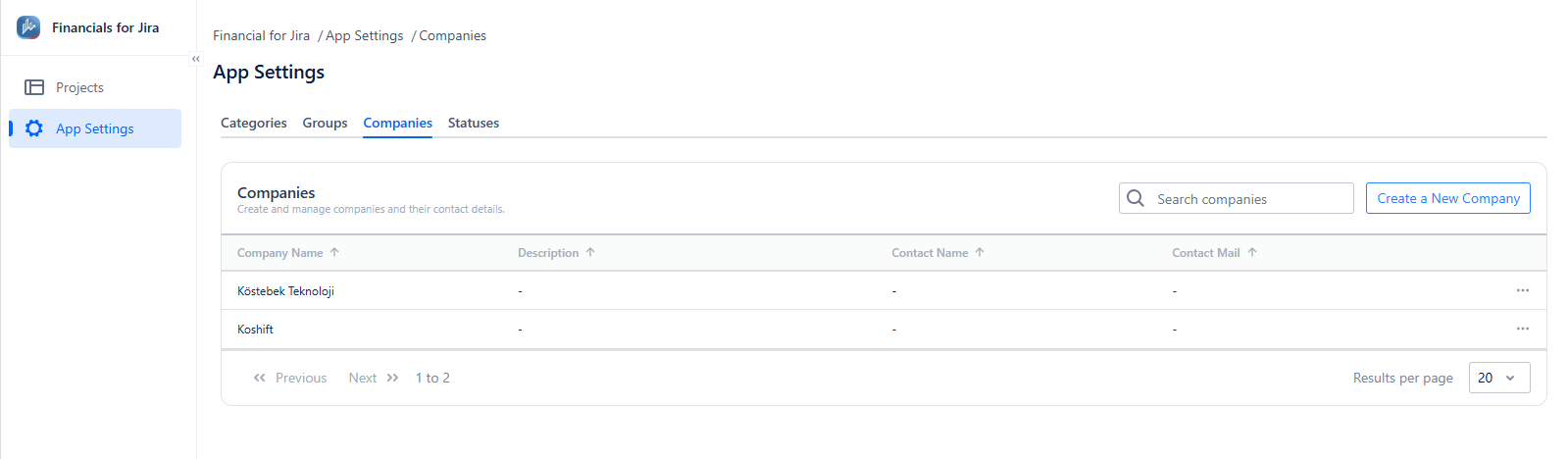
The Companies list stores the Company Name, Description, Contact Name, and Contact Mail for each entry, giving you a lightweight directory of the organisations involved in your financial projects.
6.4 Statuses
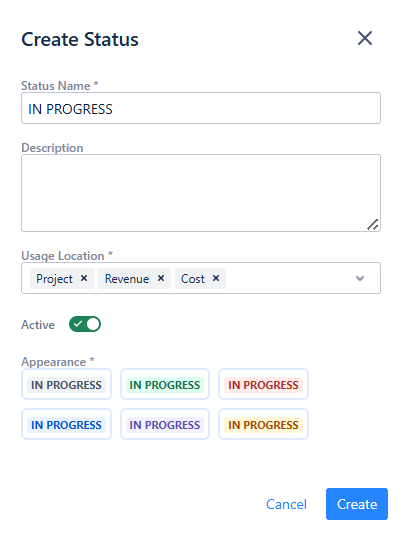
Statuses represent the workflow state of a record - a project, a revenue entry, or a cost entry. Each status has a Usage Location that defines where it can be applied: Project, Revenue, Cost, or any combination of the three. The Appearance field lets you define how the status label is displayed.
When to use statuses:
-
You want to track the lifecycle of a financial project (e.g., Planning → In Progress → Done).
-
You want to indicate the state of a revenue or cost entry (e.g., To Do, In Progress, Done).
-
You need to filter or report on records by their current state.
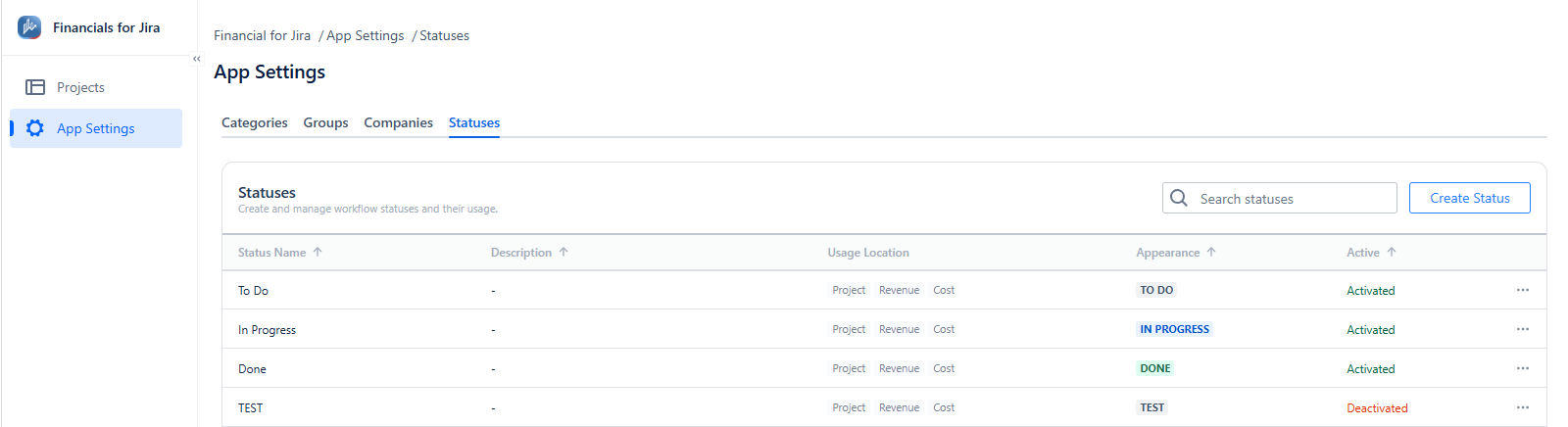
A status can be deactivated instead of deleted. Deactivated statuses remain visible on records that already use them but are no longer available as options when creating or updating records. This is useful when you want to retire a status without losing historical data.
A status that is associated with at least one record cannot be deleted - only deactivated. A status that is not associated with any record can be permanently deleted.