
The Export feature in Financials for Jira Cloud lets you download financial data to your device in Excel (.xlsx) or PDF format. This supports offline reporting, auditing, sharing with external stakeholders and deeper analysis.
13.1 Supported views & formats
You can export financial data from three tabs in your project view:
-
Cost Tab: Export individual cost items with their planned and actual records.
-
Revenue Tab: Export revenue entries with planned and actual breakdowns.
-
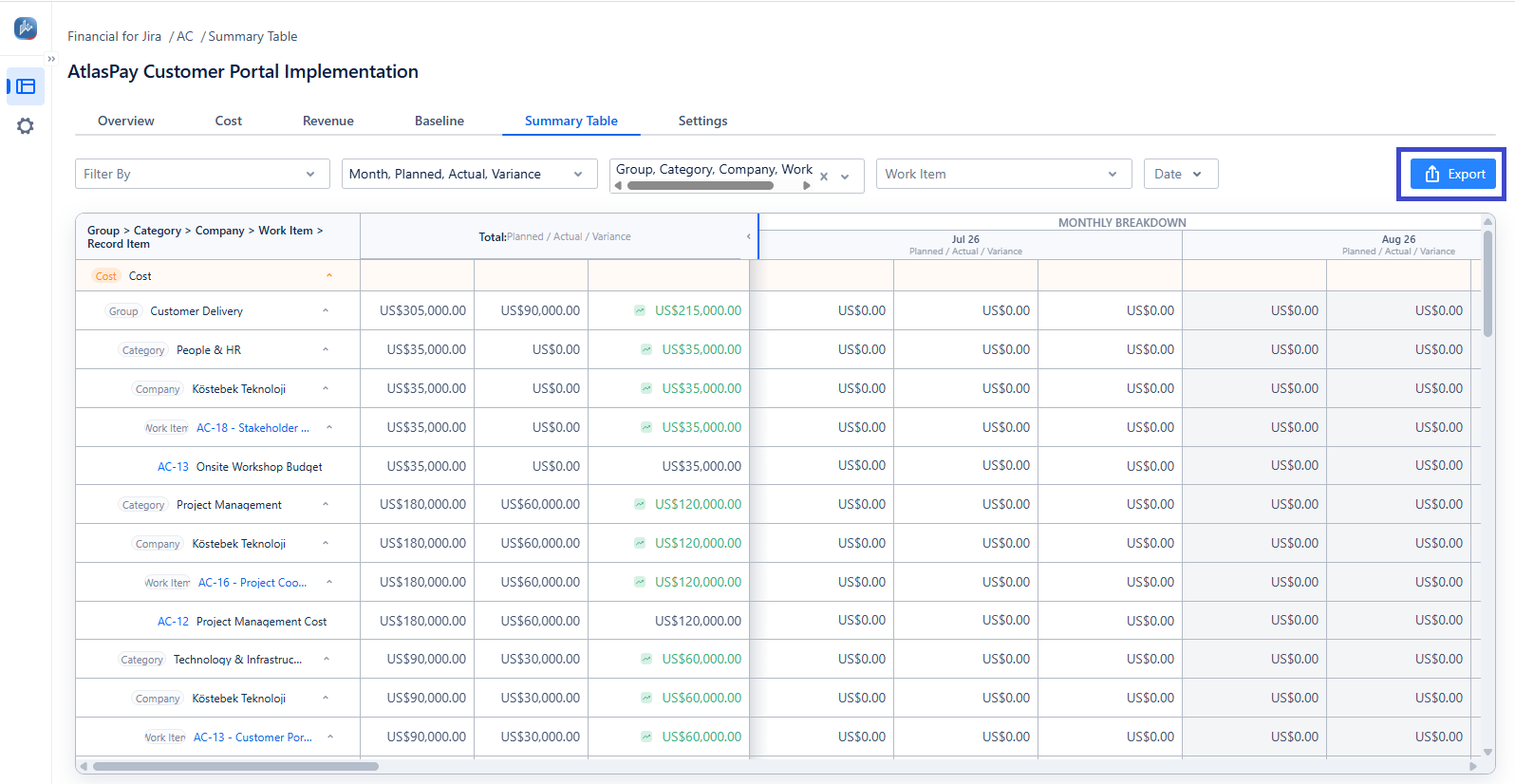
Summary Table: Export a high-level overview, including grouped and monthly breakdowns.
Available formats & custom options
-
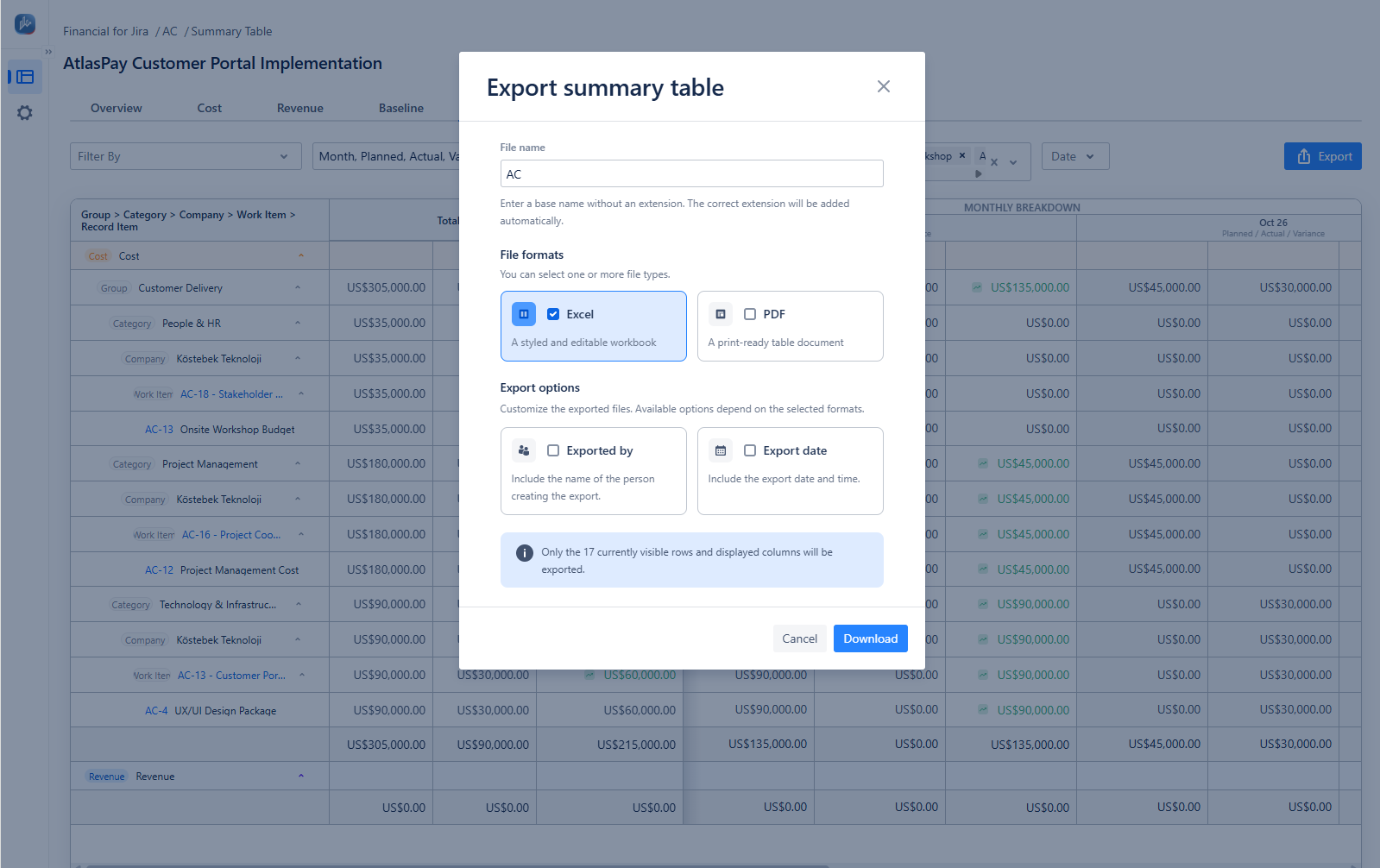
Excel: Produces a styled, editable workbook for calculations.
-
PDF: Produces a clean, print-ready document for presentation or archiving.
-
Exported By: Optional checkbox to include the user name who generated the file.
-
Export Date: Optional checkbox to stamp the report with the generation date and time.
13.2 How to export data
-
Navigate to your project in Financials for Jira.
-
Open the Cost, Revenue or Summary Table tab.
-
Click the Export button at the top-right.
-
Select Excel or PDF.
-
Choose optional metadata toggles (Exported by / Export date).
-
Click Download.
Cost & Revenue tabs (page-based export):
-
-
Only the records currently visible on the page are included in the export.
-
Example: If your project has 50 cost records but the table shows "10 results per page", the export will include only those 10 items.
-
Tip: To export more records, change the Results per page selector (for example, to 25, 50 or 100) before clicking Export.
-
Summary Table (filter-based export):
-
-
Exporting from the Summary Table includes all project records across the project structure by default.
-
If you apply filters (date, status or category), the export will contain only the filtered data.
-
13.3 Common use cases
Monthly executive financial reporting:
-
Scenario: You must present the project's high-level cash flow at a monthly meeting.
-
Action: In the Summary Table, apply the month filter and export a print-ready PDF.
-
Detailed cost auditing in Excel:
-
Scenario: An accountant needs to recalculate costs or merge Jira cost data with ERP tools.
-
Action: In the Cost tab, set Results per page to show all items, choose Excel, and click Download to edit offline.
-
-
Tracking vendor invoices & revenue:
-
Scenario: A project manager wants to share approved billing milestones with a client.
-
Action: Filter the Revenue tab by completed milestones, enable the Export date option, and generate an Excel file to email to the client.
-