
1. Create a Group
1.1. Prerequisites
User must have administrator permissions.
1.2. How to
To create a Group in Financials for Jira, follow these steps:
1.2.1. From the left-hand menu, click App Settings.
1.2.2. From the top menu, click Groups to open the list panel.

|
|---|
1.2.3. Click on the Create a New Group button in the upper right corner; this action will open the panel to create a new Group.

|
|---|
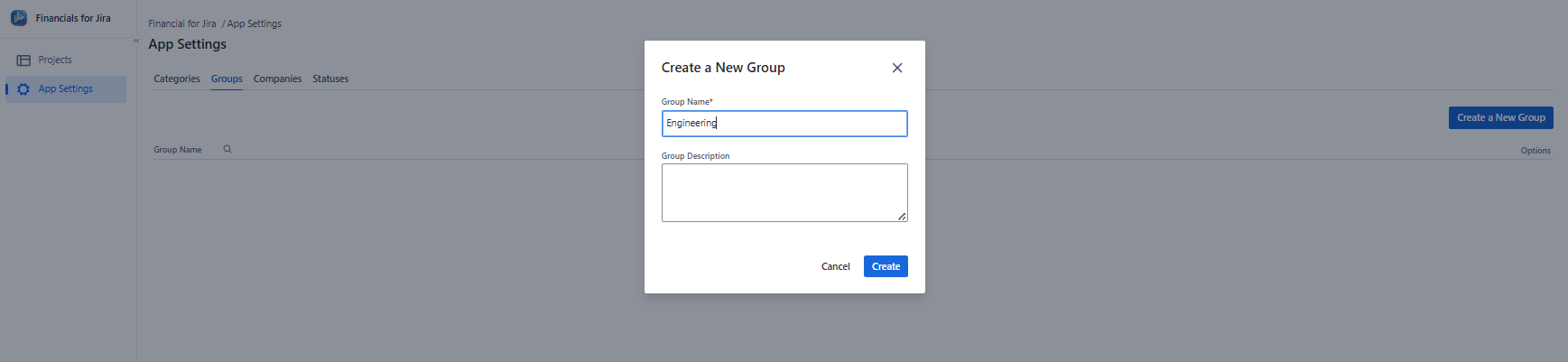
1.2.4. To create a new Group, make sure you fill in the mandatory field Group Name.
Group refers to a specific division, department, or section within an organization that focuses on a particular function, project, or aspect of the business. It helps structure and organize an organization's activities and resources based on specific goals or functions.
1.2.5. Proceed by clicking on “Create” button.
|
|---|
1.3. Constraints
When it comes to creating a Group, there are a few important considerations.
1.3.1. The Group Name field is mandatory and must be filled in to create a Group.
1.3.2. You cannot create a Group with a name that is already in use.
1.3.3. Creating a Group requires the necessary administrator permissions.
1.4. Issues that may arise
When you're attempting to Create a Group, there are a couple of potential issues that might come up.
1.4.1. Lack of administrator permissions will prevent Group creation.
1.4.2. Failing to complete required fields will result in an error message.
1.4.3. Using a duplicate name will prevent the Group from being created.