
1. Give permissions for groups or users from Financials Administrator in a Project
1.1. Prerequisites
A user with Financials administrator permissions, gives some permissions to groups and users in a spesific Project.
1.2. How to
To grant permissions, navigate to the Financials panel and follow these steps:
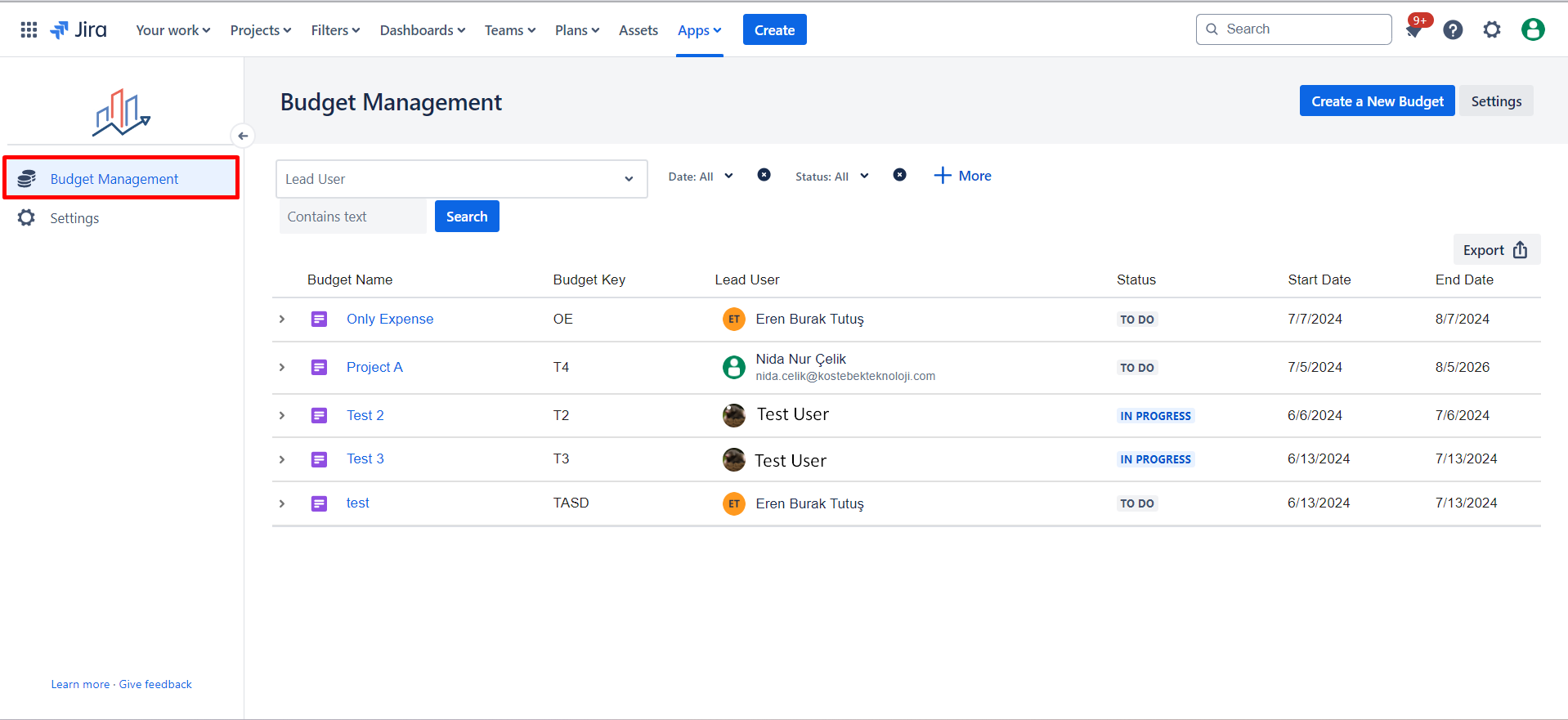
1.2.1. Select the specific Project to which you want to grant permissions.
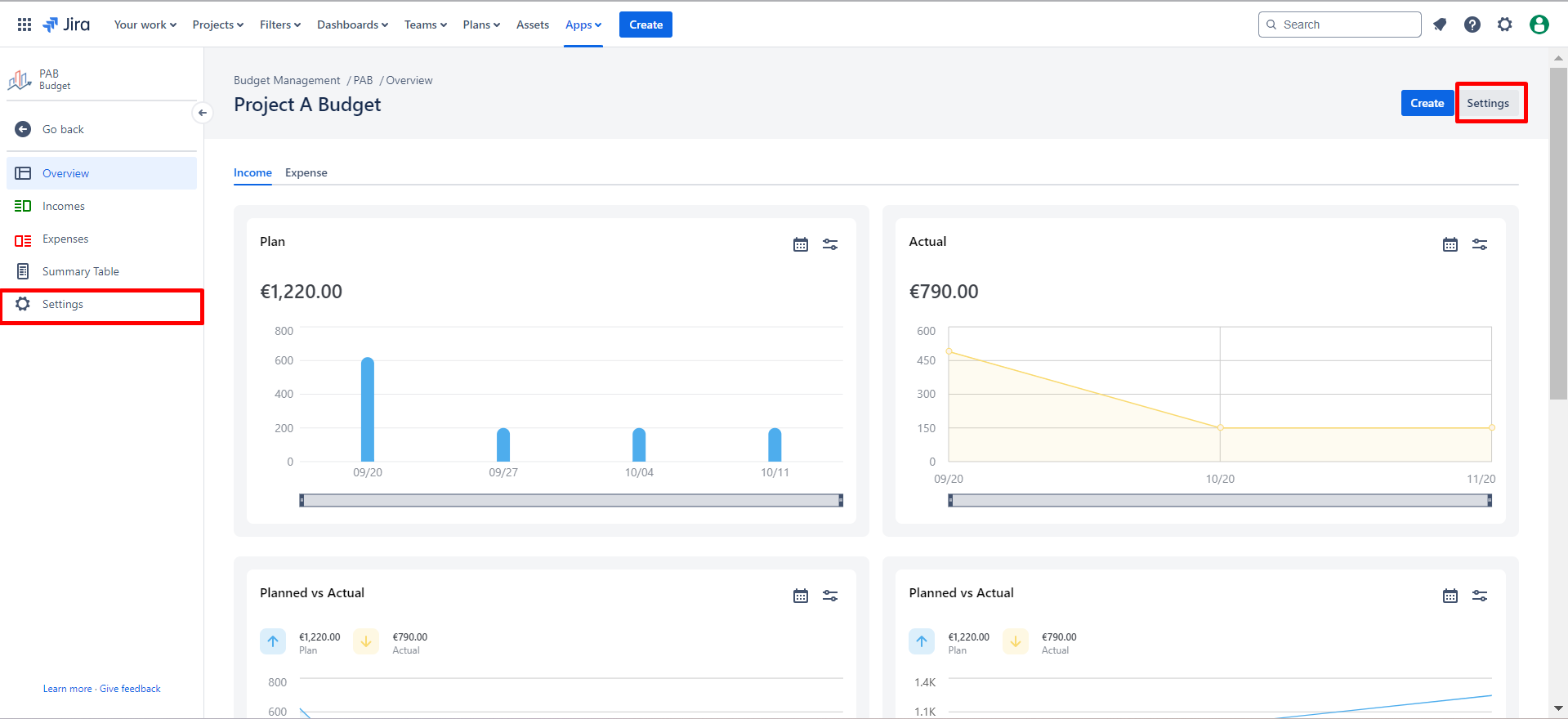
1.2.2. Click on the :cog: settings icon located on the left side of the Financials panel; this action will redirect you to the settings panel.
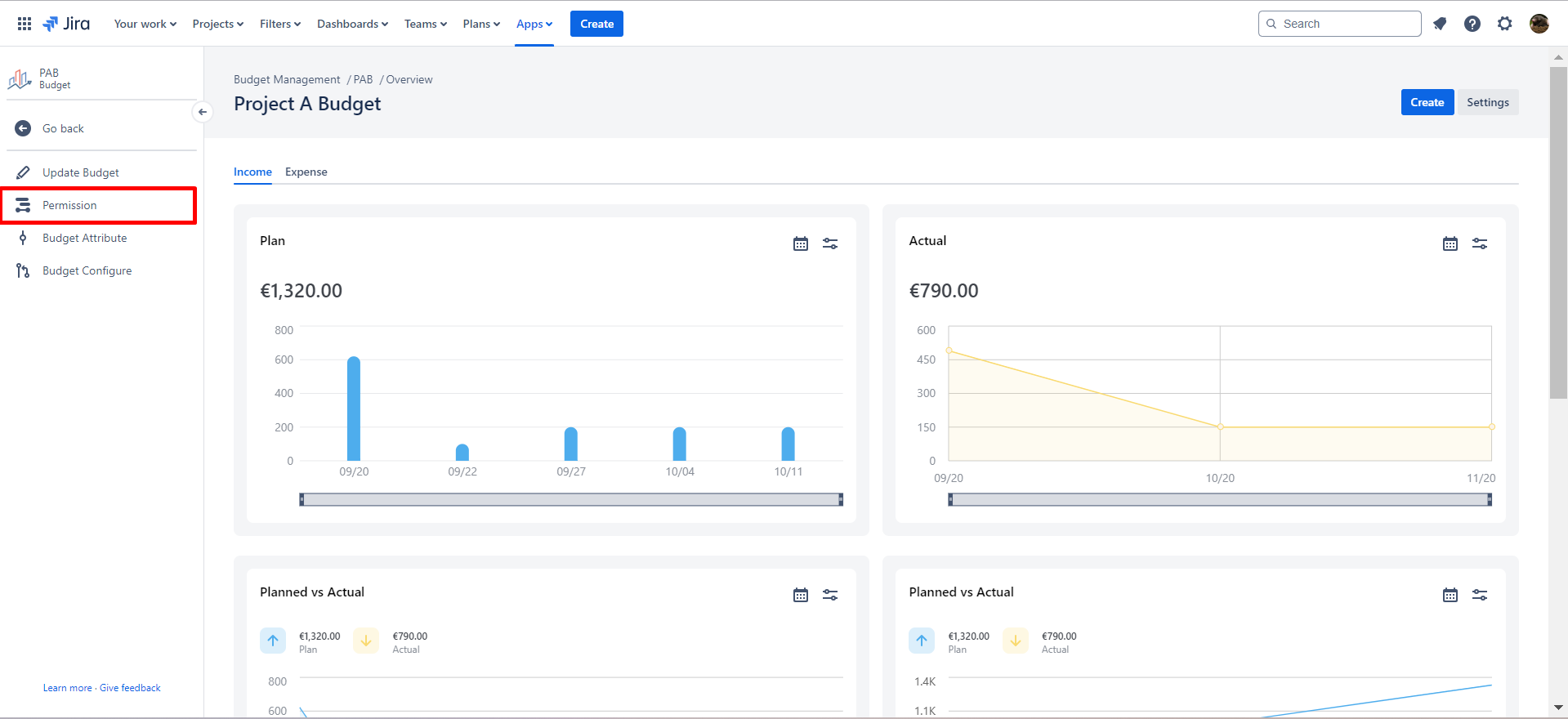
1.2.3. Within the settings panel, click on "Permissions" from the left-hand side menu, which will open the permissions panel.
|
|
|---|
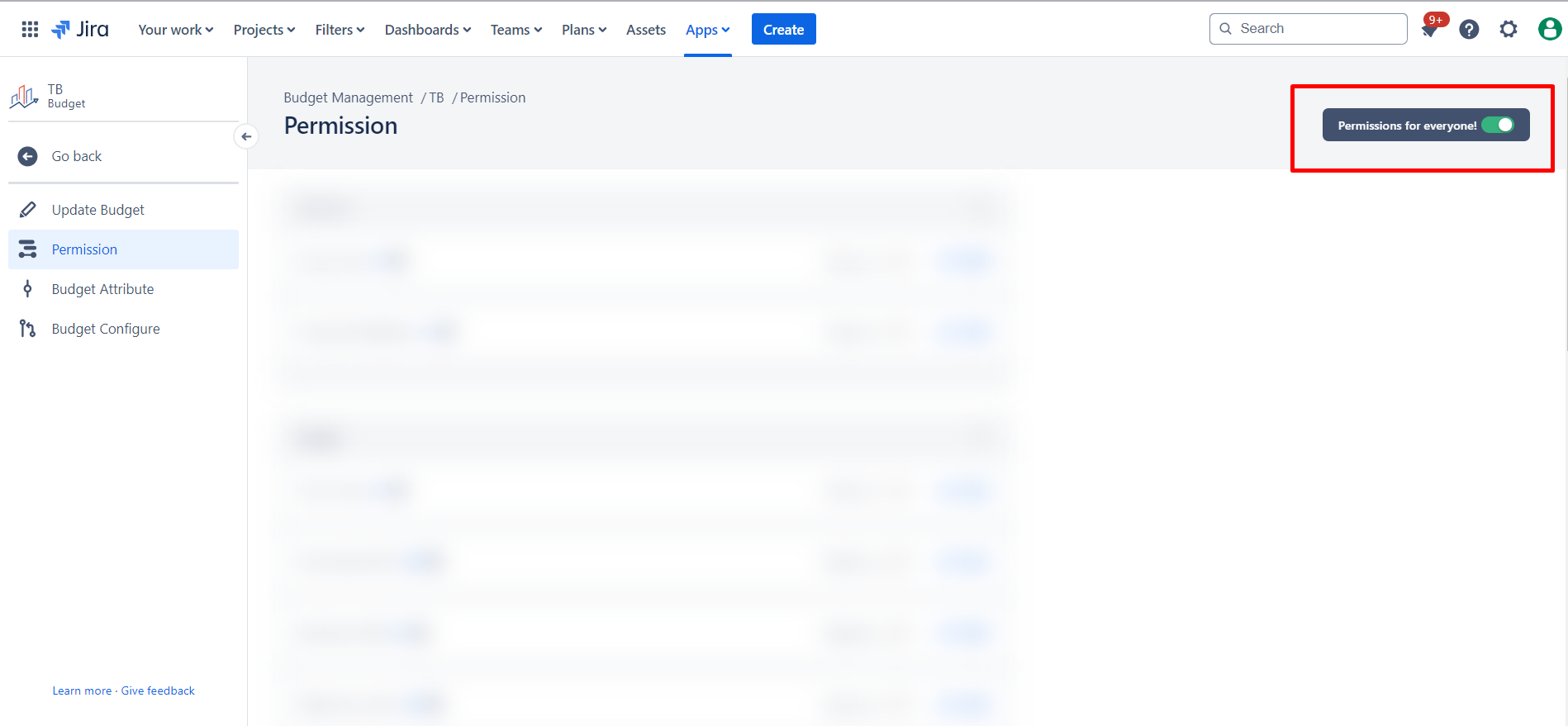
1.2.4. When the Project is first created, the permissions screen is displayed as follows. Users with access to the app can view and edit the Project before permissions are set.
|
|
|---|
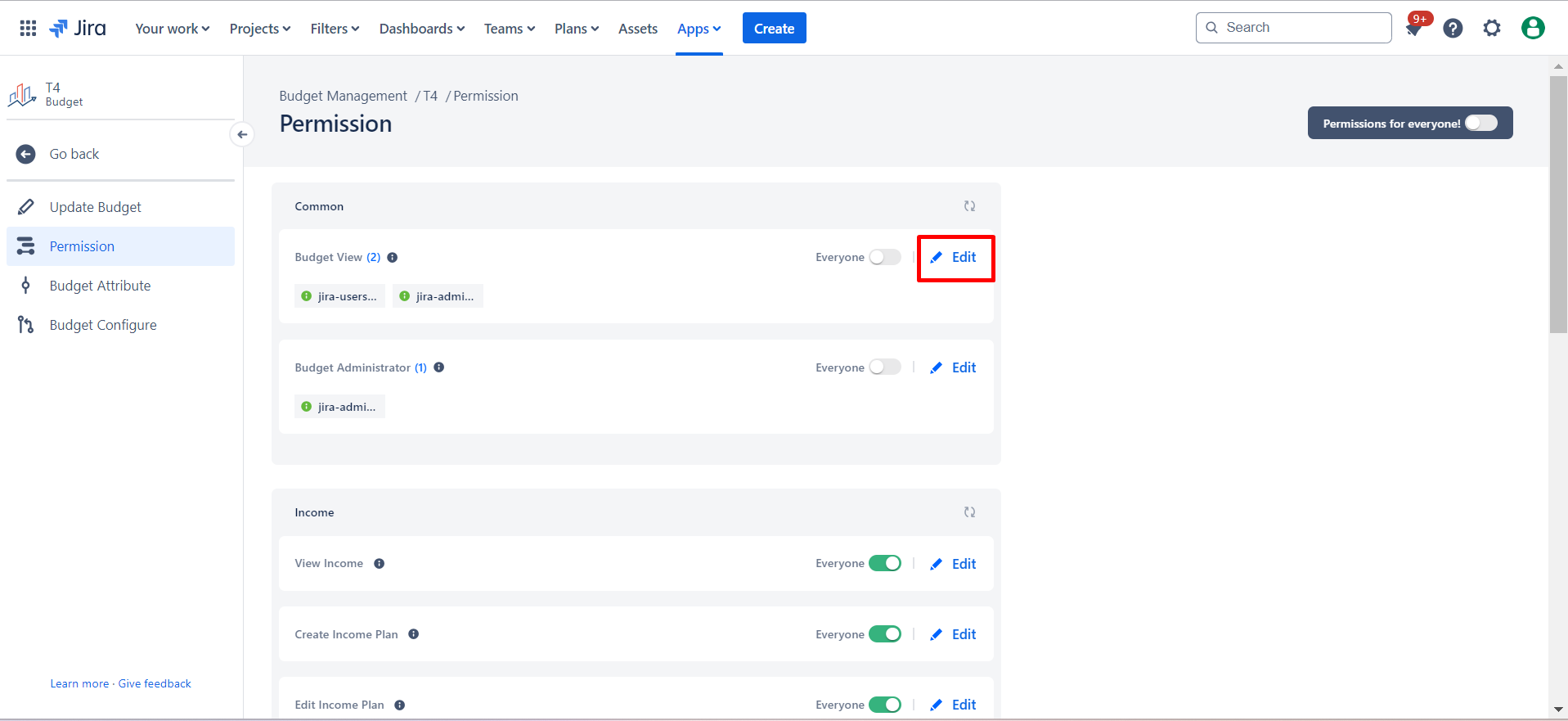
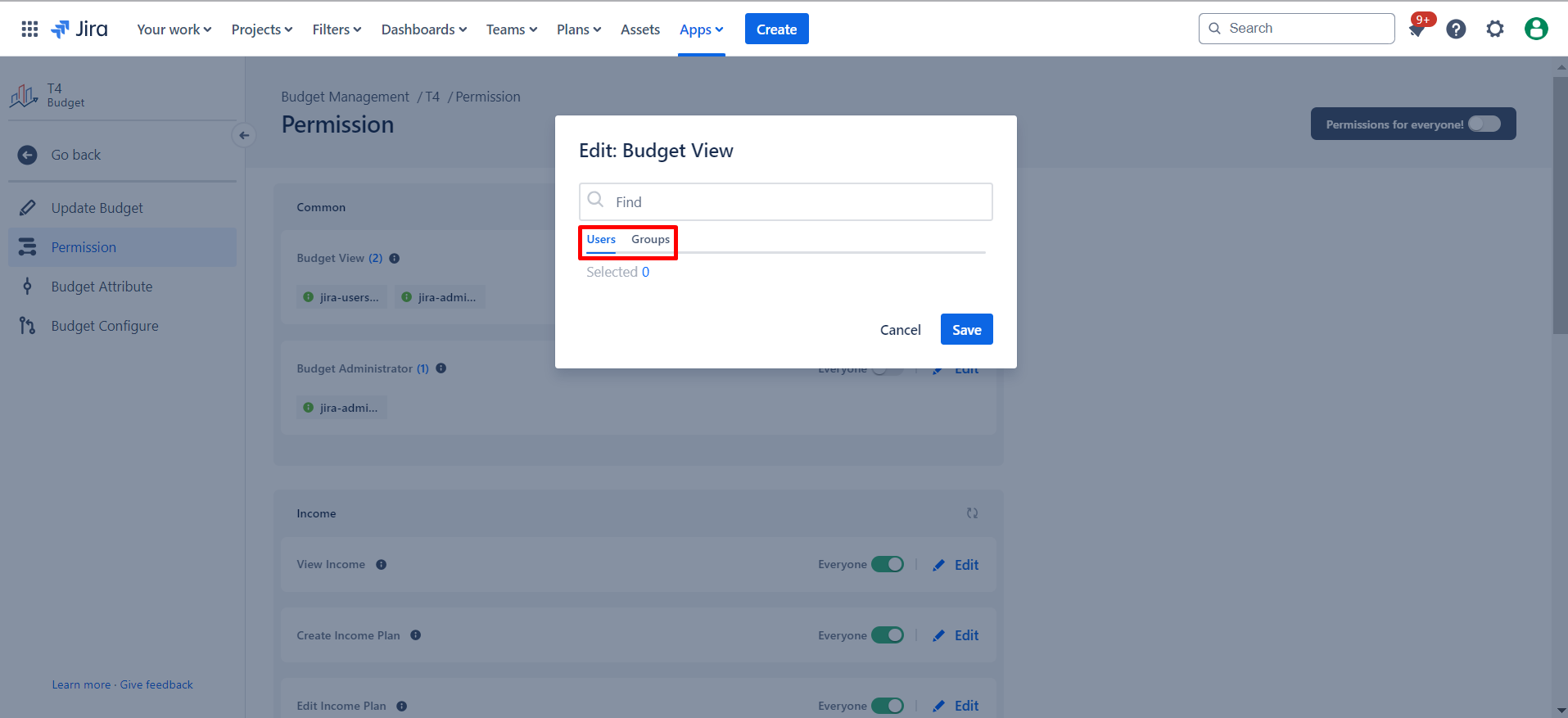
1.2.5. In the Permissions panel, click "Edit" on the right side to specify and allocate the permissions accordingly. Permissions can be given to the desired users and groups.
1.2.6. In the Permissions panel, click "Everyone" on the right side to give a permission to everyone.
|
|
|---|
By following these steps, you can easily access and configure permissions for the desired Project in the Financials panel.
1.3. Constraints
When it comes to granting permissions for a Project in the Financials panel, consider the following constraints:
1.3.1. Ensure that you have the necessary administrative privileges; lacking these permissions will hinder your ability to grant access.
1.4. Issues that may arise
While attempting to configure permissions for a Project, be aware of potential issues that might arise:
1.4.1. If you encounter difficulties in accessing the Permissions panel or making changes, ensure that your user account has the appropriate privileges within the Financials system.