
1. View Revenue/ CostDetails
1.1. Prerequisites
A user with viewing permissions can view details of an Revenue/ Cost for a specific Project.
1.2. How to
To view a Revenue/ Cost details within the Financials panel, follow these steps:
1.2.1. Go to the Financials panel.
1.2.2. Choose the Project for which you want to view by clicking on the Project name link. This will take you to the overview page.
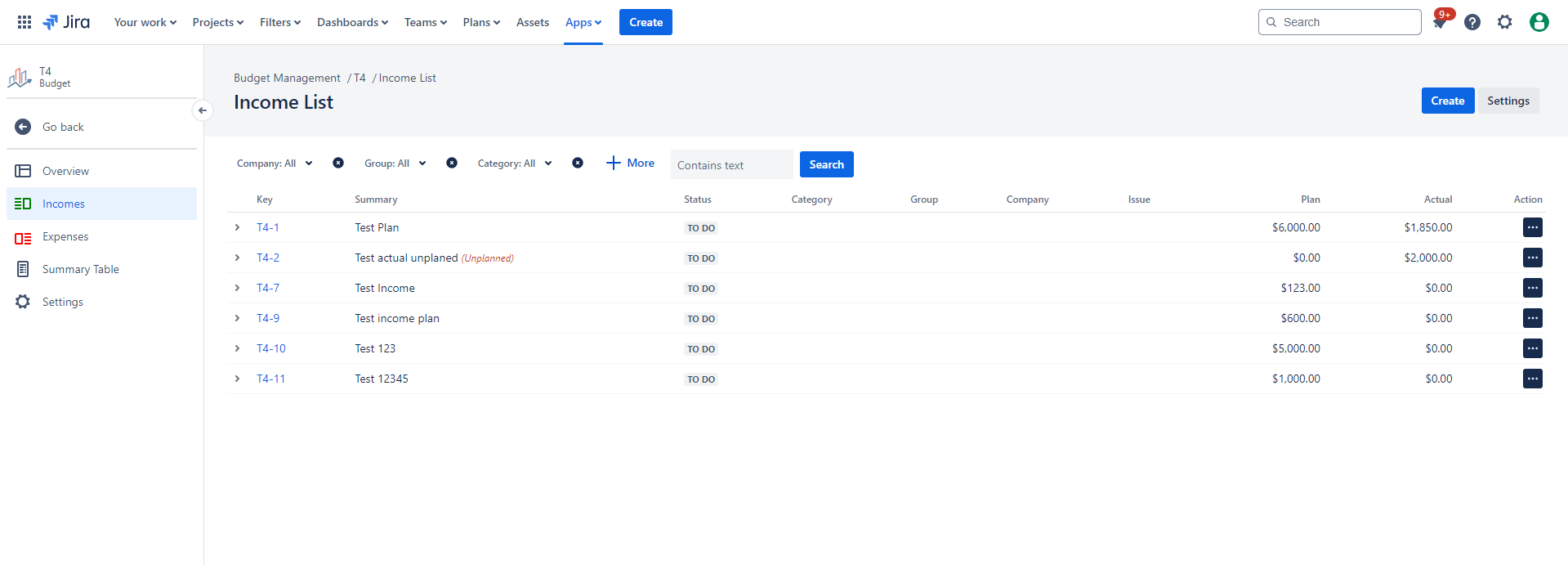
1.2.3. On the left-hand side, click on the Revenue/ Cost tab, which will open the Revenue/ Costs list panel.
|
|---|
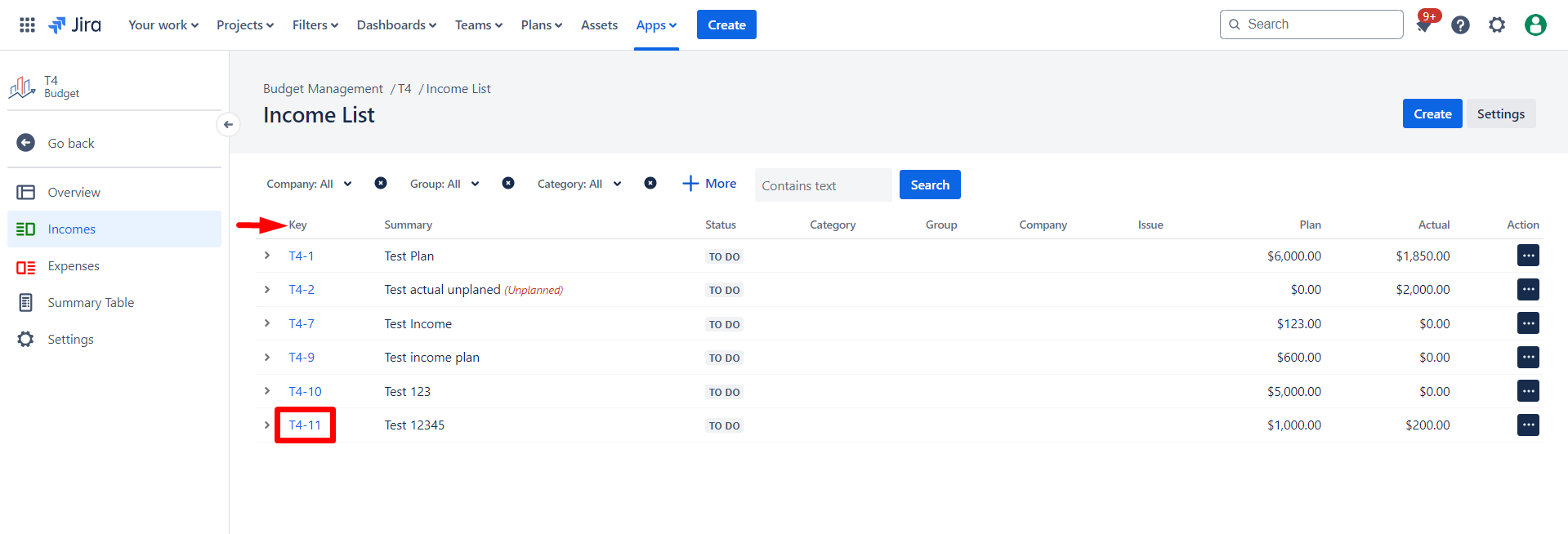
1.2.3.1 To access more information about the Revenue/ Cost, choose the Revenue/Cost which you want to view by clicking on the key of the Revenue/Cost. This will take you to the details page.
|
|
|---|
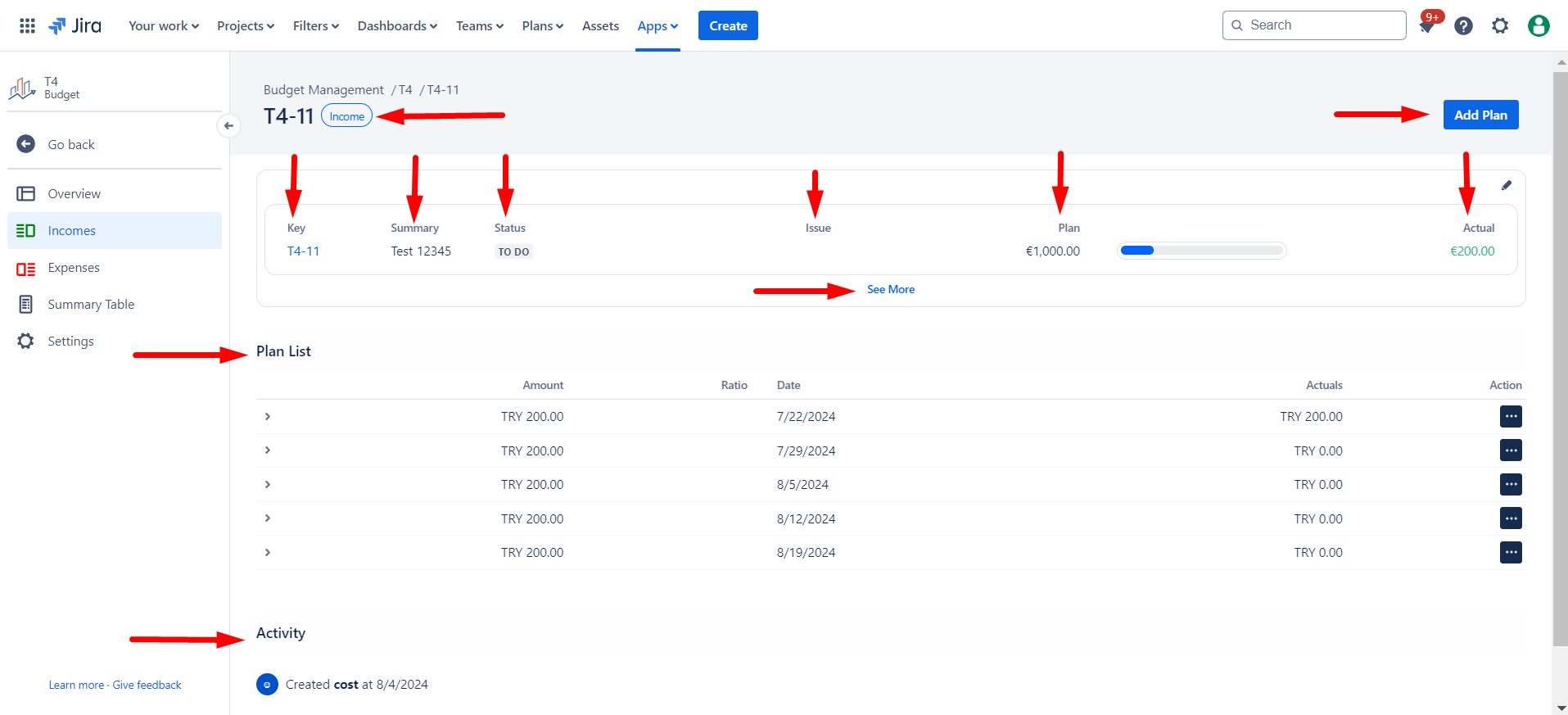
1.2.4. Here, you can find all information about a specific Revenue/Cost that you want.
1.2.5. At the top, you can find the key, summary, status of Revenue/Cost, which Project it belongs to, and related issues.
1.2.6. You can easily find out the Plan/Actual amount and ratio of Revenue/Cost with the chart in the upper right corner.
|
|---|
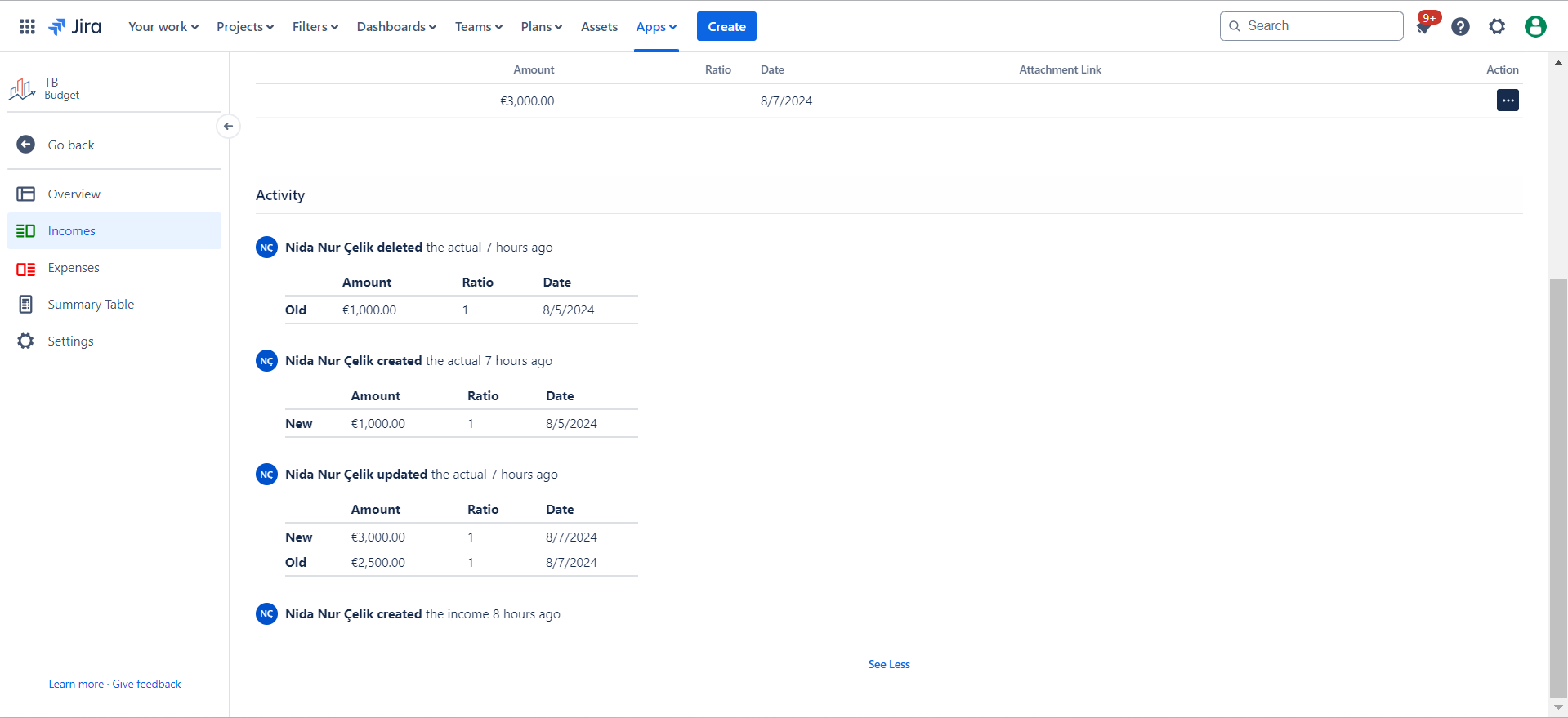
Activity section provides information about the dates and times of changes made to Revenue/Cost.
|
|
|---|
In Activity, when you add a new plan or actual to the Revenue/Cost, displayed as “New”. When you delete a plan or an actual, displayed as “Old”. When you update something, both the Old and New versions of the data are displayed.
1.2.7. Click the “See More” to get information about category, group and company.
1.2.8. Add a plan/actual by clicking the "Add Plan/Add Actual" button in the upper right corner.
Categories are used to organize, sort, and group similar things together to facilitate understanding, navigation, and management.
Groups refers to a specific division, department, or section within an organization that focuses on a particular function, project, or aspect of the business. It helps structure and organize an organization's activities and resources based on specific goals or functions.
1.3. Constraints
When it comes to View a Revenue/Cost detail page, there are a few important considerations.
1.3.1. Viewing a Revenue/Cost detail page requires the necessary permissions.
1.4. Issues that may arise
When you attempt to View a Revenue/Cost detail page , there are several potential issues that you might encounter:
1.4.1. Lack of permissions will prevent access to the Revenue/Cost details. Contact the Project administrator to request the required permissions.