
1. Update Revenue or Cost Plan
1.1. Prerequisites
A user with editing permissions can make updates to Revenue or Cost Plan for a specific Project.
1.2. How to
To update Planned Revenue or Cost within the Financials panel, follow these steps:
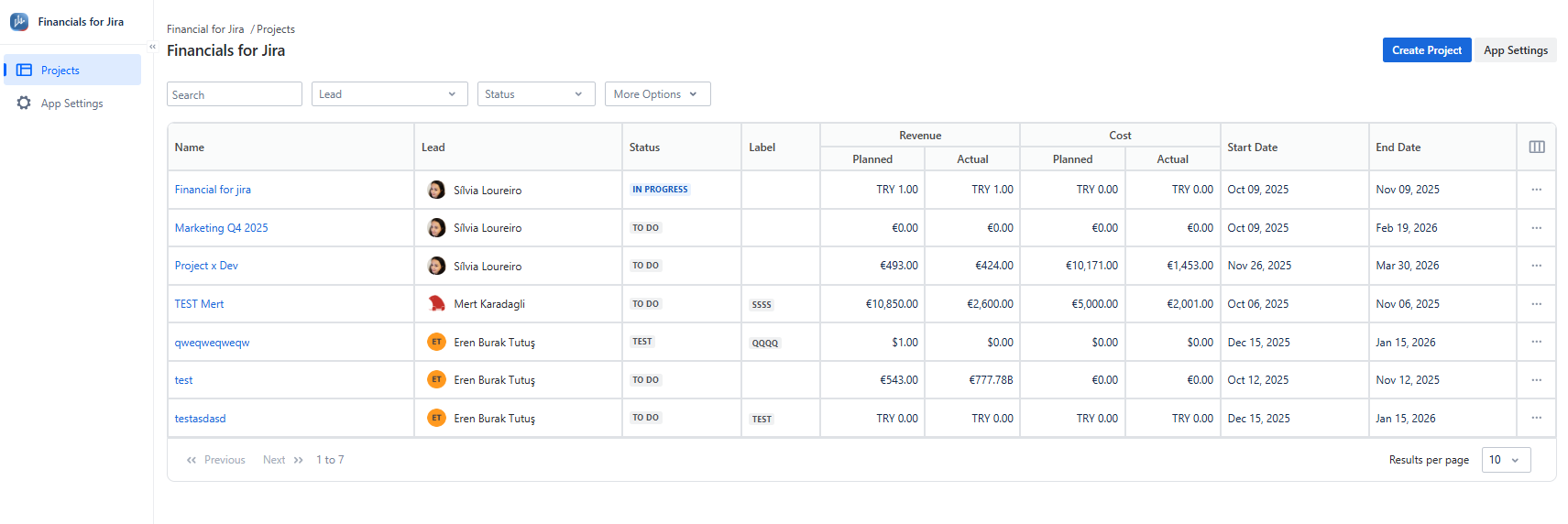
1.2.1. Go to the Projects panel on the left-hand side and select the project you want to update.
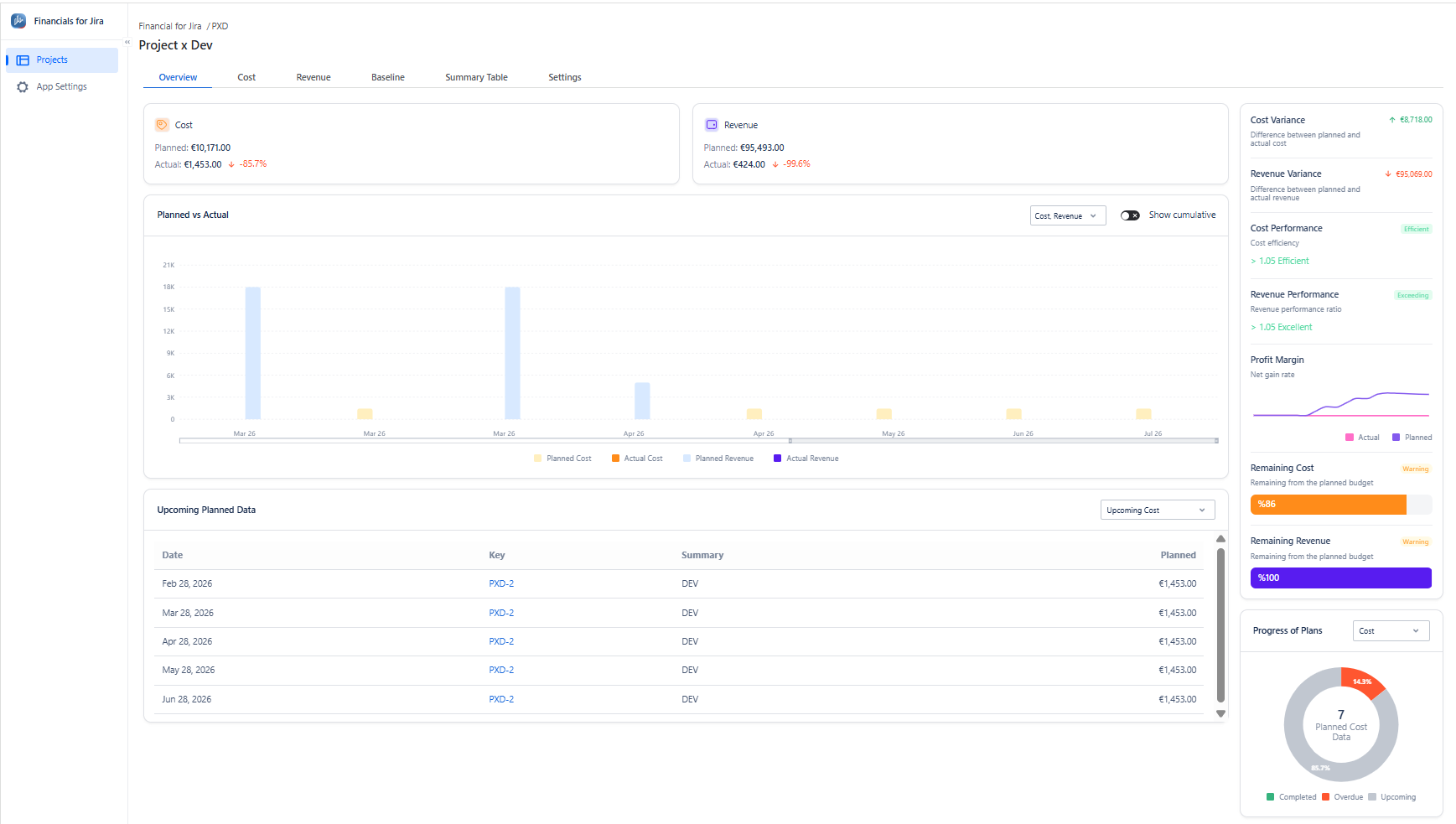
1.2.2. Choose the Project for which you want to Update by clicking on the Project name link. This will take you to the overview page.
|
|---|
1.2.3. From the top menu, click the Revenue or Cost tab to open the list.
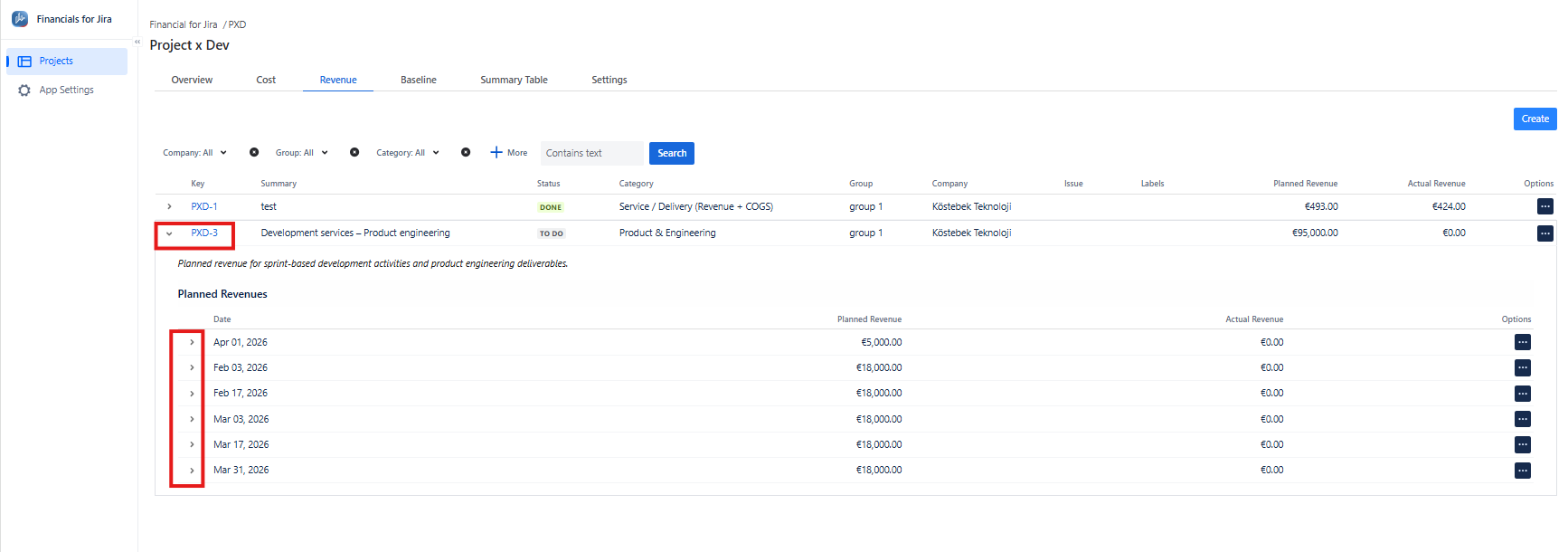
1.2.3.1. To view details, click the arrow to the left of the Revenue or Cost name, or click the Revenue or Cost key directly.
|
|---|
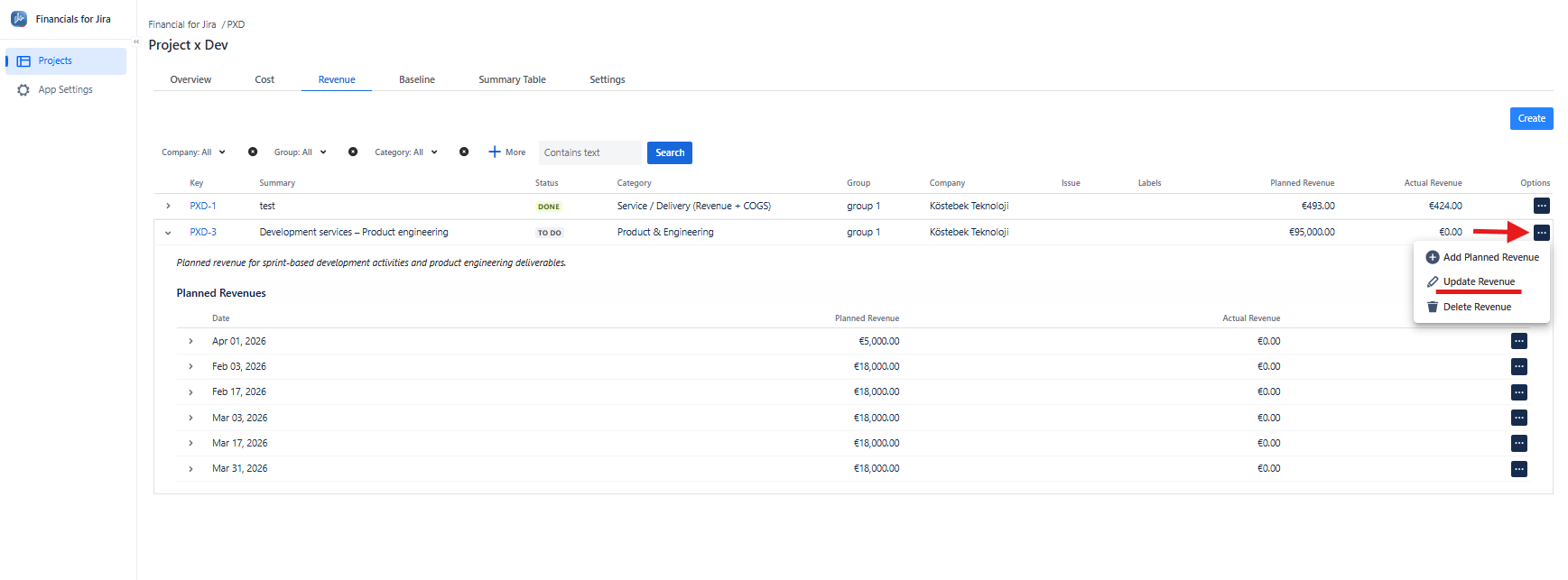
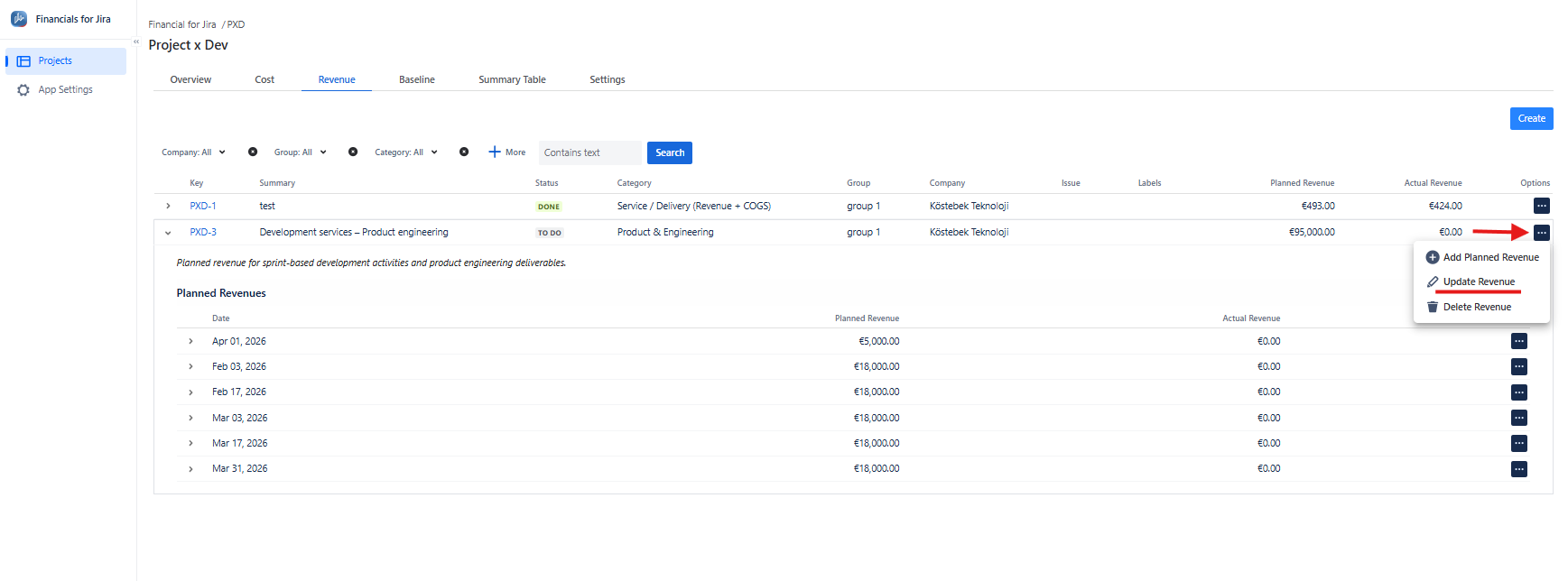
1.2.4. From the list, select the Planned Revenue or Cost you want to update by clicking the three-dot options menu and choosing Update Revenue or Update Cost.
|
|---|
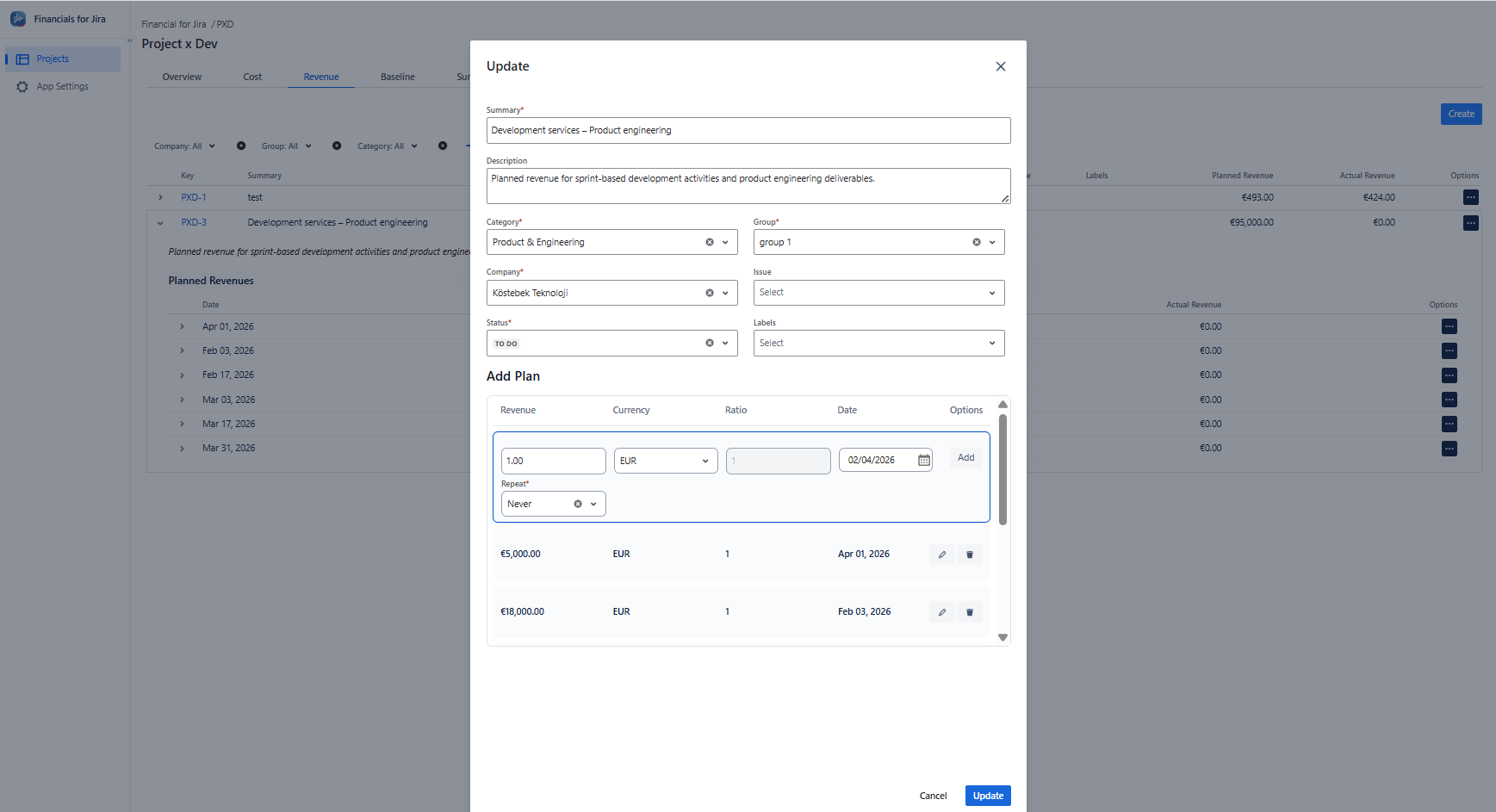
1.2.5. Here, you can make the necessary updates to the fields you require.
1.2.6. Finally, click the "Update" button to save your changes.
|
|---|
To update a Planned Revenue or Cost within Plan List specifically, follow these steps:
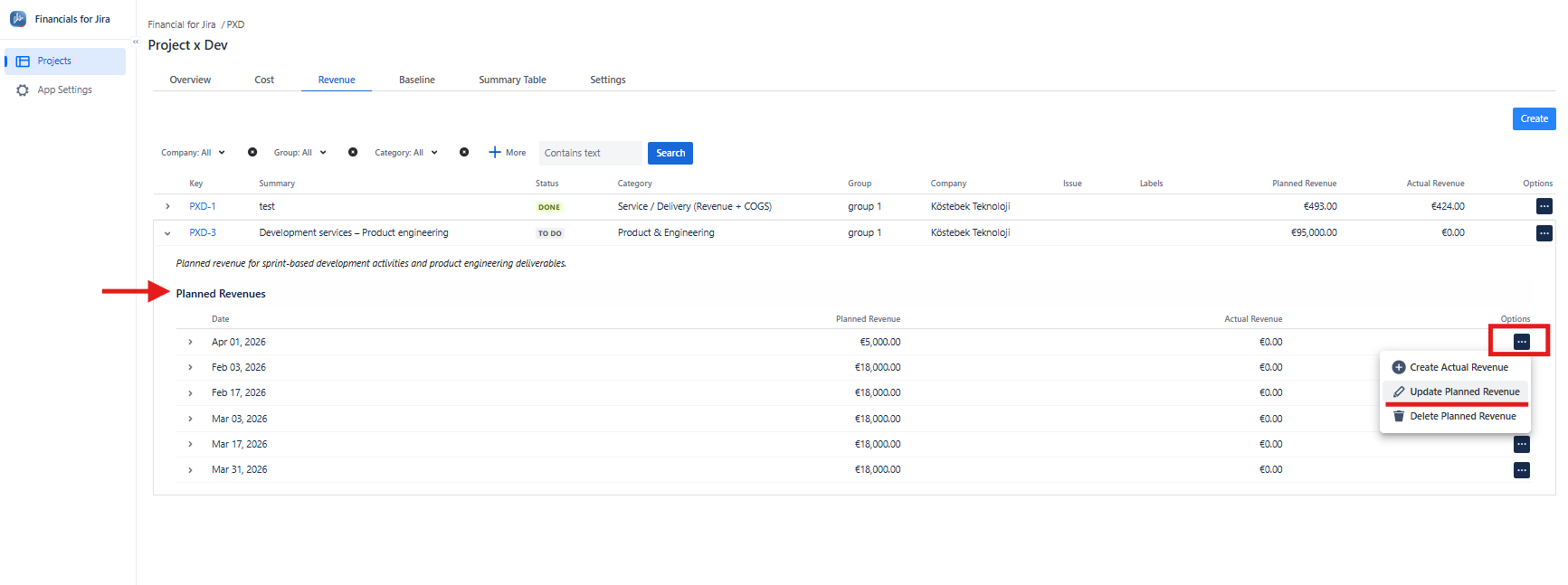
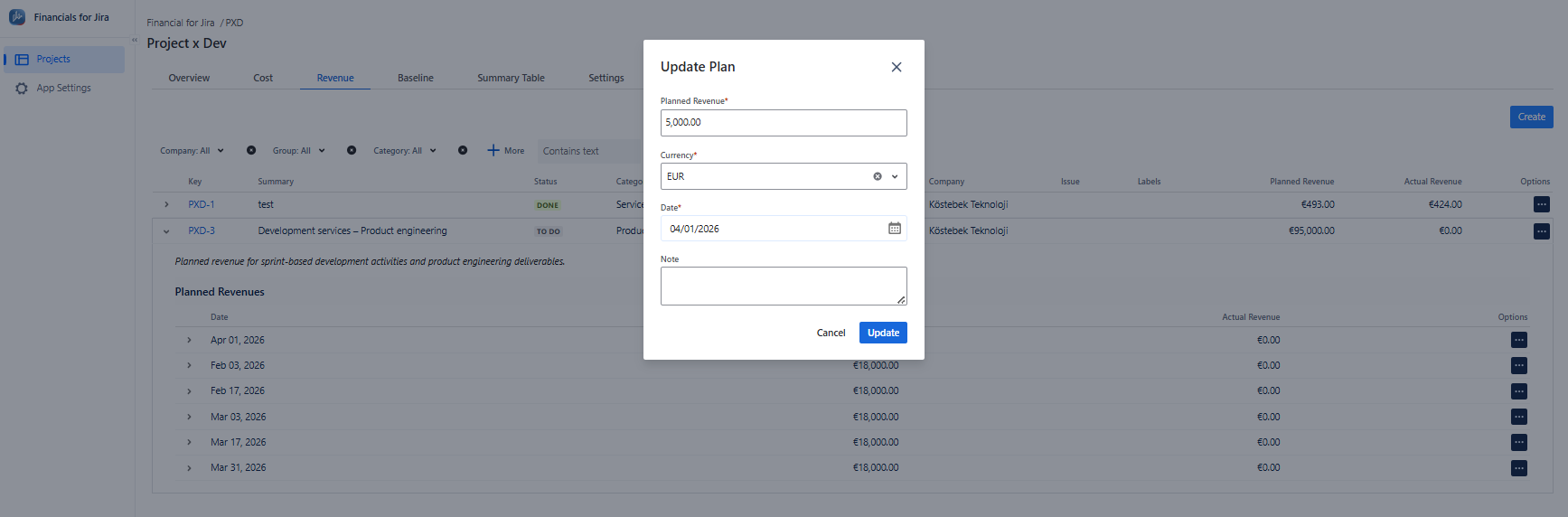
1.2.7. From the Revenue or Cost Plan list, select the plan you want to update by clicking the three-dot menu and choosing Update Planned Revenue or Cost. You can modify the amount, currency, and date of the plan.
|
|---|
1.3. Constraints
-
A Revenue or Cost Plan with associated actual records cannot be modified.
-
The Revenue or Cost type cannot be changed if at least one actual Revenue or Cost exists.
-
A Revenue or Cost Plan must contain at least one Revenue or Cost.
1.4. Possible Issues
-
Required fields are missing.
-
You do not have the necessary permissions.
-
You lack edit permissions for the associated project.