
1. Update a Project
1.1. Prerequisites
User who has Project Admin Permission, updates a Project.
1.2. How to
To update a Project within the Financials for Jira, follow these steps:
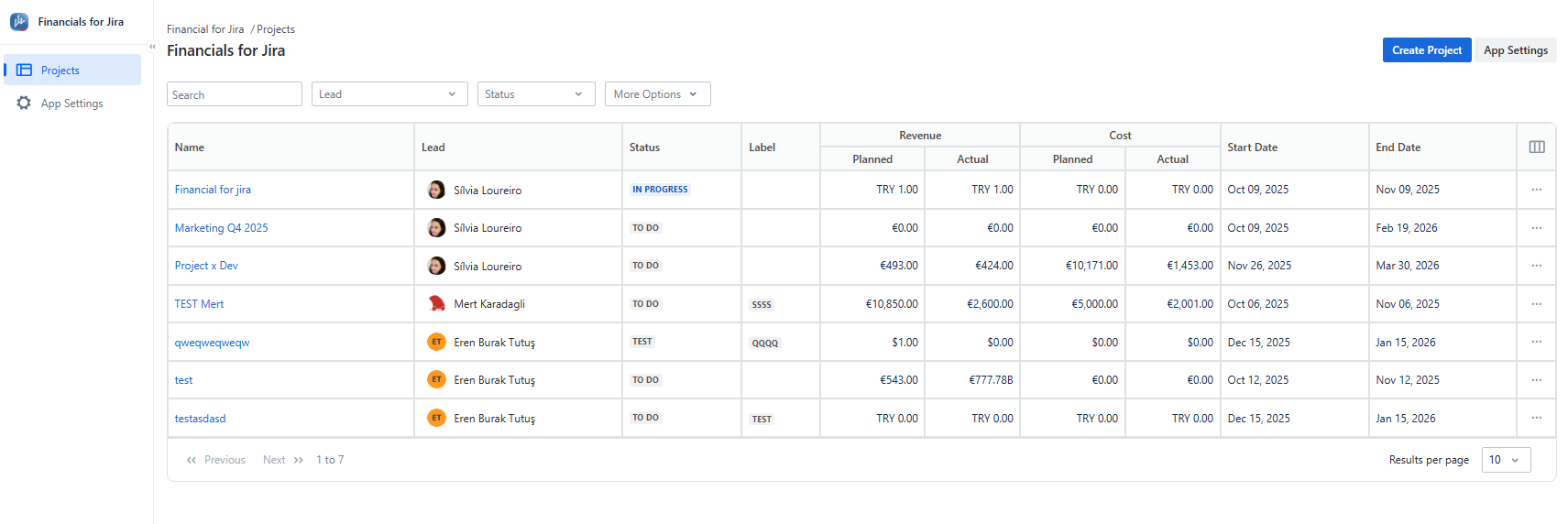
1.2.1. Go to the Projects panel.
1.2.2. Choose the Project for which you want to update a Revenue/ Cost Plan by clicking on the Project name link. This will take you to the overview page.
|
|---|
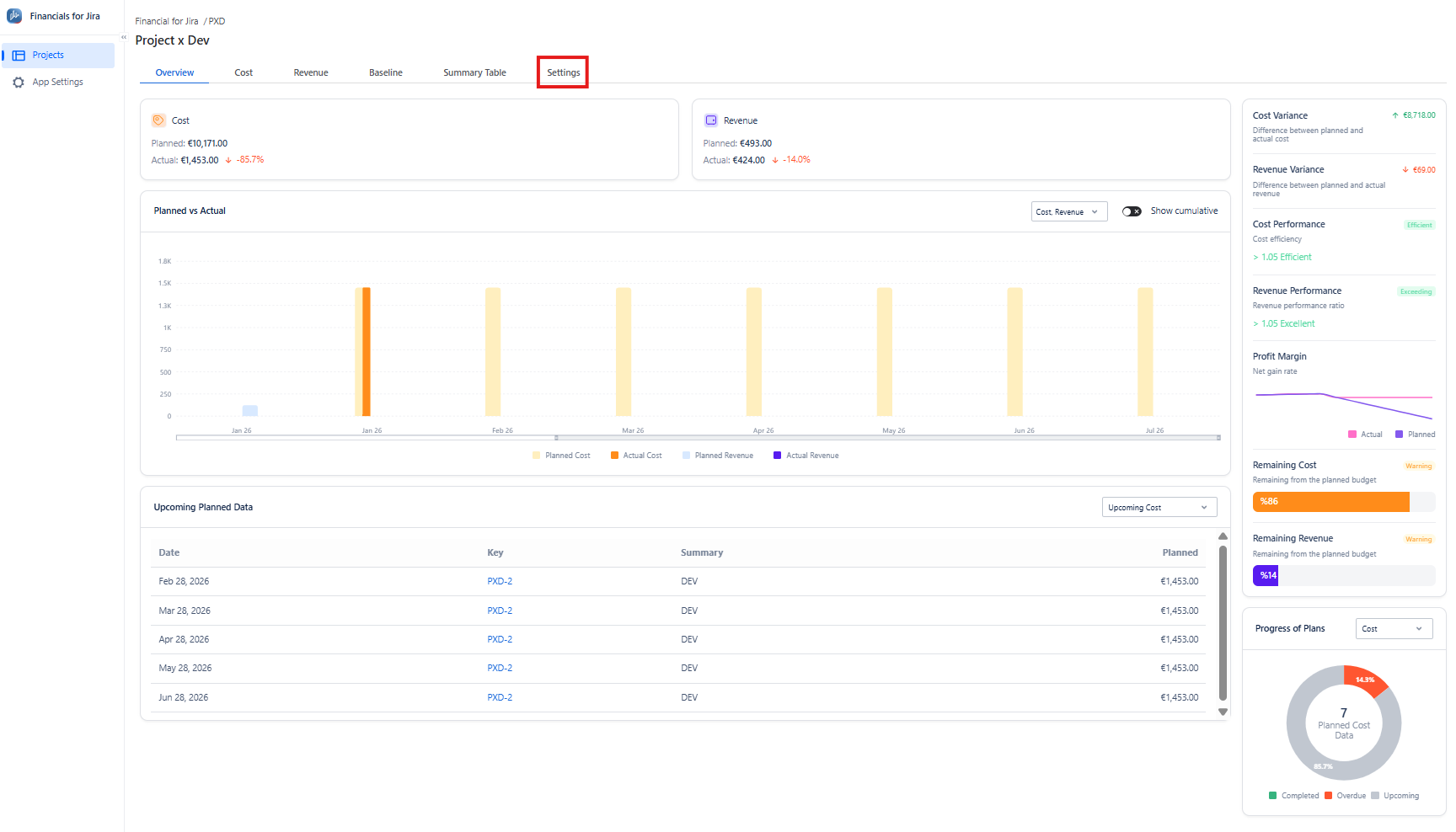
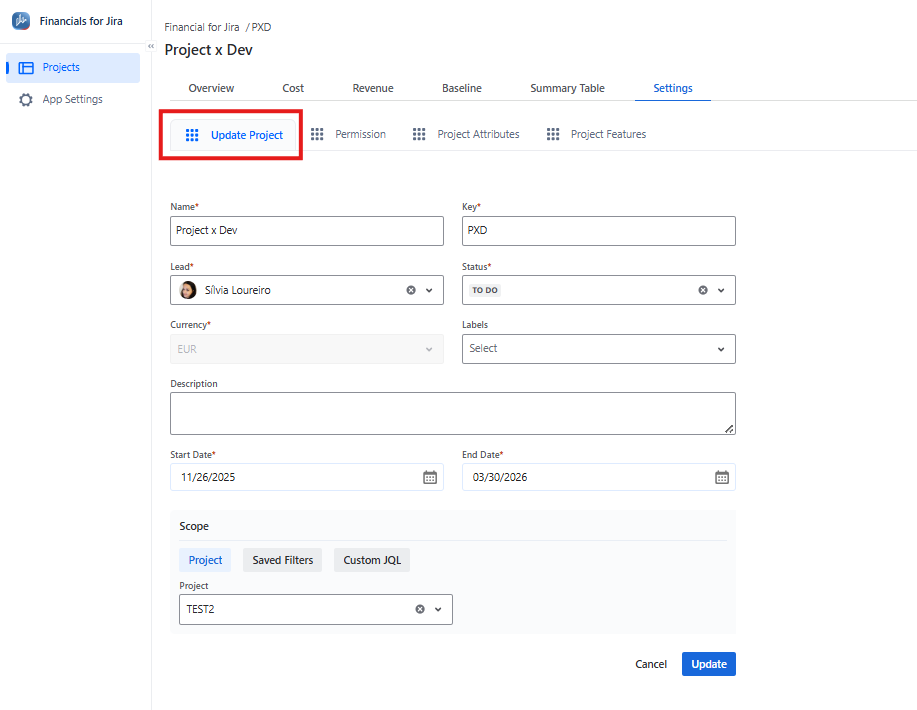
1.2.3. Once the project is open, click on Settings in the top menu. In the Settings screen, make the necessary changes to the fields you want to update.
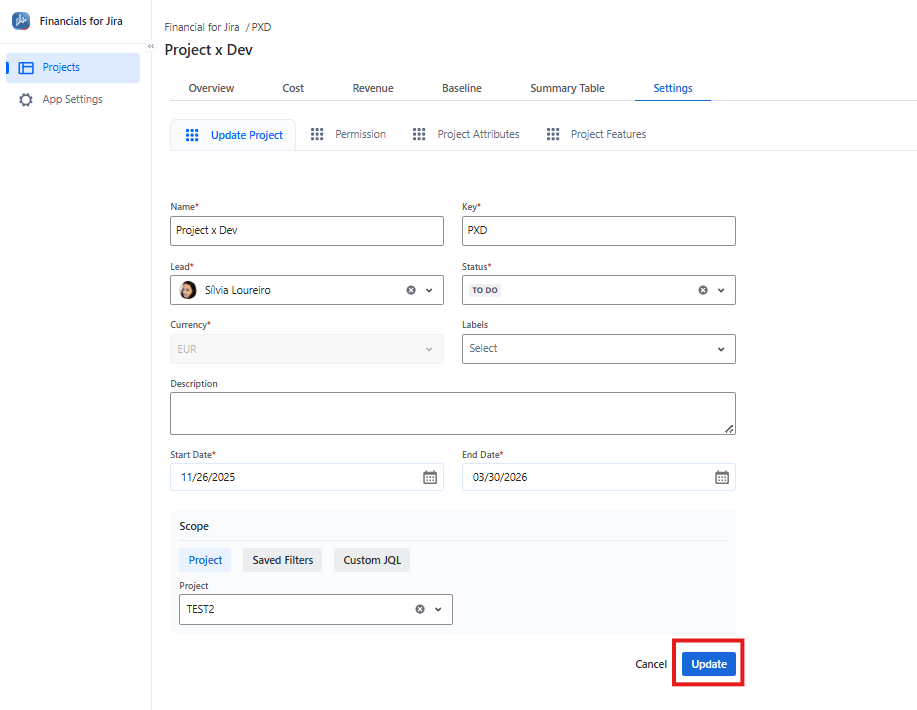
1.2.4. When finished, click the Update button to save your changes.
|
|---|
Note that after creating a Project you cannot edit/update the Currency field;
1.3. Constraints
When it comes to updating Projects, there are a few important considerations.
1.3.1. First and foremost, each Project name must be one-of-a-kind; no two Projects can share the same name.
1.3.2. Similarly, the Project key or identifier must also be unique, ensuring there are no duplicates.
1.3.3. Moreover, there's a specific limit for the value you can enter in the Project's Key field - it should fall within the range of 2 to 10 characters.
1.3.4. Lastly, it's essential to note that the Project Key should only include alphanumeric characters, excluding any special characters or symbols.
1.4. Issues that may arise
When you attempt to update a Project, there are several potential issues that you might encounter:
1.4.1. Firstly, you can't update a Project because someone else is already using the same Project name.
1.4.2. Similarly, you can't update a new Project because someone else is already using the same Project key.
1.4.3. Furthermore, you may run into issues caused by the use of invalid characters during the update.
1.4.4. Lastly, it is not possible to update a Project due to the lack of the necessary permissions.