
1. Create a Revenue or Cost Actual
1.1. Prerequisites
A user with create permissions can generate a new Revenue or Cost Actual for a particular Project.
1.2. How to
To create an Actual Revenue or Cost within the Project Management settings, follow these steps:
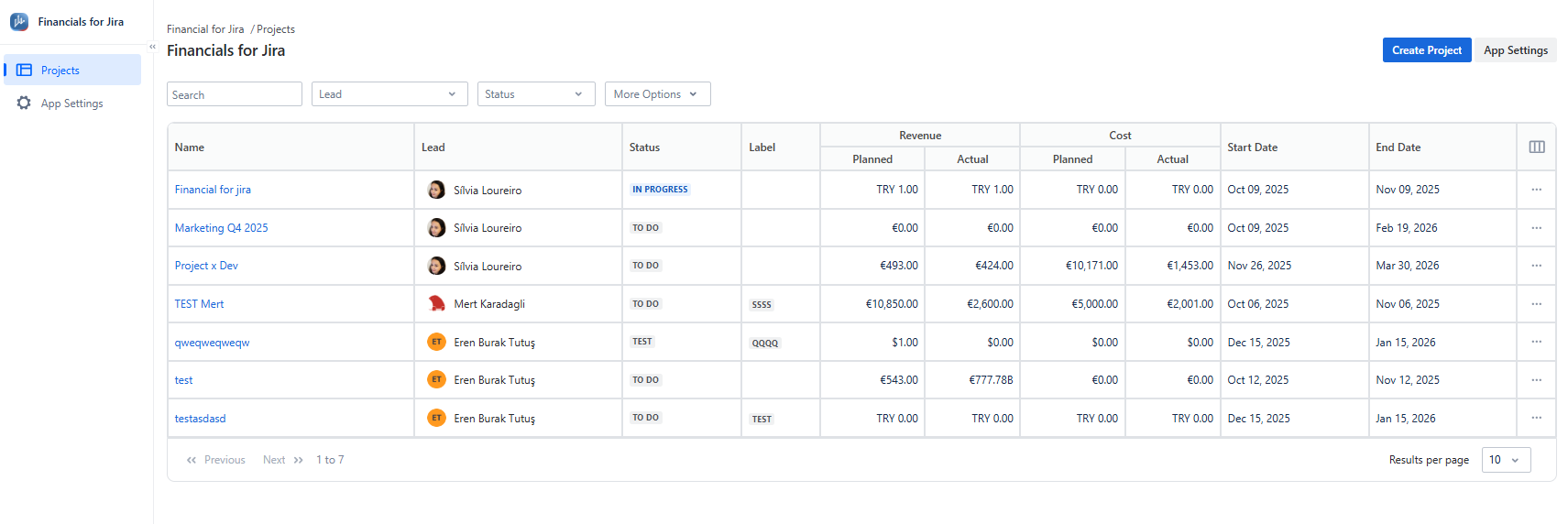
1.2.1. Go to the Projects panel.
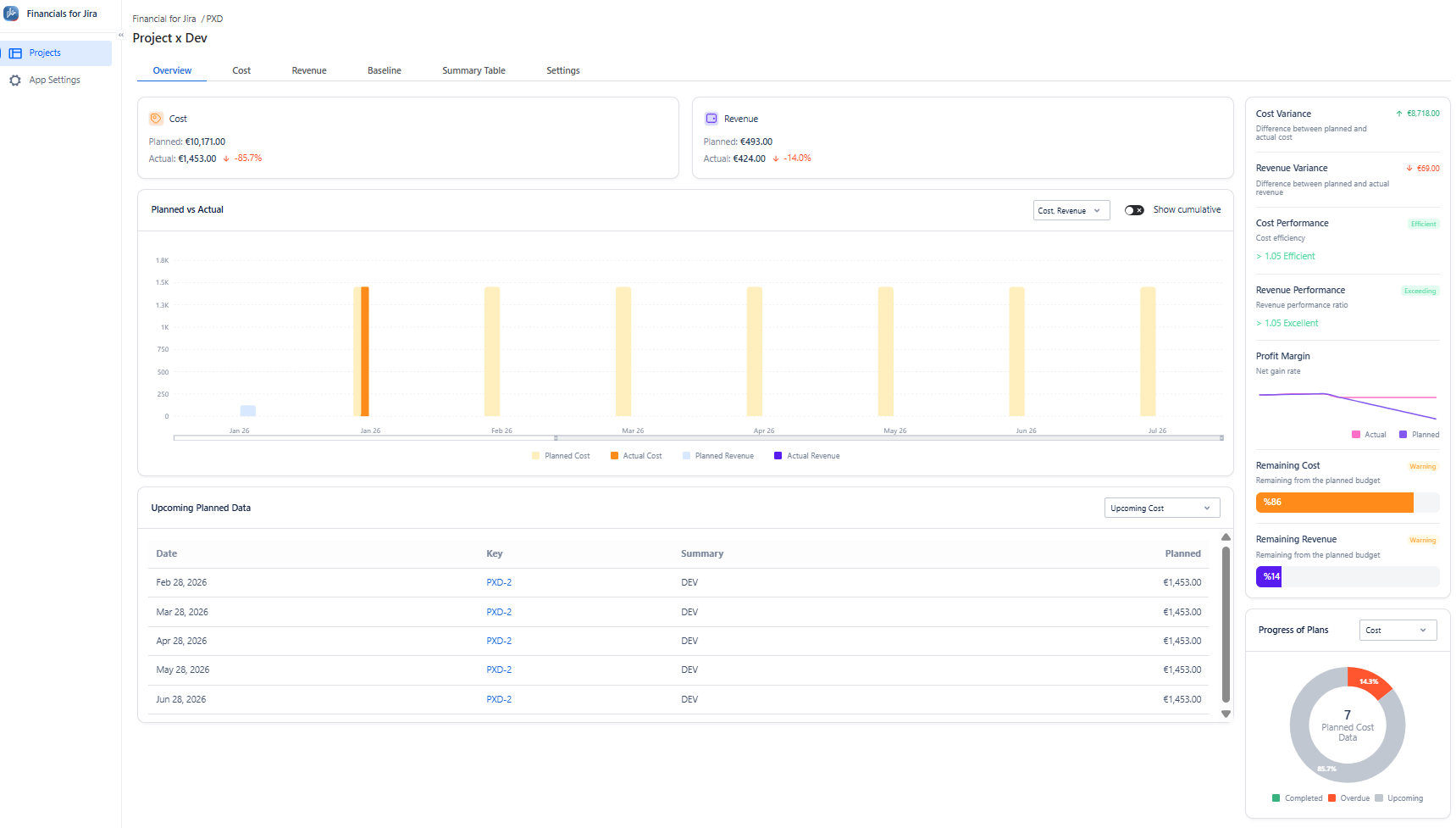
1.2.2. Click the project name to open its overview page, then select the project where you want to create the actual revenue or cost.
|
|---|
1.2.3. From the top menu, click the Revenue or Cost tab to open the corresponding list panel.

|
|---|
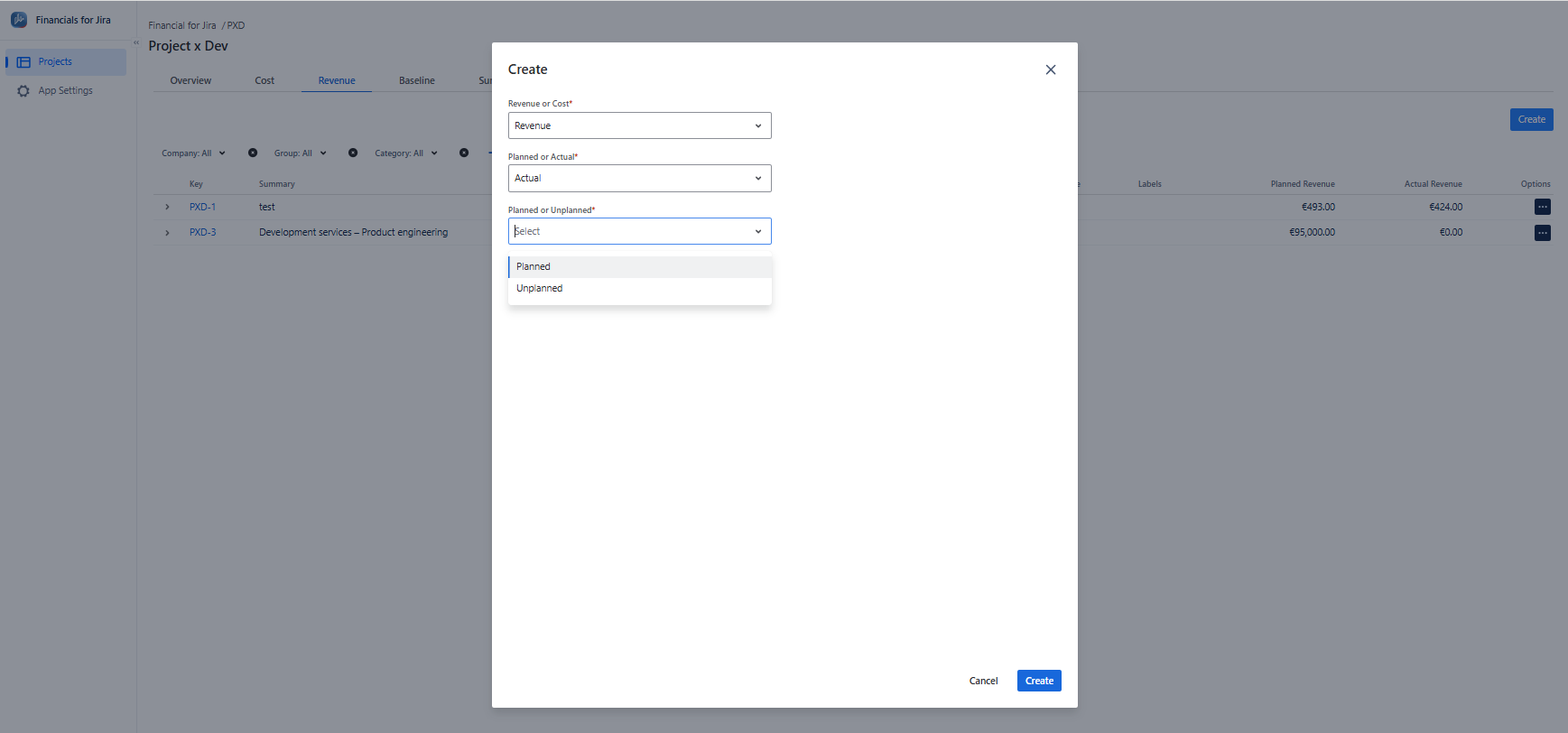
1.2.4. Click the Create button to open the panel for creating a new Revenue or Cost.
1.2.5. When Actual is selected while creating a Revenue or Cost, a Planned or Unplanned option will appear.
-
Planned Actual refers to an intentional, expected action of generating revenue or incurring cost.
-
Unplanned Actual refers to unexpected or unplanned Revenue or Cost that was not accounted for in the original project/
|
|---|
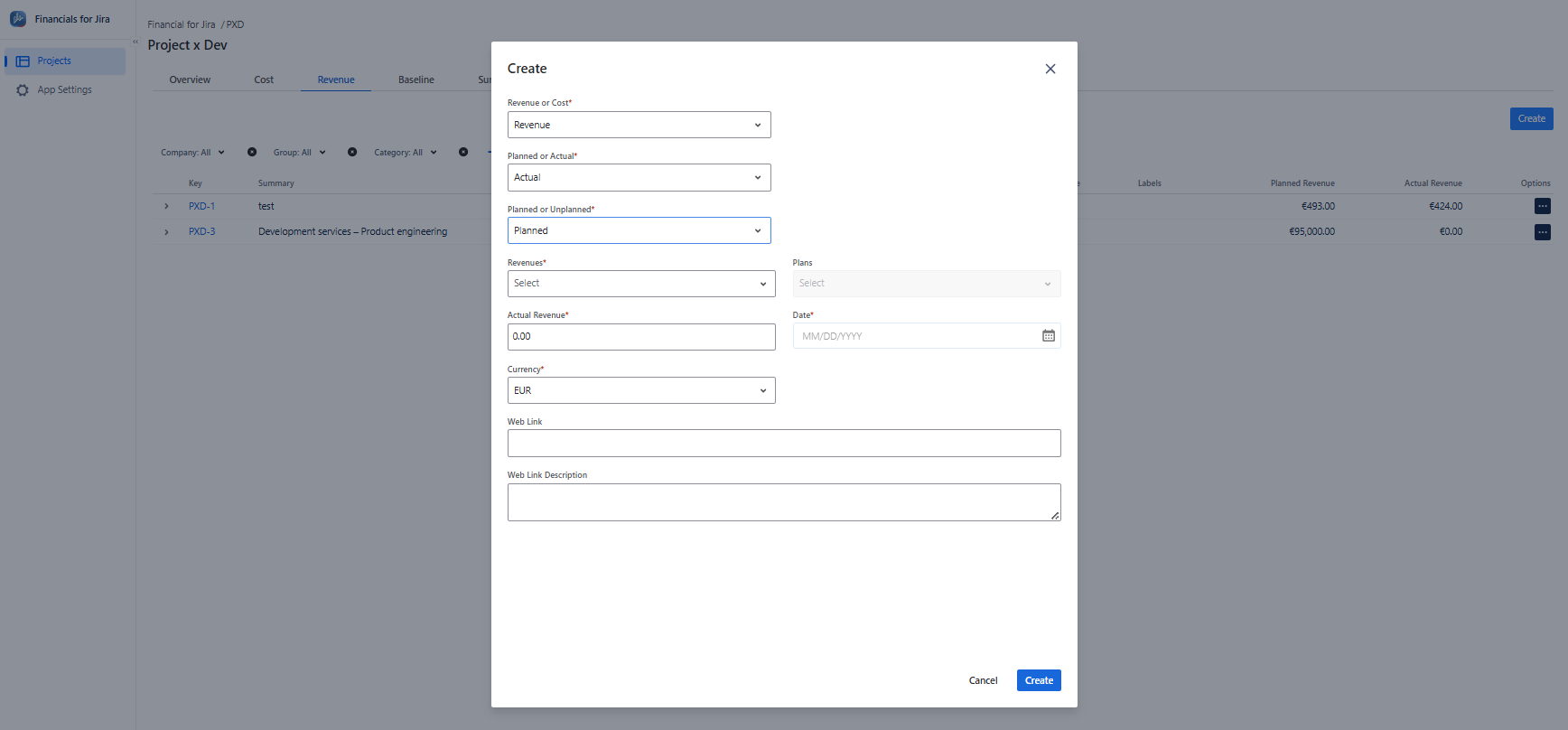
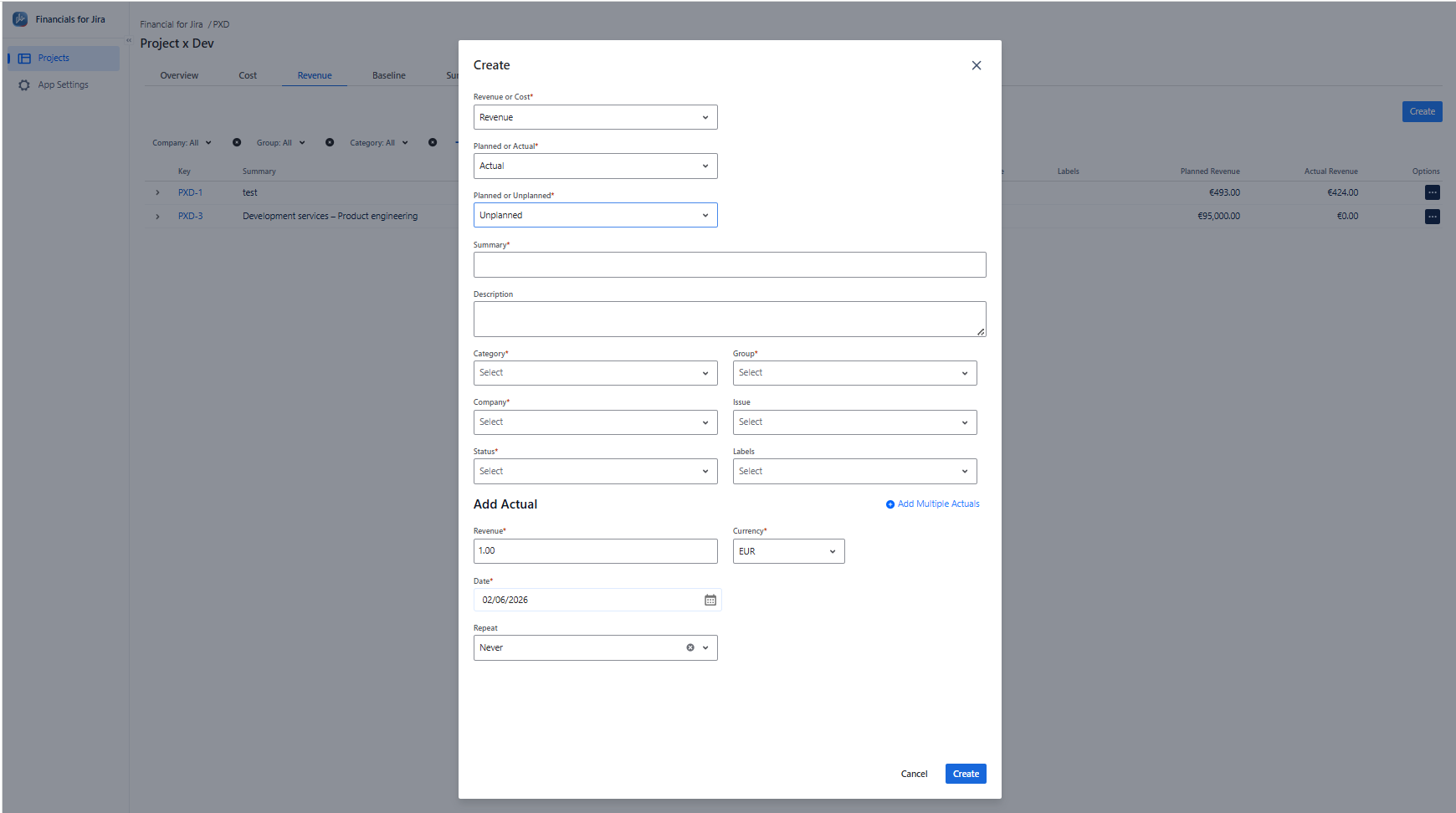
1.2.6. After choosing Planned or Unplanned, one of the following forms will open.
|
|---|
Categories are used to organize, sort, and group similar things together to facilitate understanding, navigation, and management.
Groups refers to a specific division, department, or section within an organization that focuses on a particular function, project, or aspect of the business. It helps structure and organize an organization's activities and resources based on specific goals or functions.
|
|---|
Use Repeat to define how often the schedule will run.
In the Method section:
-
Select Per Each to repeat the full amount for every occurrence.
-
Select Total to distribute the total amount equally across all occurrences.
1.2.7. Please complete the required fields.
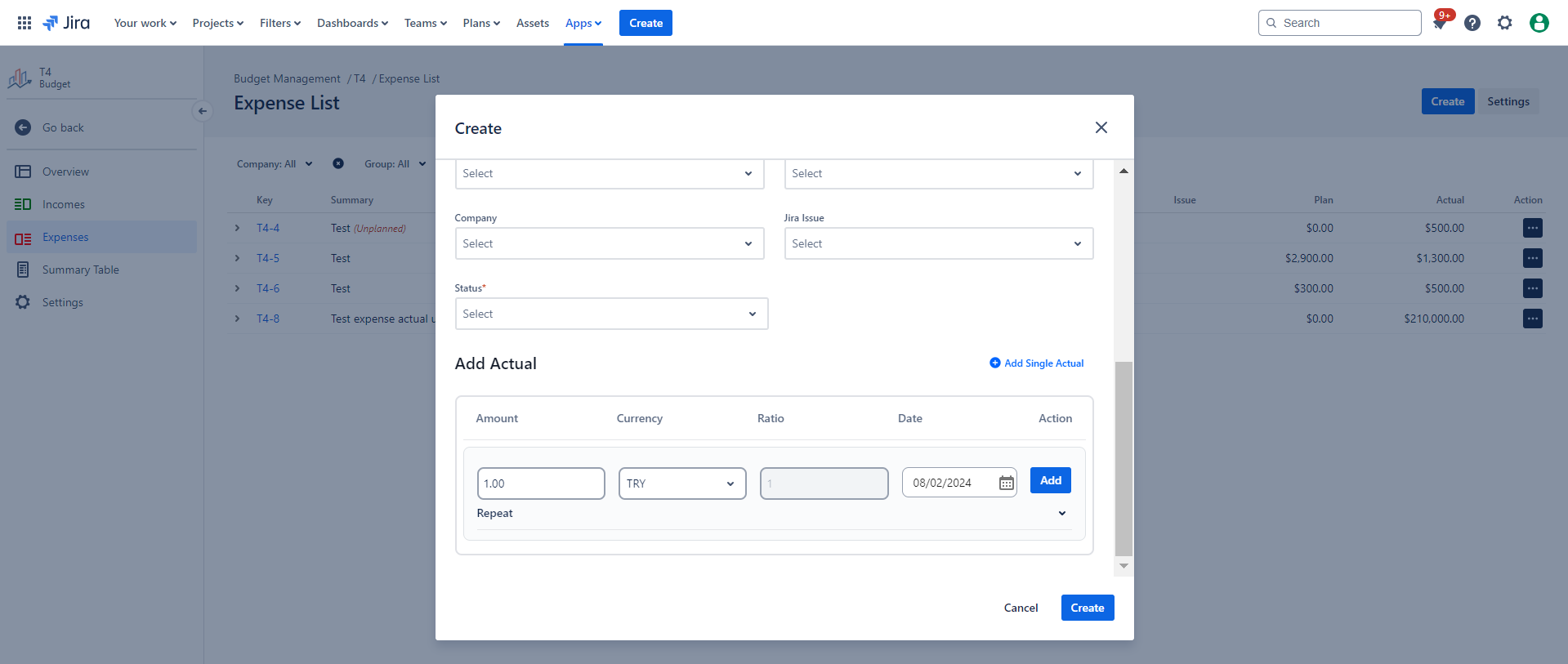
1.2.8. When creating a new Revenue or Cost Unplanned Actual, ensure that you supply all the required information, including having at least one defined Revenue or Cost in the "Add Actual" section to proceed.
Note that the Currency is automatically set to the value chosen during the Project creation process. If necessary you can Add Actual with a different currency ratio. Click Add Multiple Actuals, to add more actual with different currency, ratio, repeat or method.
|
|
|---|
1.2.9. Click Add.
1.2.10. Proceed by clicking on “Create” button.
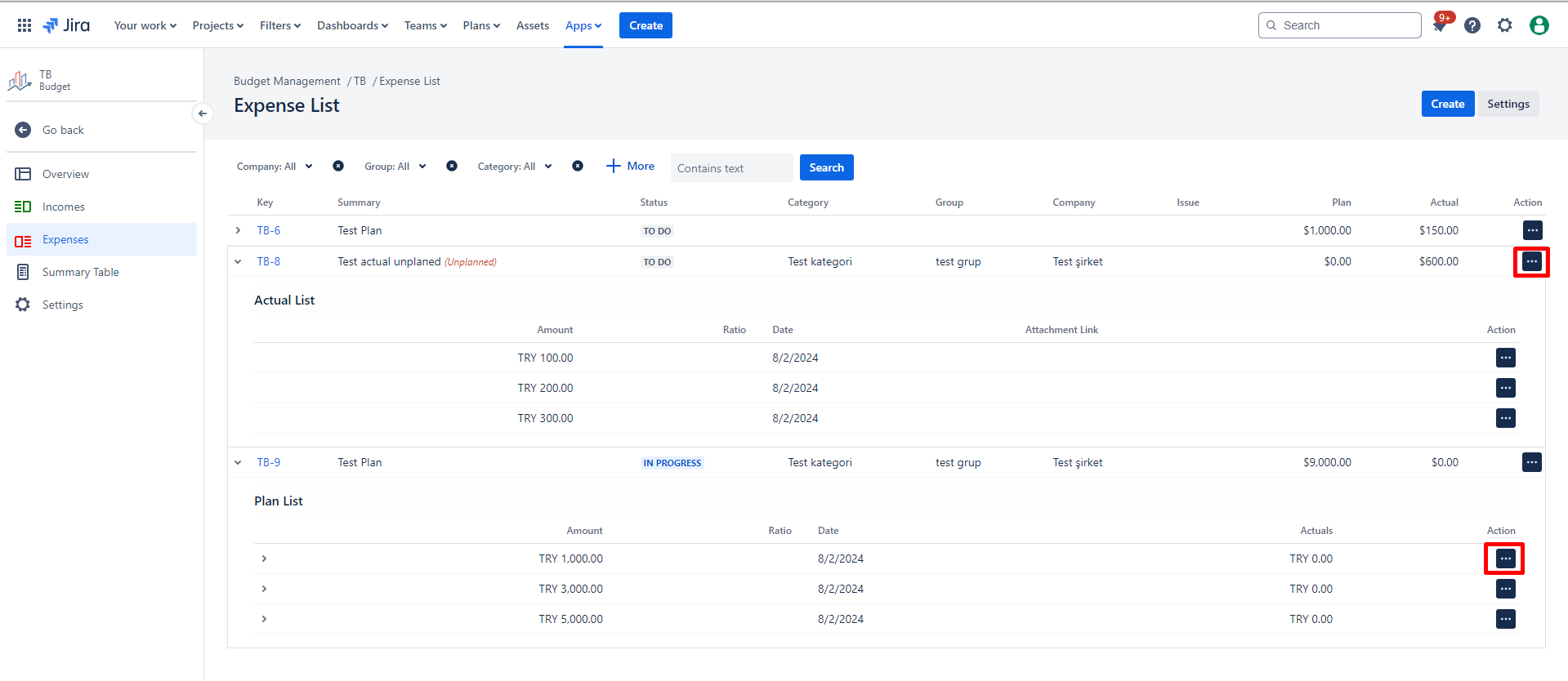
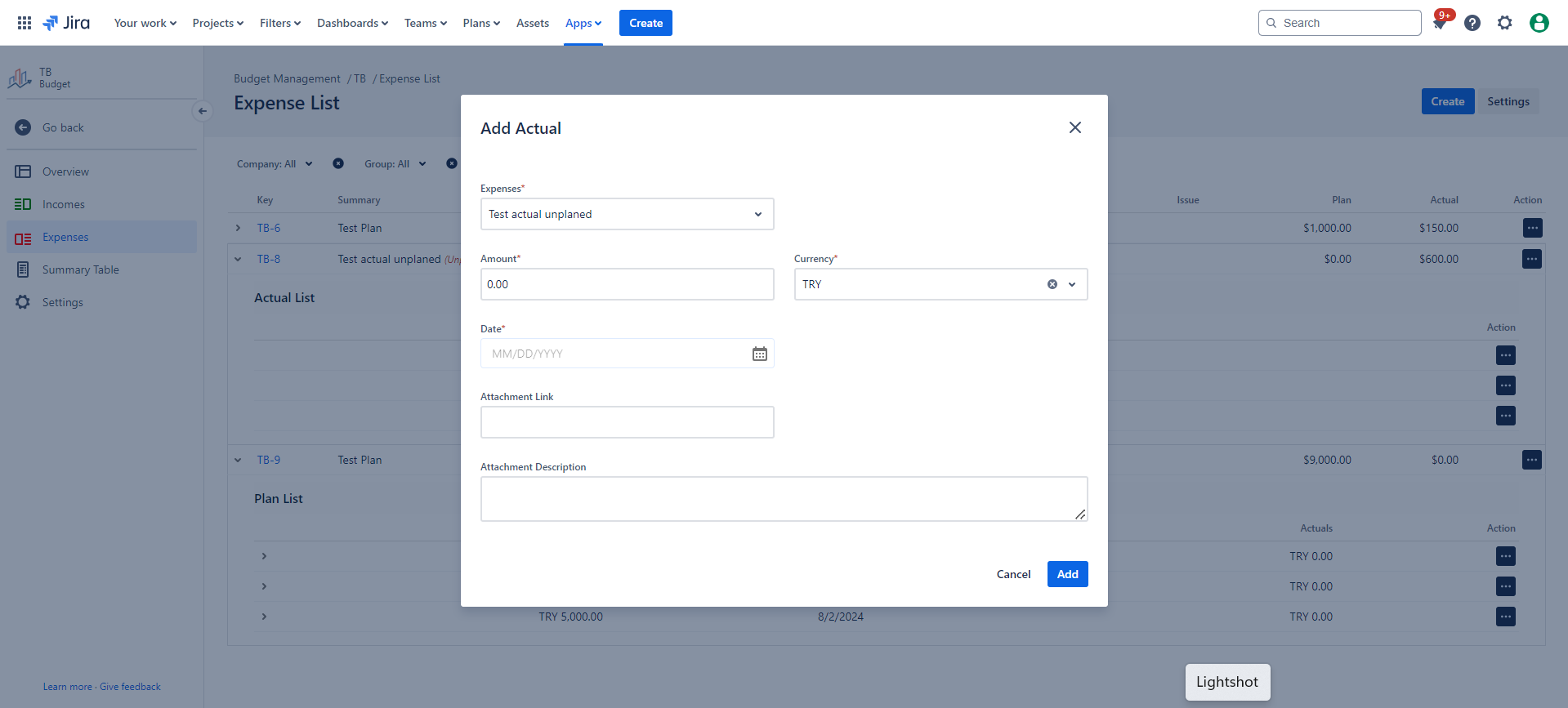
1.2.11. If you want to add an Actual to an Revenue or Cost Actual later, click the icon next to it. The following "Add Actual" screen will open.
You can add a new actual to an existing Actual or create an Actual from a Plan. Creating an Actual from a Plan is utilized when a portion of the Plan is actualized.
|
|
|---|
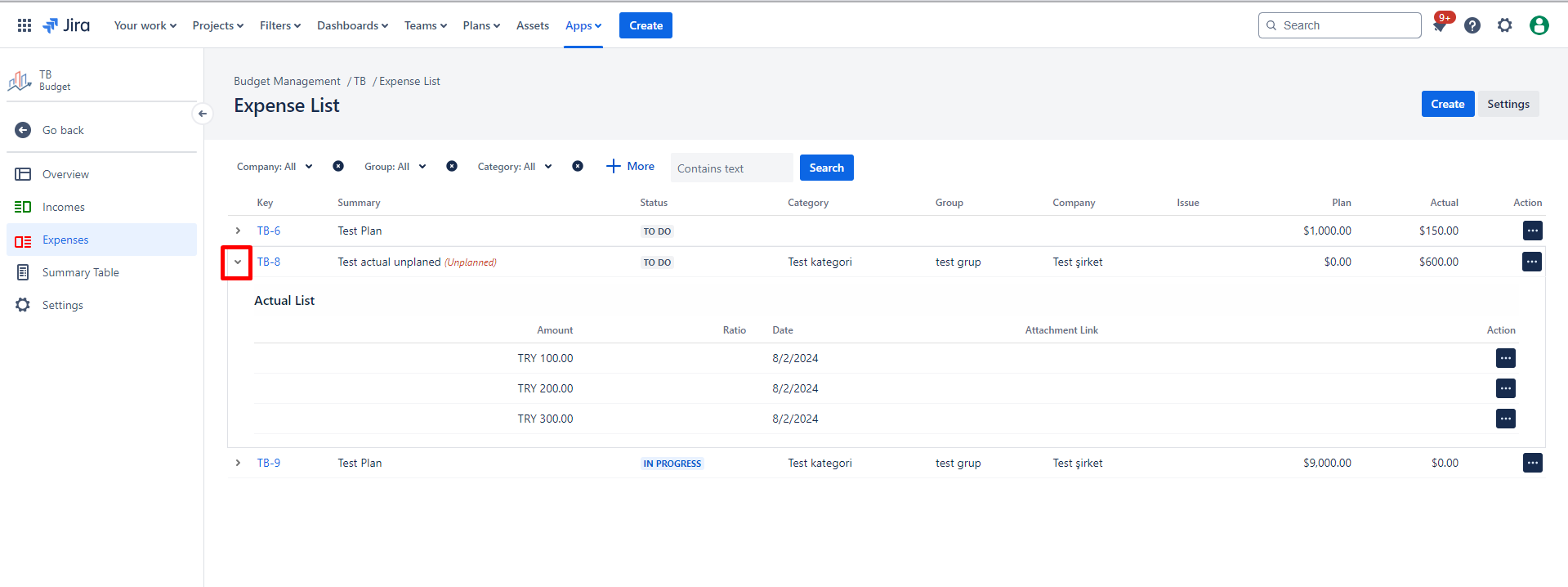
1.2.12. After creating, view the details by expanding the arrow.
|
|
|---|
1.3. Constraints
When it comes to Create an Revenue or Cost Actual, there are a few important considerations.
1.3.1. You can create an Revenue or Cost Actual with multiple entries.
1.3.2. Different Revenue or Cost Actuals can be created in different currencies, requiring a specified exchange ratio.
1.3.3. Required fields must be completed; otherwise, the creation will fail.
1.3.4. Necessary permissions are required to create an Revenue or Cost Actual successfully.
1.4. Issues that may arise
When you're attempting to Create an Revenue or Cost Actual, there are a couple of potential issues that might come up.
1.4.1. Lack of create permissions for the associated Project will prevent creation.
1.4.2. Failure to complete required fields will result in an error message.