
1. Delete a Revenue or Cost Plan
1.1. Prerequisites
A user with editing permissions can delete a Planned Revenue or Cost of a specific Project.
1.2. How to
To Delete a Planned Revenue or Cost within the Financials for Jira app, follow these steps:
1.2.1. Go to the Financials for Jira panel.
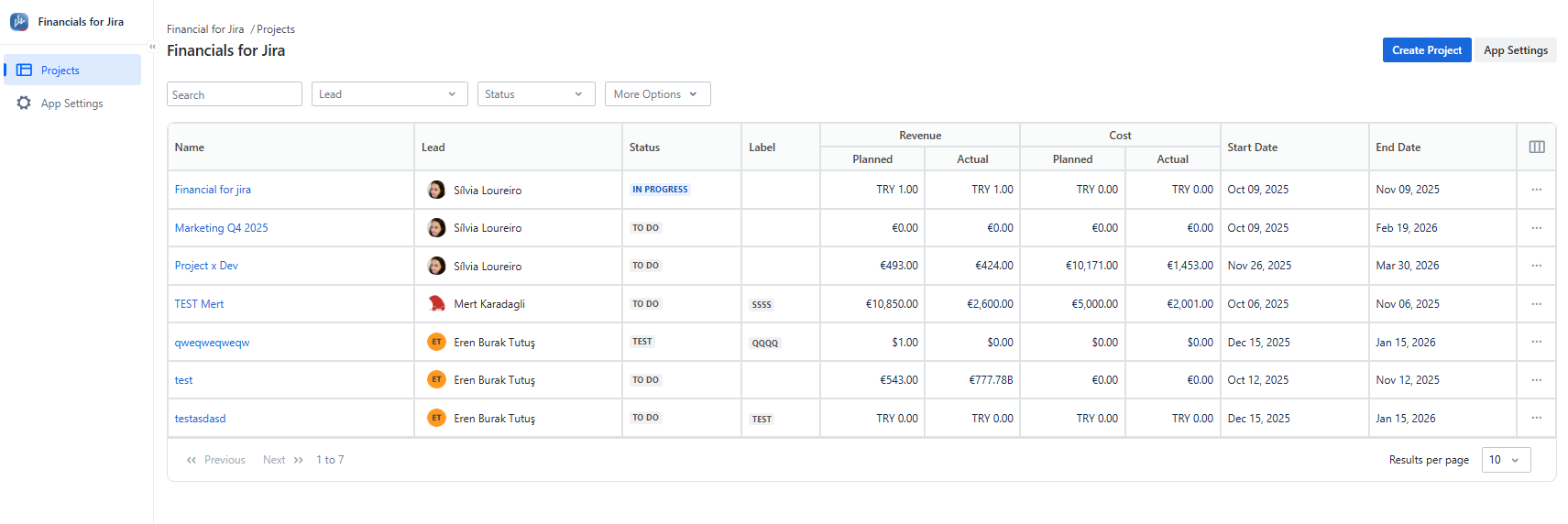
1.2.2. Click the project name to open its overview page, then select the project where you want to delete the planned revenue or cost.
|
|---|
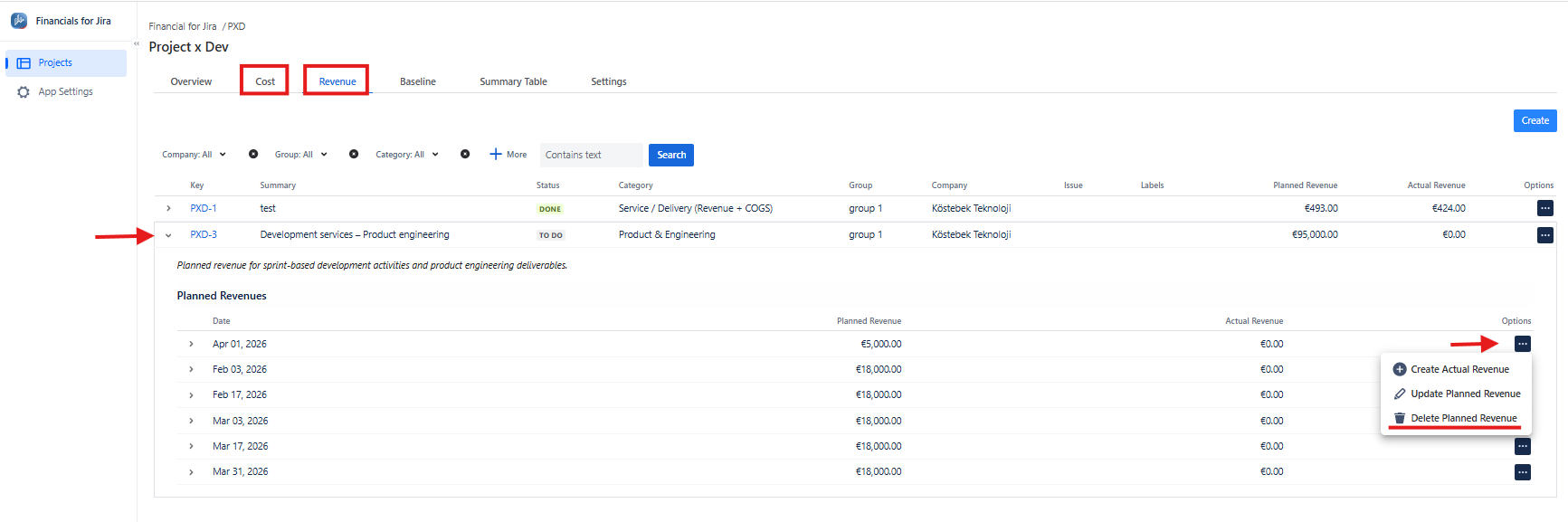
1.2.3. From the top menu, click the Revenue or Cost tab to open the corresponding list panel.
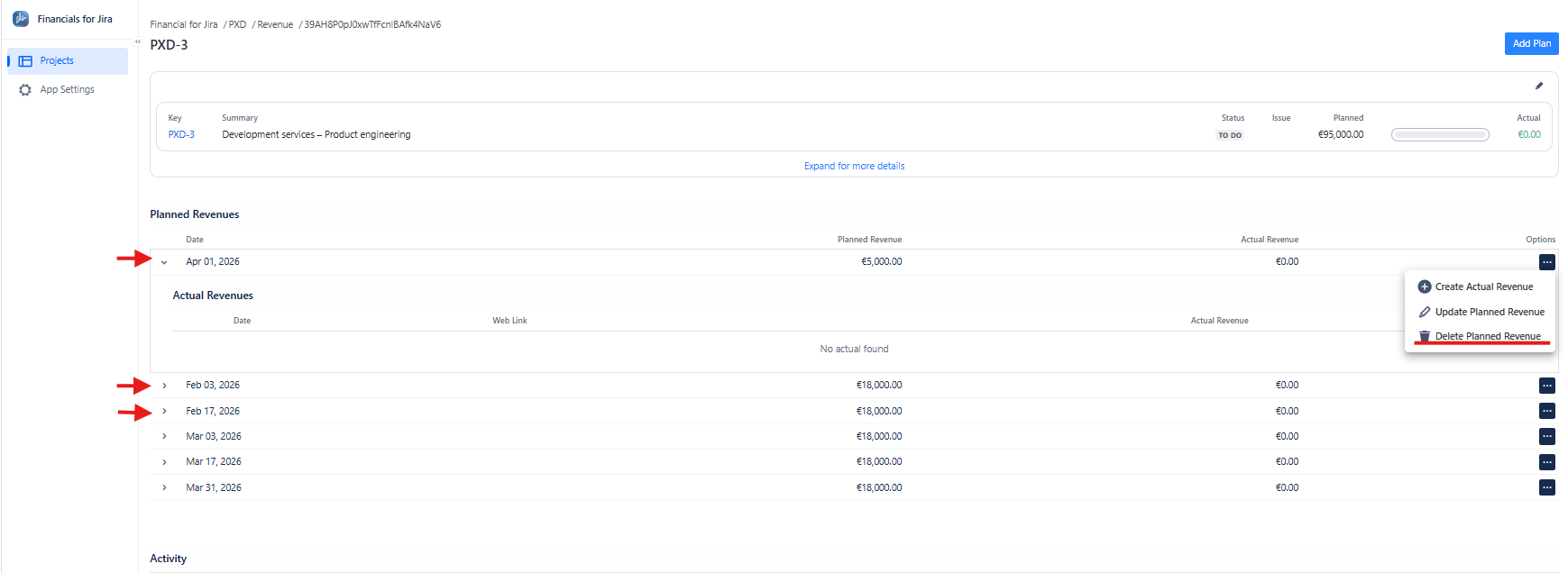
1.2.3.1 To access a planned Revenue or Cost, click the arrow on the left side of the Revenue or Cost key (1), or click the key link itself (2). This will open the Revenue or Cost details page.
(1) 
(2) |
|---|
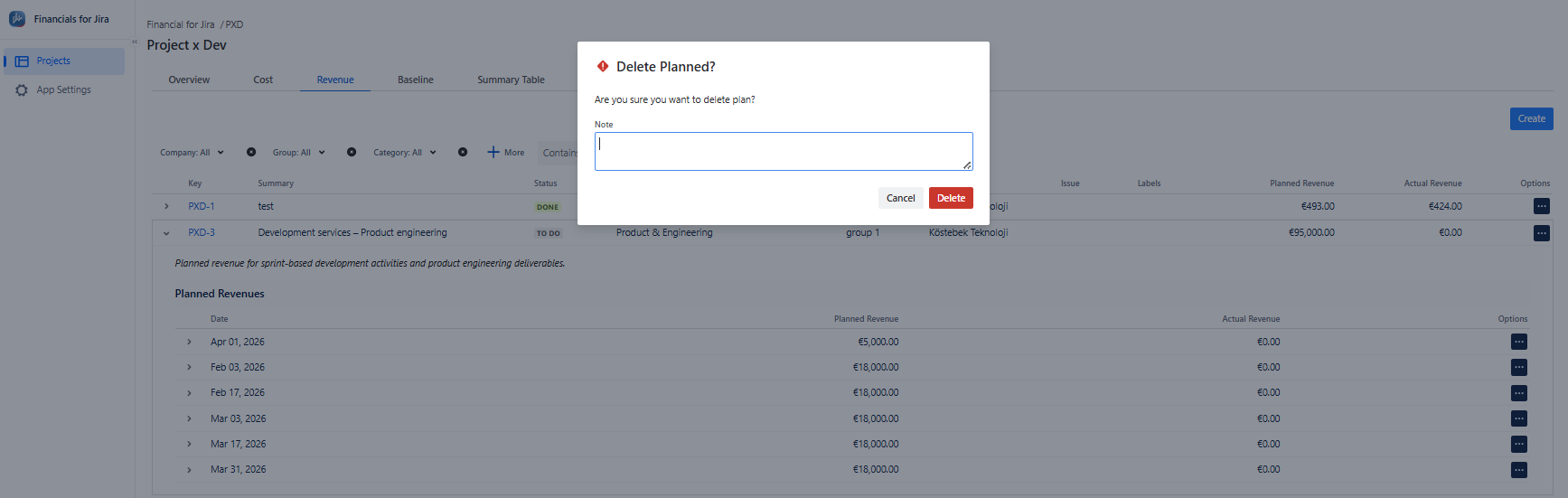
1.2.4. From the list, select the Planned Revenue or Cost you want to delete by clicking the three-dot menu and choosing Delete Planned Revenue or Cost.
|
|---|
Deleting a Revenue or Cost or a specific plan of a Revenue or Cost is different.
1.2.4. From the list, select the Revenue or Cost you want to delete by clicking the three-dot menu and choosing Delete Revenue or Cost.
Thus, you can delete a single plan associated with a Revenue or Cost.
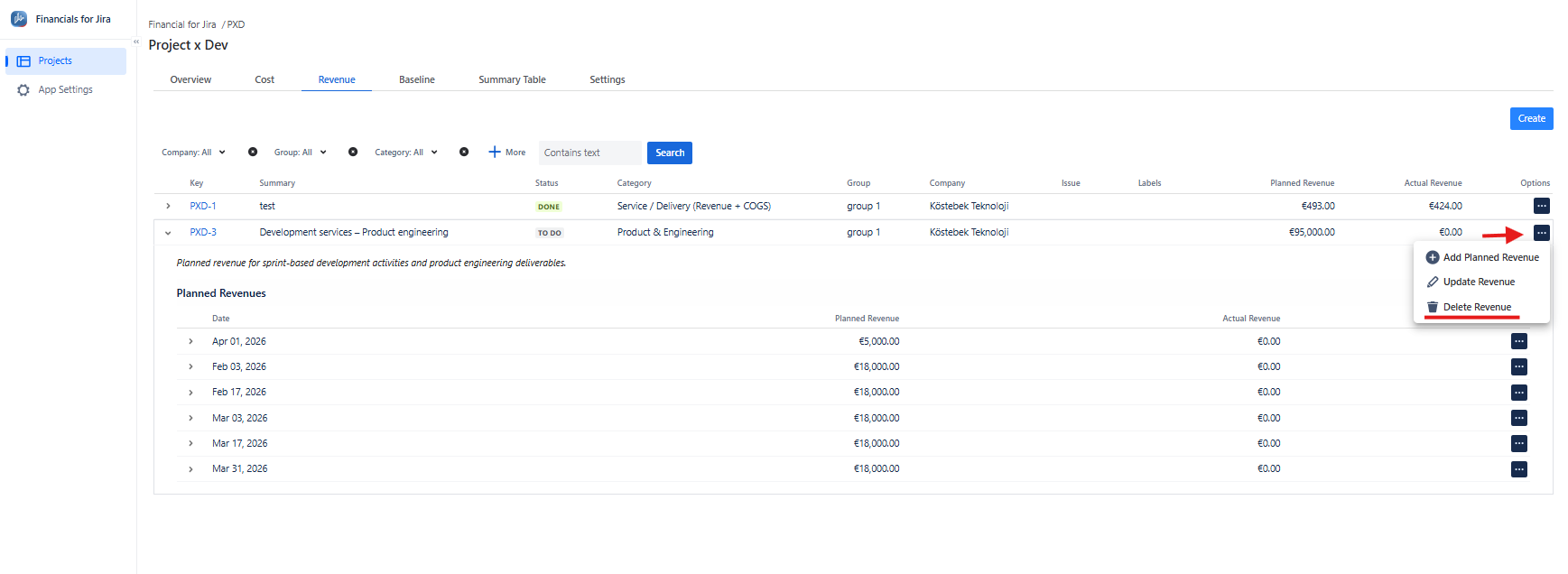
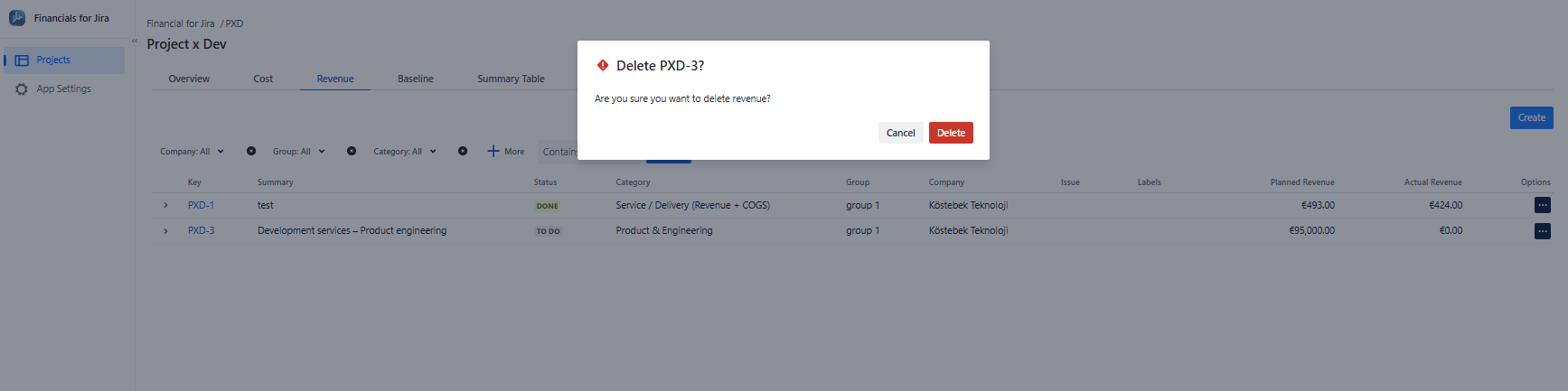
Delete Revenue or Cost |
|---|
1.3. Constraints
When it comes to Delete Revenue or Cost Plan, there are a few important considerations.
1.3.1. Deleting a Revenue or Cost Plan requires the necessary permissions.
1.3.2. A Revenue or Cost Plan with an associated actual payment cannot be deleted.
1.4. Issues that may arise
When you attempt to Delete Revenue or Cost Plan, there are several potential issues that you might encounter:
1.4.1. Lack of delete permissions for the associated Project will prevent deletion.
1.4.2. Failure to confirm the deletion in the displayed warning message will result in an unsuccessful attempt.